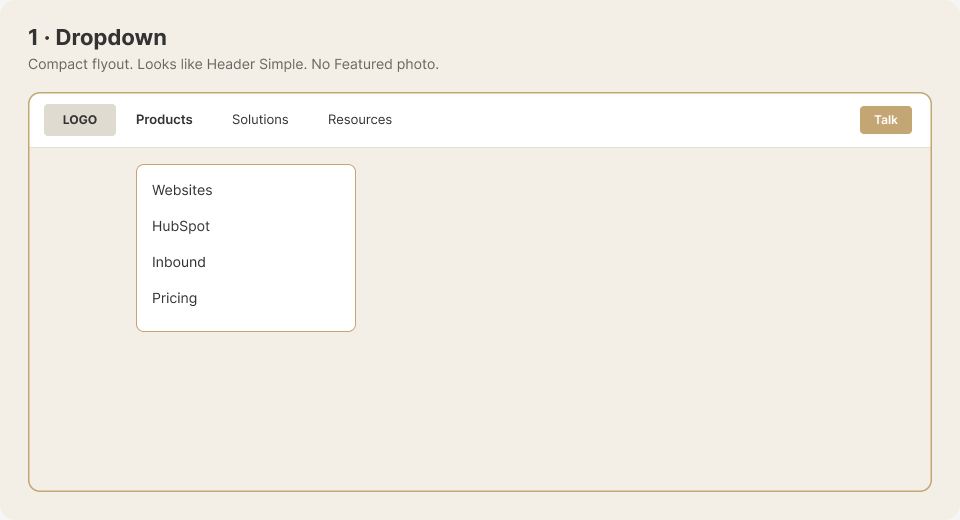
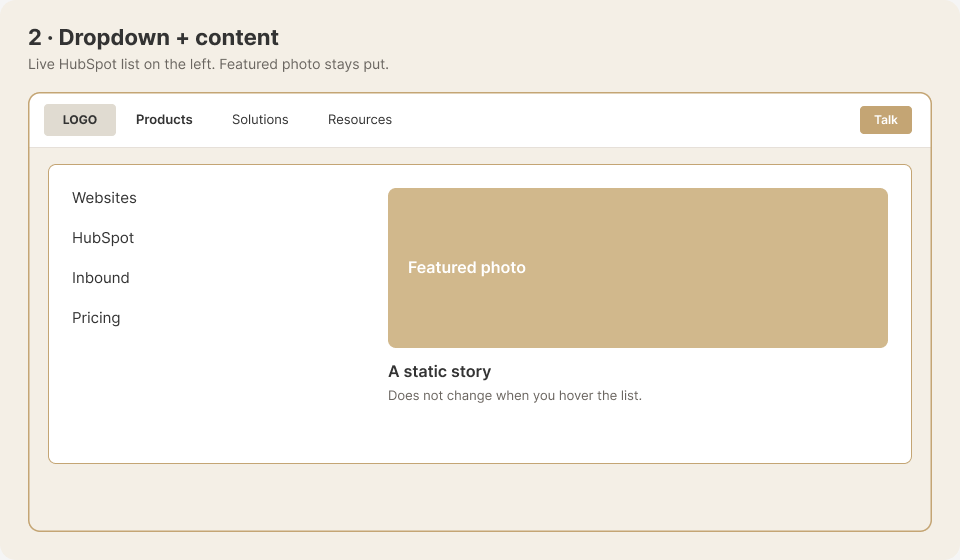
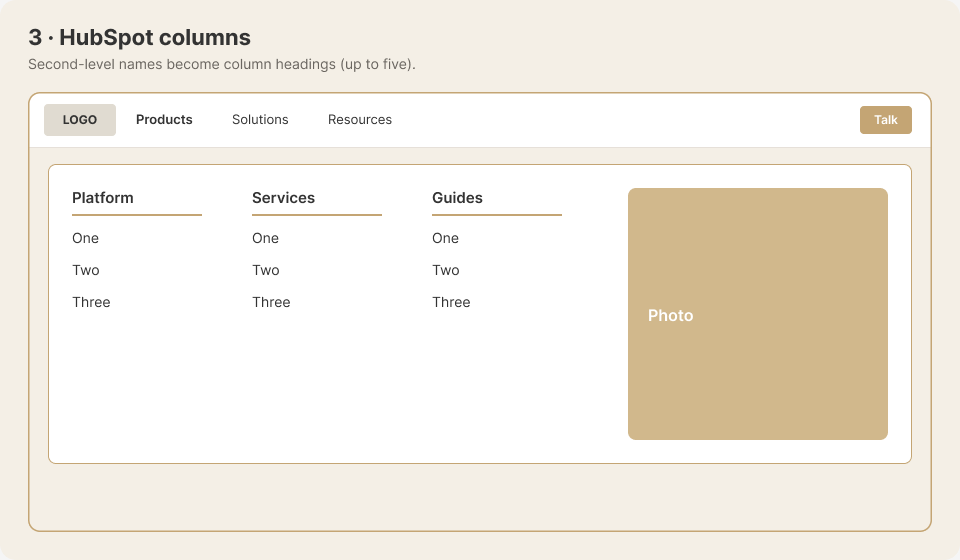
HubSpot columns: Second-level HubSpot menu items become column headings, with up to five columns plus Featured content. View the HubSpot columns example.
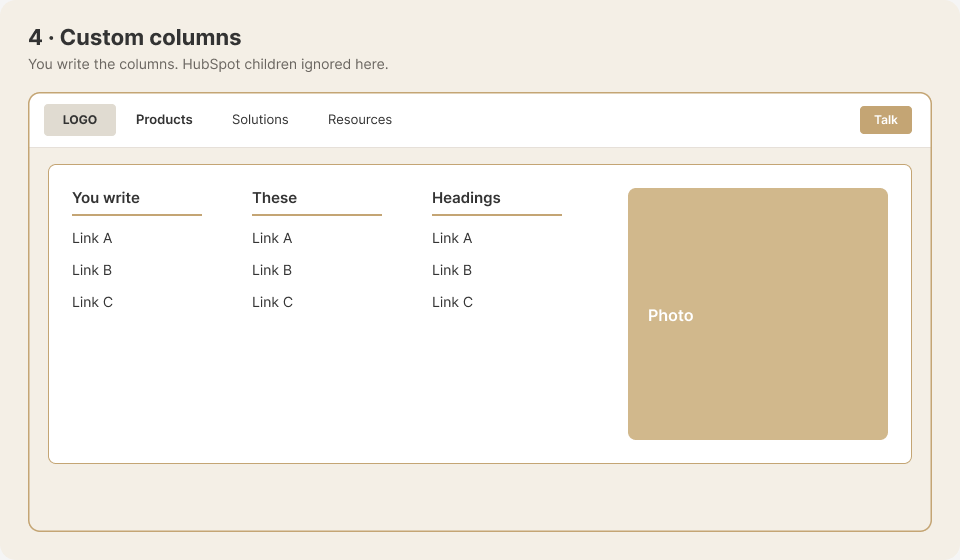
Custom columns: You write the desktop columns, while HubSpot child items are not shown there. Featured content remains available. View the Custom columns example.
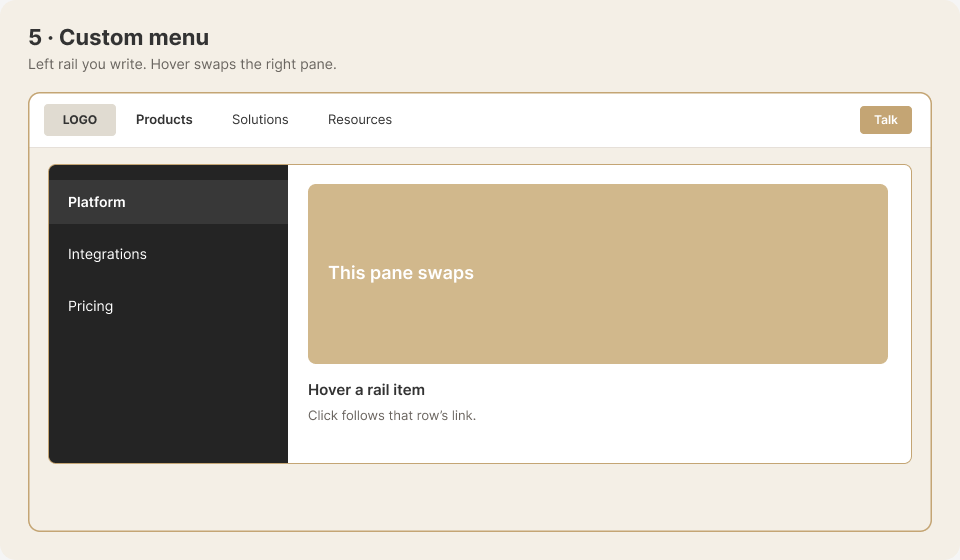
Custom menu: You write a left-side menu whose hovered item changes the content on the right. View the Custom menu example.
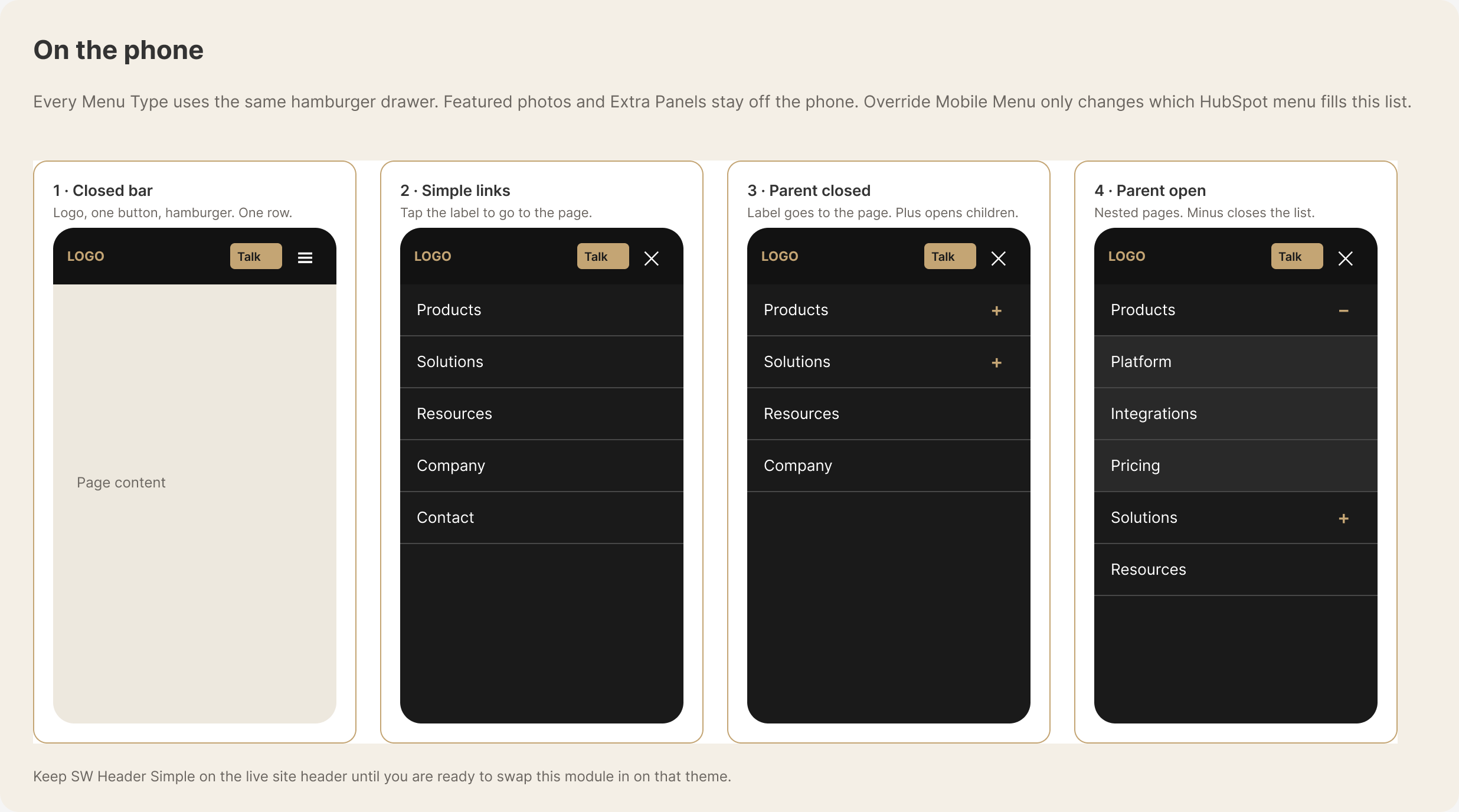
On phones, all five types use the same hamburger menu.
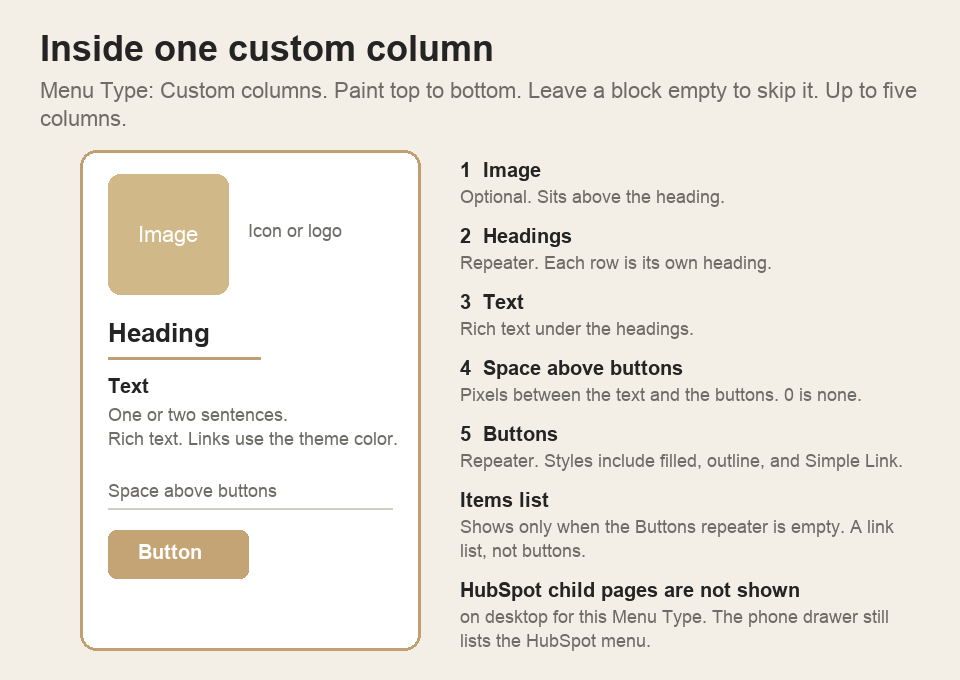
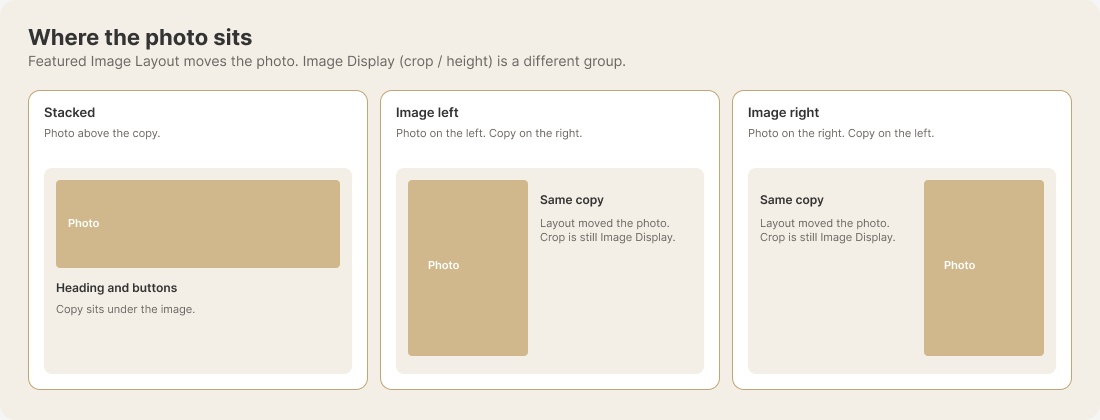
For Custom columns, each column is Image, Headings, Text, space above the buttons, then Buttons. The diagrams below show that stack, three layouts any site can use, where Featured sits, and Card versus Plain.
Open Image Display, choose Fixed height, set Height (px), and pick an Anchor (where the crop keeps focus). That crops the photo with cover.
Natural keeps the photo’s own height. Left vs stacked is still Featured Image Layout, not Image Display. Optional Desktop Image / Tablet Image replace the file at those viewports — leave them empty to keep the XL photo, resized.
Review SW Header Mega for the matching settings and examples.
XL is the image used for the largest screens, and it is also the fallback for smaller screen sizes. If Desktop Image is empty, the module keeps the XL image and resizes it for the desktop layout. If Tablet Image is also empty, the same fallback continues to tablet. The order is XL image, then an optional Desktop override, then an optional Tablet override; leaving an override empty does not hide the image.
Review SW Header Mega for the matching settings and examples.
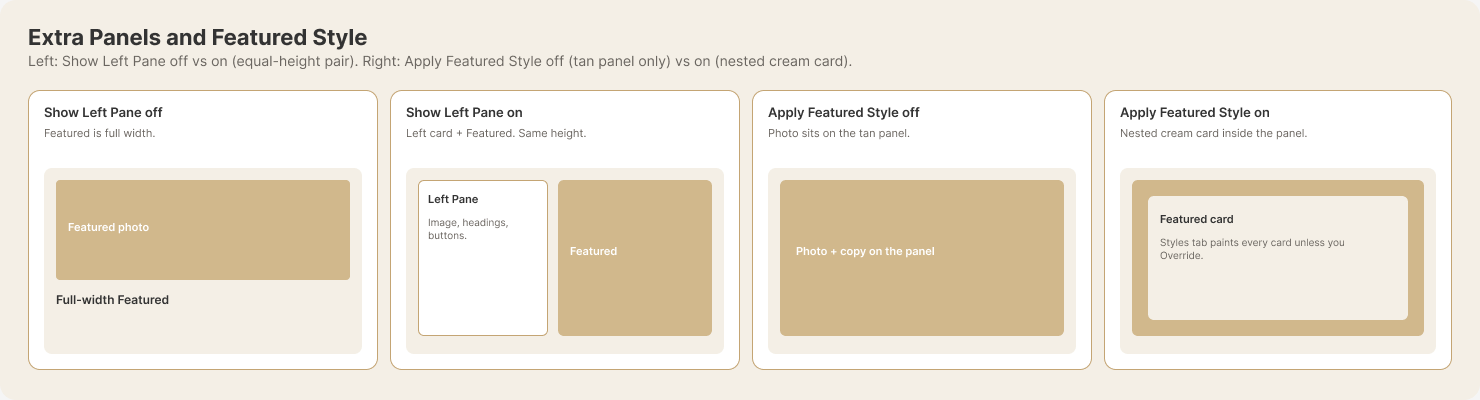
Apply Featured Style sets the default Featured treatment for every mega-menu card that does not have its own override. Override Featured Style changes that treatment for one Mega or Extra card only. This lets you keep a consistent default while making an intentional exception on a specific card. The same default-and-override idea applies to column styling and the left pane. View the Featured Style comparison.
Review SW Header Mega for the matching settings and examples.
Turn on Show Left Pane for that Extra Panels card. The left pane and Featured card will stretch to the same height. Add the image, headings, content, or buttons you want in the left pane. If Show Left Pane is off, the Featured area uses the full width instead. View the Extra Panels comparison.
Review SW Header Mega for the matching settings and examples.
On phones, every Menu Type uses the same mobile hamburger menu. Featured images and Extra Panels stay hidden so visitors get a simpler list of HubSpot menu items. Override Mobile Menu changes which HubSpot menu appears in that list; it does not add the desktop panels or images.
Yes. Crop, height, and Desktop/Tablet replacement files are one set per panel. Each rail row still has its own Media file.
Hover or focus swaps the right pane. Click follows that row’s link. Leave Desktop/Tablet Image empty to keep the XL photo, resized — empty does not hide.
Review SW Header Mega for the matching settings and examples.
On Menu Type: Custom columns, each column paints top to bottom. Leave a block empty to skip it. You can add up to five columns. The same shape is on Mega Panels and Extra Panels.
Image — optional icon or logo above the heading.
Headings — each row is its own heading. An empty Headings repeater prints nothing.
Text — rich text under the headings. Links use the theme link color.
Space above buttons — pixels between the text and the buttons. 0 is none.
Buttons — filled, outline, gradient, or Simple Link. The icon stays on the same line as the label.
The Items list shows only when the Buttons repeater is empty. Adding a button replaces that list. HubSpot child pages are not shown on desktop for this Menu Type. The phone drawer still lists the HubSpot menu.
Review SW Header Mega for the matching settings and examples.
Column Title names that column in the editor. It does not appear on the page.
Display Size on a heading changes how large the text looks. Size still chooses the HTML tag. Auto follows that tag. H1 through H6, a paragraph, and L through XXXL use your theme’s heading sizes.
Link the card is off until you turn it on. On, the whole column opens the page you set, even when the column has no button. A button on that card keeps its button or text-link look and is not a second link. Leave Link the card off when the button or the item list should be the only link.
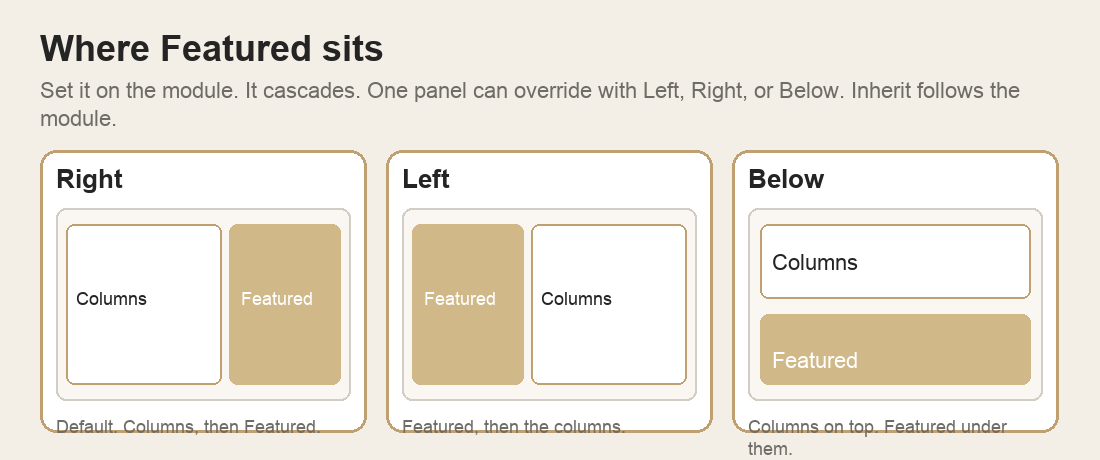
Set Featured Position on the module. It cascades to every panel. One panel can override it.
Right — default. Columns, then Featured.
Left — Featured, then the columns.
Below — columns on top, Featured under them.
Inherit on a panel follows the module. Left, Right, or Below replace it on that panel only.
Image Fit Cover fills the frame and crops. Contain shows the whole image. Image Scale is 10–100 (default 100). Under 100, the image is that percent of the pane. Align it left, center, or right. Vertical alignment applies only when Featured has no copy of its own.
Review SW Header Mega for the matching settings and examples.