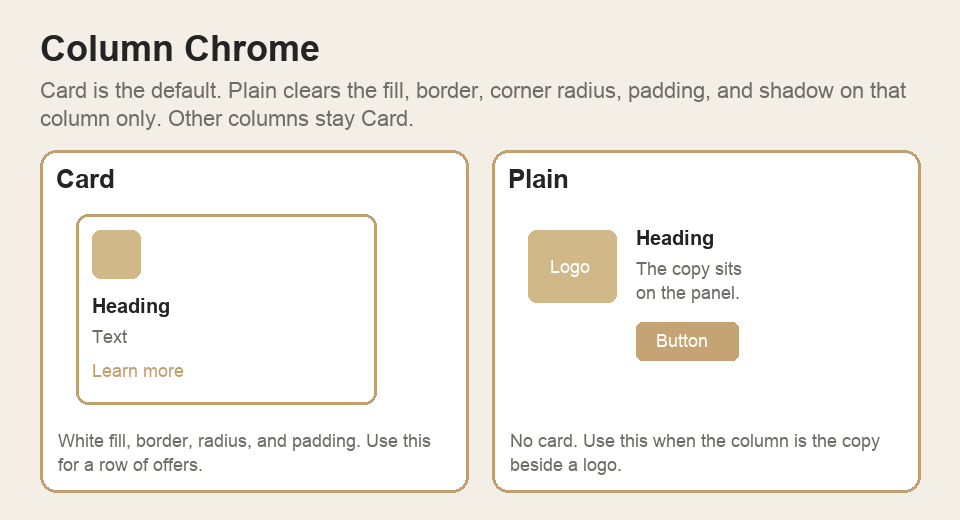
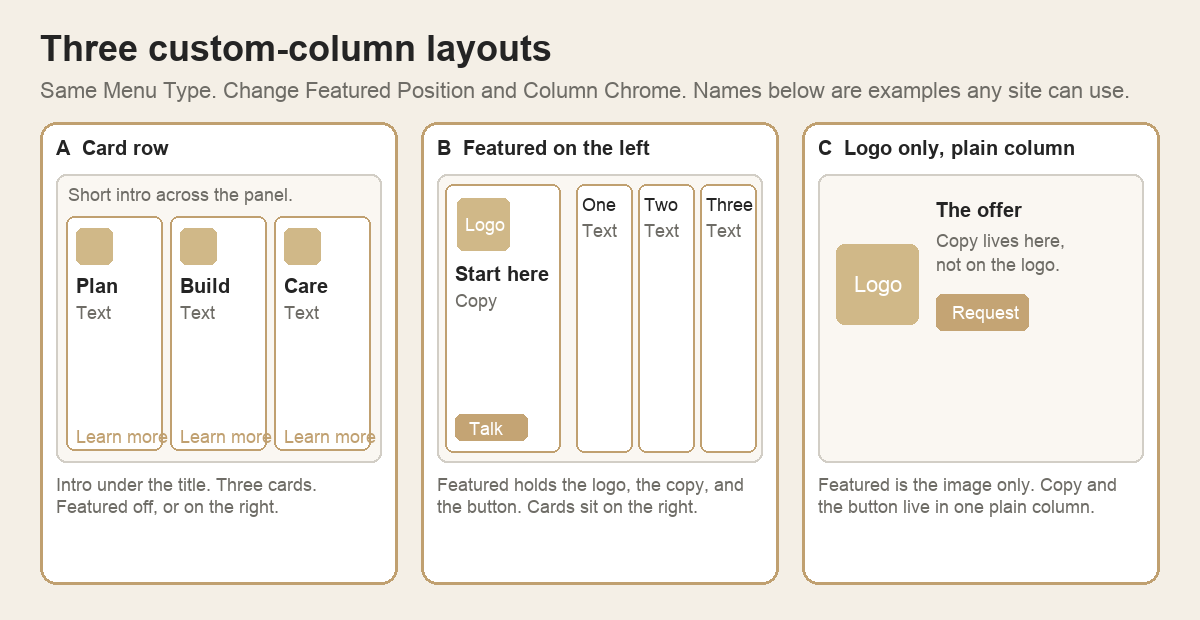
Menu Type stays Custom columns. Change Featured Position and Column Chrome. The names in the diagram are examples any site can use.
Card row. A short intro under the title. Three or more columns with Column Chrome Card (icon, heading, text, Simple Link). Featured off, or on the right.
Featured on the left. Featured holds the logo, the heading, the text, and the button. Card columns sit on the right. Featured Position Left.
Logo only, plain column. Featured is the image only. Image Fit Contain, scale under 100. The heading, text, and button live in one column with Column Chrome Plain.
Review SW Header Mega for the matching settings and examples.
Open Style → Screen Overlay. Check the menu types that should dim the page behind the header and the open menu:
Dropdown
Dropdown + content
HubSpot columns
Custom columns
Custom menu
Checking only Custom columns dims every Custom columns menu and leaves the other types clear. Leave every box unchecked for no dim. Existing headers stay clear until you check a type.
Overlay Color sets the dim. It starts at black with 25% opacity. Change the color, the opacity, or both.
The header and the open menu stay full strength. The dim covers the rest of the page and eases in quickly. The phone menu does not use this dim.
Turn on Link the image, then set Media Link to the page. Off leaves the image unlinked. HubSpot’s sample address is not a real link until you replace it.
The link is the image only. Headings, text, and buttons on that block keep their own links.
The same toggle is on Featured, the left pane, and each custom menu row. These image links are not on the phone menu.
SW CTA Popup Events is a corner popup that promotes one upcoming event from a Google Sheet. It uses the same layout and trigger controls as SW CTA Popup and the same Sheet columns as SW Events Basic. An upcoming featured event takes priority; otherwise, the popup selects the next event by date. When no upcoming events remain, you can hide the popup or show a fallback CTA.
Use SW CTA Popup for a simple authored popup (headline, body, optional thumbnail). Use SW CTA Popup Events when the popup should auto-pick the next workshop from a Google Sheet. Use SW Events Basic for a full events page with a card list and RSVP form. Use SW Popup Panel when you need multiple variants or page-specific rules.
Set When no events to Hide completely (default) or Show default CTA. Hide removes the popup on the live page. The editor shows a compact note so you still know it is there. Visitors never see that note.
Style → Image Settings → Override Image Border Radius (off by default). That is the photo only. Panel stroke is Override Module Inner Border. Panel corners are Override Module Inner Border Radius, which is independent of the stroke. The photo does not inherit the panel border or the panel radius.
Add cta-popup-hide to the page's Body Class under Page contents → Hidden modules → Body Class. This prevents SW CTA Popup Events from opening on that page, which is useful for an events listing or an individual event page. Be careful: the same Body Class also hides SW Popup Panel on that page. Pages without the class continue to show the popup normally.