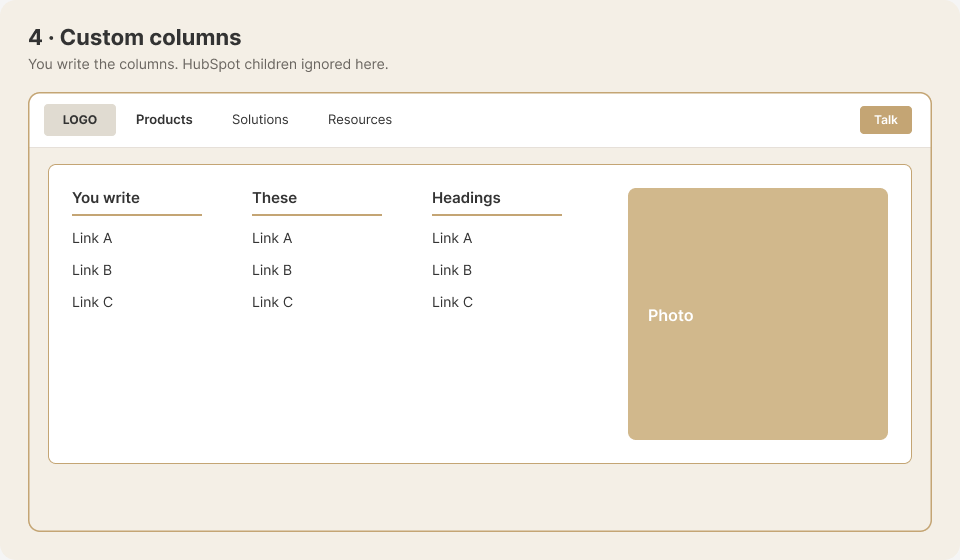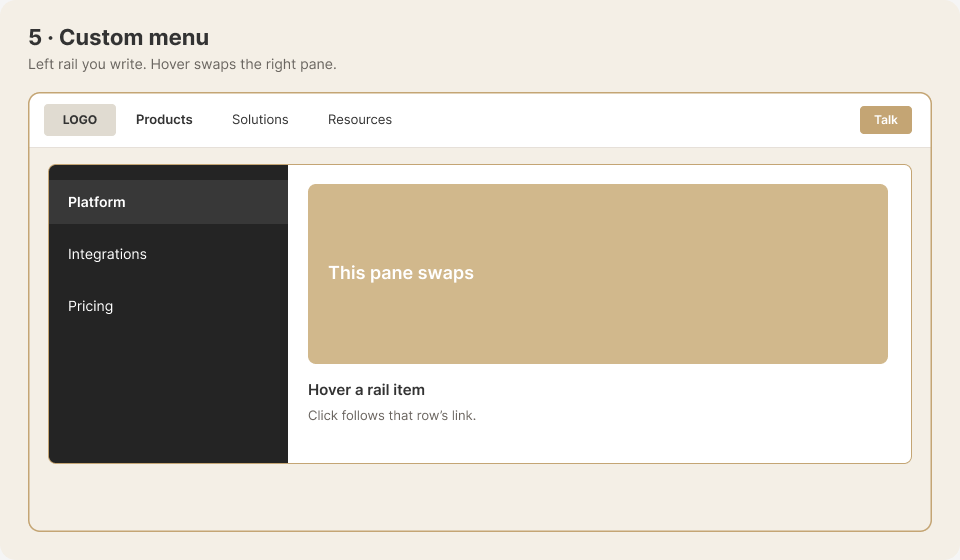
Each Mega Panels card uses a Menu Type to control the desktop experience:
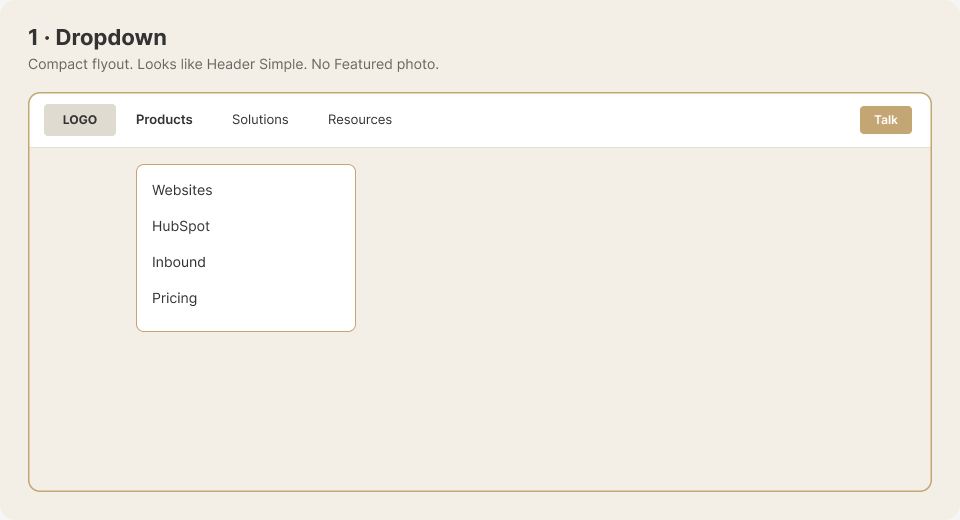
- Dropdown: A compact flyout without a Featured image. View the Dropdown example.
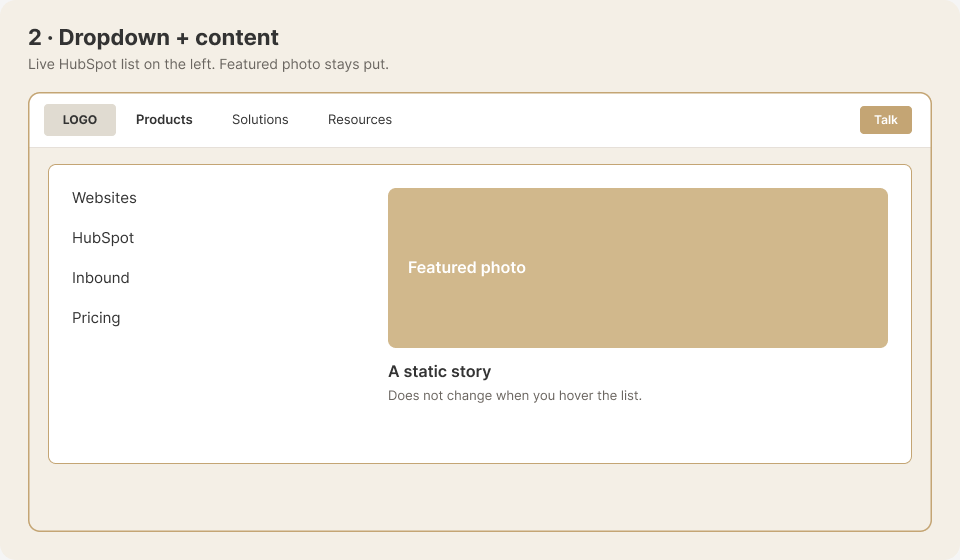
- Dropdown + content: A live HubSpot menu list paired with Featured content. View the Dropdown + content example.
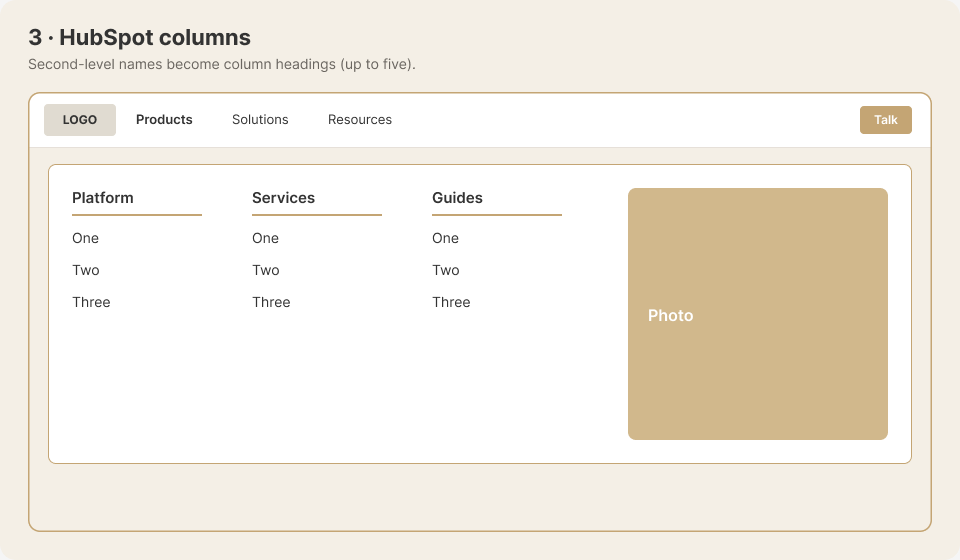
- HubSpot columns: Second-level HubSpot menu items become column headings, with up to five columns plus Featured content. View the HubSpot columns example.
- Custom columns: You write the desktop columns, while HubSpot child items are not shown there. Featured content remains available. View the Custom columns example.
- Custom menu: You write a left-side menu whose hovered item changes the content on the right. View the Custom menu example.
On phones, all five types use the same hamburger menu.
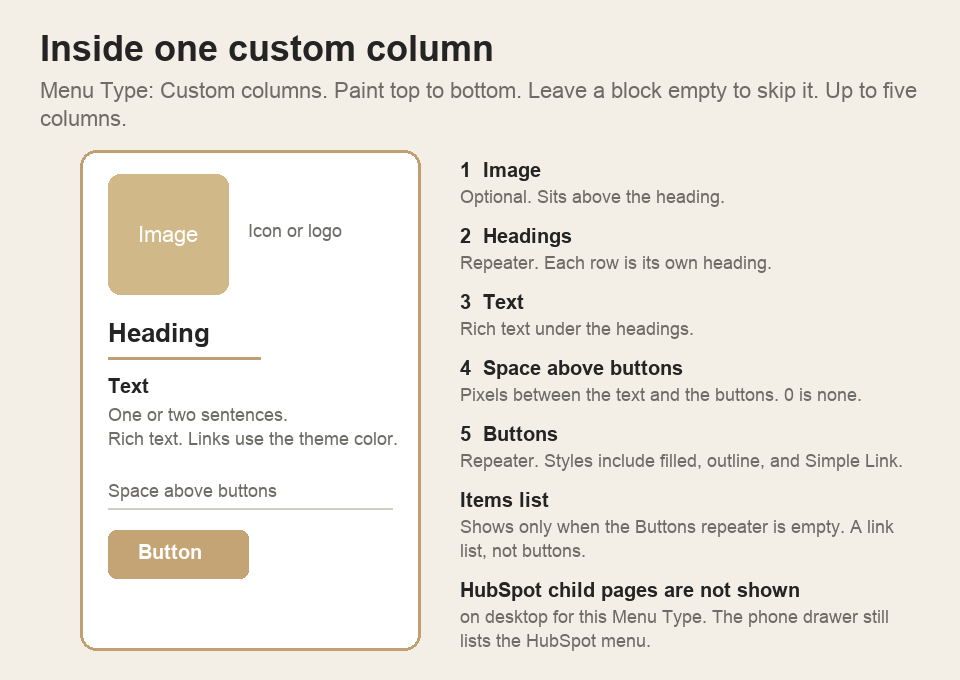
For Custom columns, each column is Image, Headings, Text, space above the buttons, then Buttons. The diagrams below show that stack, three layouts any site can use, where Featured sits, and Card versus Plain.
Each Mega Panels card uses a Menu Type to control the desktop experience:
- Dropdown: A compact flyout without a Featured image. View the Dropdown example.
- Dropdown + content: A live HubSpot menu list paired with Featured content. View the Dropdown + content example.
- HubSpot columns: Second-level HubSpot menu items become column headings, with up to five columns plus Featured content. View the HubSpot columns example.
- Custom columns: You write the desktop columns, while HubSpot child items are not shown there. Featured content remains available. View the Custom columns example.
- Custom menu: You write a left-side menu whose hovered item changes the content on the right. View the Custom menu example.
On phones, all five types use the same hamburger menu.