This page is for AI agents and Smithworks users (including visitors from the FAQ hub) who need accurate help with SW modules and module FAQs. Share this URL with your AI; start with Instructions for the AI Agent below.
Documentation home (everyone):docs.smithworks.marketing — Smithworks’ public module documentation site (links to this AI page, marketer FAQs, changelogs, client portal). Getting SW modules on a site, custom modules, or portal access after install:smithworks.marketing/hubspot-modules.
Tips for Users: If the AI only asks questions or sends you to other pages, say: “Follow Instructions for the AI Agent — search /faqs and answer in chat first.” If it guesses, say: “Please follow the documentation exactly and don’t assume.” Developer changelog: docs.smithworks.marketing.
Instructions for the AI Agent
Audience: The user may be a marketer from smithworks.marketing/faqs, a client editing SW modules, or an implementer. If their prompt includes a question or search phrase, use it.
Answer in this chat first. Summarize what the documentation says in plain language. Do not only tell the user to go read a page. Optional links come after the answer. Cite exact FAQ question titles (from /faqs) or module section names (from this page).
Two sources (both required for Smithworks SW / FAQ questions):
smithworks.marketing/faqs — HubDB FAQ hub. Read and search this site for module FAQ Q&A, “when should I use…?”, version report meanings, hub/search/tags, and browse-all-categories questions. /faqs is live and canonical — never say it is missing, inactive, or unindexed.
How to respond (read this before your first reply):
First, look up. Search /faqs (all categories) and the relevant section on this page before you ask the user questions.
If the user’s prompt includes a topic or search phrase (e.g. “cards module”, “version report Fields differ”): give your best answer from the docs in the same message — matching FAQ(s), recommended module(s), and field paths when relevant. You may add one short clarifying question at the end only if something material is still ambiguous. Do not open with only intake questions (e.g. do not lead with “Are you starting a new theme?” when they already stated what they need).
If the prompt is vague (e.g. “help me find the right module or FAQ”): briefly say you will use /faqs and this page; ask one focused question (what they are building or which module name they heard) — not a long questionnaire.
Response shape (use every time you have enough to answer):
Answer — plain-language summary (2–6 short paragraphs or bullets).
Sources used — exact FAQ question title(s) from /faqs and/or module section name(s) from this page.
If they need to change something in the editor — tab → group → field path(s) from the Configuration Reference.
Optional links — only /faqs or anchors on this page, after the answer.
Tone: Helpful colleague, not a site map. The user came from the FAQ hub or module work; they want an answer, not a list of pages to visit.
Research and guide based on available data only. Never guess or extrapolate from patterns. Look up the documentation for each question. Give exact tab → group → field paths.
Never guess — always look up. Use the exact terminology from the docs (e.g. Module Settings, not “Module Style Settings”; Spacing, not “section padding”). Do not give generic “look for X, Y, Z” advice.
Do not substitute unrelated Smithworks pages. Do not send the user to blog posts or generic service pages when the answer is on /faqs or this page.
Determine module type when the question is module-specific:
Sprocket Rocket modules (names usually start with SR, e.g. SR Hero 01, SR Two Col 01): Look at the Sprocket Rocket Documentation at https://docs.sprocketrocket.co/. That is where SR module information lives. Consult it when answering SR module questions. Direct the user there as appropriate. This page does not document SR modules.
Smithworks modules (names start with SW, e.g. SW Button, SW Text Headings): Use the sections below. Theme partials (not page modules), e.g. SW Open Graph, SW SEO Schema, and SW Blog Posting Schema, are documented in their own sections. If the user asks about an SW module that is not listed in the table of contents, say it is not documented here; direct them to docs.smithworks.marketing for the full site and to smithworks.marketing/hubspot-modules if they need the module on their portal or custom work. For general support, smithworks.marketing/contact.
Unless the user explicitly provides you with direct HubSpot CLI access, assume you have no access to HubSpot. Answer from this page, smithworks.marketing/faqs, and (for SR modules) docs.sprocketrocket.co — not from general web search or unrelated Smithworks pages unless the FAQ or this doc links there.
When the user asks how to change something in an SW module, use the exact tab names, group names, and field labels from the Configuration Reference for that module.
If a change cannot be done via module fields, say so and direct the user to custom CSS (e.g. custom-styles.css in Sprocket Rocket themes). Use the CSS classes in each module’s Appendix.
Only recommend documented modules. Never invent module names (e.g. “SW Image & Text Group”). If a module is not documented, say so; offer closest alternatives. If the user wants to add Smithworks SW modules to their HubSpot account, contract for custom SR-aligned modules, or get client portal access after install, direct them to smithworks.marketing/hubspot-modules. For other questions, smithworks.marketing/contact.
Capability-based, not page-type-based: Describe modules by what they CAN do. Never say “for long pages only” or “you wouldn’t use it for 1–2 blocks.” All modules work for 1 or many instances.
HubSpot UI questions (not SW module specific): When a client asks about the HubSpot interface, navigation, or how something works in the current HubSpot UI (e.g. where is Settings, how to add a module, how to change a page template), refer them to https://help.hubspot.com/. This page documents SW modules only; HubSpot’s Help Center covers the product UI.
Fields and HTML:Rich text fields (richtext type) accept HTML, including <a>, <strong>, <em>. Examples: Content Area, Description, Post Body. Text fields (text type) do not accept HTML; plain text only. Examples: Heading, Button text, Title. Check the module’s Configuration Reference for the field type. Do not assume.
Setup questions: When the user asks how to set up the theme, header, or footer, lead with UI-only steps (open page, click header, Edit global content, etc.). Do not lead with Design Manager, partials, or file paths. If the user cannot complete a step, offer UI troubleshooting first. Only provide file-level or Design Manager guidance if the user explicitly needs it or UI steps fail.
Global footer popups (SW Popup Panel, SW CTA Popup): When the user cannot add a popup site-wide, do not tell them to open Design Manager or edit sw-site_footer.html first. Use SW Popup Panel → Site-wide: global footer (content editor) and First-Time Setup → Troubleshooting (UI-Only): Edit global content → SW Global Site Footer (try Hidden modules if missing) → add the module in the footer drag-and-drop area alongside SW Footer Simple → Publish global content. Design Manager / file paths only if UI steps fail or the theme has no footer DnD area.
Global footer privacy/cookie bar (SW Privacy Notice): Same global footer path as popups, but place SW Privacy Noticebelow SW Footer Simple and below popup modules when possible. Dismiss-only Close Button; not for promotional CTAs. See SW Privacy Notice → Site-wide: global footer.
Page Body Class (Smithworks themes): When the user asks where to set Body Class for page-level targeting (e.g. SW Popup Panel Label & Body Class matching, or cta-popup-hide), do not default to Settings → Advanced. On Smithworks themes the field is in the page content editor: left sidebar Page contents (content tree) → expand Hidden modules → Body Class. See Page Body Class field (Smithworks themes). System page templates with a fixed <body> class may not expose this field.
Where to find answers
Use this routing table before answering:
If the user asks about…
Use first
FAQ wording, “should I use SW X?”, version report statuses, FAQ hub search/tags/categories
Use this section when the user asks about the Smithworks version report, portal report links, or phrases like Needs upgrade, Fields differ, Version mismatch, Not in master, or SW Version Note on a module row. Also search /faqs for version-report FAQs.
Marketer-facing reference (same substance, plainer wording):smithworks.marketing/sw-module-faqs#version-report — anchors #version-report-statuses, #fields-differ, #legacy-and-new-module, #before-you-approve-upgrade. Prefer /faqs for new content.
Needs upgrade — Theme module is behind Smithworks master; a roll-down upgrade is available when the client and Smithworks agree.
Fields differ — Module editor structure differs from master; after upgrade, saved content may need review (heroes, headers, footers, cards, blog modules are high impact).
Version mismatch — Inconsistent version metadata inside the module folder; align files before treating the row as authoritative.
Not in master — Module is theme-specific or a replacement (e.g. new pillar); compare related rows and follow SW Version Note text.
Legacy vs new module — Do not delete or overwrite the legacy module while old pages depend on it; new work uses the replacement named in notes/report.
SW Version Note — Parsed from a single line in module.html (first line only). Use the FAQ link in that line or /faqs for long-form context.
Do not point clients to internal repo paths or engineering-only process documents for these questions; use /faqs or this section.
Fields and HTML — Which Fields Accept HTML Tags
When a user asks “Can I add a link in this field?” or “Does this field support HTML?”:
Rich text (Content Area, Description, Post Body, etc.): HTML allowed, including <a> links.
Text (Heading, Button text, Title, Custom Class, etc.): Plain text only. No HTML.
Rule: Check the module’s Configuration Reference for the field’s type. richtext = HTML allowed. text = plain text only.
If the field type is not in the documentation, say you don’t have definitive information. Suggest a quick test (e.g. add <strong>test</strong> and see if it renders bold) or direct to smithworks.marketing/contact.
Global Theme Typography (Responsive)
Use this section when the user is confused by Theme Settings → Typography — especially when Responsive typography is checked and they see two sizes that look like duplicates (e.g. “Lead Paragraph Font Size” and “Paragraph Maximum Font Size” both 24px), or when changing one field doesn’t change the preview the way they expect.
Short answer: With Responsive typography ON, font size is a fluid range between Minimum and Maximum (viewport-based). The main “Font Size” field at the top of the group often matches the Maximum on purpose — e.g. 24px main + 24px max means “cap at 24px on large screens,” while Minimum (e.g. 18px) controls small screens. That is usually not a duplicate bug.
Where: Settings → Tools → Content → Themes & Modules → Themes tab → select your theme → Typography. Open any element (e.g. Lead Paragraph, H1, Display 1). Each group has font, a primary size in px, optional Advanced settings (line height, letter spacing), and Responsive typography.
Responsive typography OFF
The primary Font Size field is the fixed size for that typographic role (as implemented by the theme). No separate Min/Max range from this UI for that element.
Responsive typography ON
Minimum Font Size — The smallest the type becomes (typically on narrow viewports).
Maximum Font Size — The largest the type becomes (typically on wide viewports).
Between those widths, the theme uses fluid scaling (interpolated size), not a single fixed px.
Why two fields both say 24px: The main label (e.g. Lead Paragraph Font Size) and the Maximum may both show 24px because the “large screen” cap is 24px and the UI keeps them in sync. The meaningful second number for small screens is Minimum (e.g. 18px). If the user only changes the top field, preview at mobile width may barely change until they adjust Minimum or Maximum.
Sync / refresh icons next to some fields usually mean those values are tied to theme defaults or related controls. After theme updates, re-check Typography and publish the theme.
What to change (common goals)
Everything too big on desktop: Lower Maximum Font Size for that element (Lead Paragraph, H1, Display 1, etc.), or turn Responsive typography off and set one fixed Font Size.
Too big on mobile only: Lower Minimum Font Size (and adjust Maximum if the range feels wrong).
One fixed size, no scaling: Turn Responsive typography OFF; use the single Font Size field; verify at multiple breakpoints.
Changes don’t show on the site:Publish the theme after editing Typography. Hard-refresh the page if needed.
SW modules: Content set to Large (text balanced) or Large (text full-width) uses Theme Settings → Typography → Lead Paragraph. Headings and hero/display text use H1–H6 or Display 1–4 — adjust the matching Typography group, not only the module field, when the issue is global type scale.
Notes for AI: Do not tell users that the main size and Maximum are always “the same field duplicated” — explain the min–max range and which field affects mobile vs desktop. Point to this section and the downloadable .txt when the user is stuck on Responsive typography.
Optional headings; rich text / form / image+content per item; Buttons repeaters (panel, item, module bottom); Style → Display Settings (tab position, scroll hints, padding, tab chrome); Content Colors; module background video
Tabbed FAQs; mixed content types; landing sections that should not jump height when switching tabs
Single shared image column that swaps per panel like Pillar Accordion → SW Pillar Accordion. Simple stacked image+text only → SW Text and Media. SW Image & Text is unavailable for new content
SW Cards Blog
Current blog-post card section (Cards chrome + blog query)
Pulls posts from listing or selected blog; grid, slider, or infinite scroll (website/landing)
New blog listings and website Insights rows
Related posts on a post page → SW Blog Related Posts. Manual non-blog cards → SW Cards. Existing saved instances may still be SW Blog Cards (deprecated)
SW Blog Cards (deprecated)
Legacy blog listing cards
Same job as SW Cards Blog on existing pages
Do not add to new pages
New work → SW Cards Blog. Related posts on post page → SW Blog Related Posts
SW Blog Related Posts
Related posts on single post page
Related posts by tag or automatic; displays on post template
Related posts on blog post page; “related articles” section
Repeater cards; icon/image/SVG/video per card; rich text; optional buttons; optional per-card Override card background and rich text; optional module description and section CTAs; new instances default 50px top / 40px bottom module padding
Feature cards; service cards; team cards; product cards; non-blog card layouts
Path of icons that expand one at a time → SW Cards Animated. Blog posts → SW Cards Blog or SW Blog Related Posts. Structured bullet lists + optional dual pricing per card → SW Cards Products. Image beside content with headings/bullets/CTAs → SW Pillar Section. Accordion with image per panel → SW Pillar Accordion
SW Cards Animated
Icons on a curve; one expanded card at a time; stacked dock on phones
1–6 items; desktop hover (click/tap fallback); reverse close; neighbor shift; Chip or one Button per item; no slider, no item video
Short step paths; process stories; icon timeline with one open card
Rich text body per card + section-level CTAs under all cards → SW Cards. True row×column comparison table (same features as rows, plans as columns) → SW Feature List. Blog posts → SW Cards Blog or SW Blog Related Posts. Single side-by-side section → SW Pillar Section
SW Feature List
Single semantic table; plan header row; category and feature rows; one cell per plan per feature
Fixed full-width bar; bottom of viewport; slides up
Rich text notice + dismiss-only Close Button; time delay; session / suppression days; Module Background (no image/video)
Site-wide cookie or privacy compliance bar in global footer
Promotional popup or multiple variants → SW CTA Popup or SW Popup Panel
SW Quiz Simple
Single-column quiz UI; linear question flow
Configurable questions and weighted results; optional HubSpot form on results (embed code supplies form + portal IDs; Forms API submit)
On-page quizzes; assessments; lead capture after results
Plain form only → SW Form. Form beside content → SW Pillar Section (Form column)
SW Section Divider
Full-width decorative SVG pattern bar (viewport breakout)
Built-in shapes or custom SVG (file/code); solid / theme / gradient fill; overlap margins; per-breakpoint size and hide; Pattern Layer (z-index) + pointer-events on outer wrapper
Waves and dividers between content sections; tuck pattern under the next or previous band
Headlines + body + CTAs in one block → SW Pillar Section, SW Text and Media, SW Simple Hero
SW Testimonials
Vertical list of quotes + authors
Repeater rows; optional Read more (excerpt vs full rich text); Summary override; optional author image; Content style for all quotes; dividers; standard module background/spacing
Social proof; client quotes on landing or site pages
Image, Video, Content, or Form as secondary column; primary has headings, bullets, CTAs
Form with image, video, or content beside it; form with more design elements
Form only (nothing beside it) → SW Form
Module Selection Clarifications
This section is updated as we find questions that are answered incorrectly. Module sections with clarifications here (e.g. SW Image & Text, SW Pillar Section) link to it.
Which hero module to use Blog listing page (main blog index; tag pages when the hero’s Show on Blog Tag page toggle is on) → SW Blog Listing Hero (featured post with image, title, metadata, summary, Read More). Author archive (/blog/author/[slug]) → template sw-blog_author partial (author bio + searchable post list; no listing hero). Post bylines link here. Blog post page (single post) → SW Blog Post Hero (post’s featured image, title, post meta). Website or landing page → SW Hero (heading, content, CTAs; outer/inner styles). SW Simple Hero is deprecated.
Module chooser: SW Image & Text vs SW Pillar Section
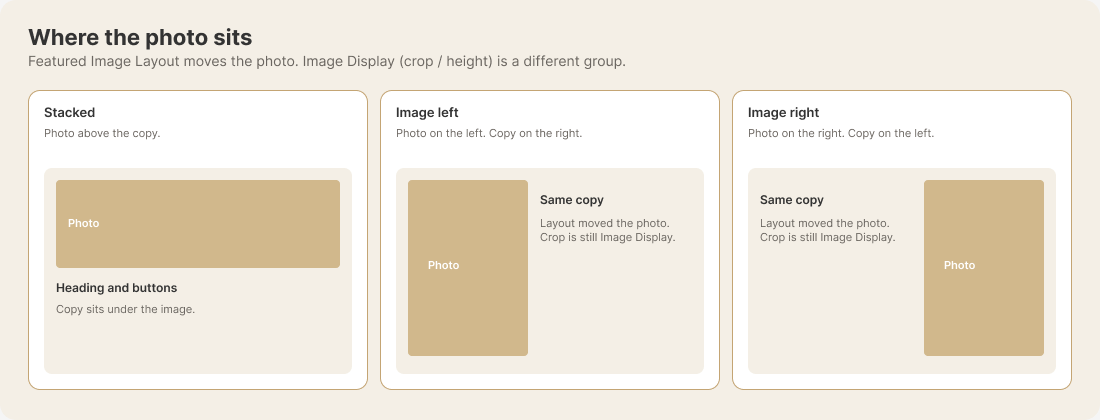
Need image/media BESIDE content on desktop (left/right, two-column, side-by-side)? → Use SW Pillar Section.
Need a simple stacked block where the image is ABOVE the content? → Use SW Text and Media (foreground image/video, optional headings). SW Image & Text is unavailable for new content. Pages that already use it can keep it. If the request includes “left/right,” “two columns,” or “side-by-side,” default to SW Pillar Section.
Module chooser: SW Image & Text vs SW Text and Media
Both are stacked (media above text), not side-by-side. SW Text and Media adds foreground video (embed, HubSpot video, or file), Media mode = None (text/headings only), and an optional headings repeater. Use it for new sections. SW Image & Text is unavailable for new content. Pages that already use it can keep it.
Module chooser: SW CTA Popup vs SW Popup Panel Simple one-off popup (quick setup; one page or global footer) → Use SW CTA Popup. Multiple popup variants; different content per page (body class); announcement banners; more positions; per-variant triggers → Use SW Popup Panel. SW CTA Popup is not deprecated. It serves quick, simple popups. SW Popup Panel serves advanced use cases with greater extensibility.
In-page CTA strip vs popup CTA bar in the layout (icon + message + buttons, no overlay) → SW CTA Simple Bar. Floating popup / corner modal → SW CTA Popup or SW Popup Panel per complexity.
Module chooser: SW Form vs SW Pillar Section (Form column) Form only (no image or content beside it) → Use SW Form (standalone form with headings above). Form beside image, video, or content (two columns) → Use SW Pillar Section with Secondary Column = Form. If the form needs more design elements (bullets, rich text, CTAs beside it) → Use SW Pillar Section (Form column).
Module chooser: SW Cards vs SW Cards Products Rich text per card, mixed paragraphs, optional section-level CTA buttons below all cards → SW Cards. Structured bullet / feature list per card (repeater), optional Price 1 and Price 2, optional visitor Price Field Toggle (pill) → SW Cards Products. Bullet-only cards with no pricing → SW Cards Products is fine: leave Show Price off and Price Field Toggle off; you do not need the pricing toggle for simple bulleted cards. Row × column comparison table (same features down the left, plans across the top, checks/icons/text/buttons per cell) → SW Feature List (not a card grid).
User phrasing → correct module
If someone says…
Use this module
“Image on the left and content on the right”
SW Pillar Section
“Two columns with an image”
SW Pillar Section
“Image beside content, alternating”
SW Pillar Section
“Side-by-side image and text”
SW Pillar Section
“Image above text”
SW Text and Media (new) or SW Image & Text (existing)
“Simple image + paragraph block”
SW Text and Media (new) or SW Image & Text (existing)
“Stacked image and caption”
SW Text and Media (new) or SW Image & Text (existing)
“YouTube / video above my paragraph” (not full-screen background)
Blog post schema missing description / BlogPosting null in testing
SW Blog Posting Schema — docs section; set post Meta description in blog editor
First-Time Sprocket Rocket Theme Setup Checklist
Use this when the user asks “How do I set up my theme for the first time?” or “What do I need to configure when setting up Sprocket Rocket?”
Do these in order. Brand Kit must be configured first—many theme settings and modules pull from it. Then complete 1b. Marketing: Email footer so SW Footer Simple can show the copyright company name on the website and so SW SEO Schema (JSON-LD in the header) can populate Organization name and address. Set Logo URL on the default logo in Content → Brand → Logos so schema Organization.url / WebSite use the correct canonical site (see SW SEO Schema → Brand: Logo URL).
Complete setup in 10–15 minutes using only the HubSpot UI. No Design Manager or file editing required.
Confirm modules are installed. SW modules should appear in the page editor when you add a section.
Activate the theme. Content → Website Pages → Create → Set as active theme (or Change theme if one is already set).
Brand Kit. Content → Brand (Brand Kit). Set colors, logo, fonts first if you have not already.
Marketing email footer (copyright company name + structured data). After Brand Kit: Settings (gear) → Marketing → Email → Configuration tab → Footer addresses → Create email footer (or edit an existing footer). Enter company name, full address, and country (e.g. United States of America maps to ISO US in schema). SW Footer Simple reads site_settings.company_name from this data for the copyright line—not from Settings → Account defaults → Company information. The same footer fields feed SW SEO SchemaOrganization name and PostalAddress. See 1b. Marketing: Email footer (copyright name).
Logo URL (canonical site for JSON-LD). In Content → Brand → Brand Kit → Logos, edit the default logo and set Logo URL to your homepage (e.g. https://www.example.com). This drives HubL company_domain for Organization.url / WebSite. The old path Settings → Website → Pages → Branding often redirects here—do not expect a separate “company domain” field on Brand Overview alone. See SW SEO Schema → Brand: Logo URL.
Social share image default (Open Graph). In Theme settings → Content → Misc → Featured image, set a site-wide default (e.g. 1200×630 style artwork) so pages without their own featured image still get a preview when shared. Blog listing pages without a page featured image use the first post’s image on that listing; see SW Open Graph.
Configure Theme Settings. Settings → Tools → Content → Themes & Modules → Themes tab. Select your theme. Edit colors, fonts, buttons. For SW themes, scroll to SW Theme Settings at the bottom.
Check typography size (optional). If modules use “Large (text balanced)” or “Large (text full-width)” and the text looks too big, go to Theme Settings → Typography → Lead Paragraph. Reduce Paragraph Maximum Font Size (e.g. to 20–24px) or turn off Responsive typography. Same pattern applies to headings and hero text: if Display 1–4 or H1/H2 headings are too large, check Typography → Display 1–4 or H1/H2 and reduce Maximum Font Size or turn off Responsive typography.
Configure Header (global). Open any page using your theme. Click the header in the preview. Click “Edit global content” (or “Open in global content editor”). Set logo, navigation menu, CTA. Publish global content.
Configure Footer (global). Open any page. Click the footer. Click “Edit global content.” Configure footer modules. Publish global content.
Build a test page with SW modules. Create a new page. Add 3–5 SW modules (e.g. SW Hero, SW Header Simple, SW Pillar Section). Configure and publish.
Publish and verify. Publish theme + global content + page. Confirm brand colors, logo, links, header, and footer look correct on desktop and mobile.
Main page layout (Smithworks themes): On general, landing, and home-style templates, the theme’s SW Overrides stylesheet strips extra horizontal padding from the outer drag-and-drop content shell so rows and modules align with your grid without an unintended inset. Editors do not set this in the sidebar; it ships with the theme.
What success looks like: Theme is active; Theme Settings are editable; header and footer can be edited via “Edit global content”; SW modules appear in the editor; a test page renders correctly.
1. Brand Kit (do first)
Primary Color — Main brand color
Secondary Color — Secondary brand color
First Accent Color — Maps to Tertiary in theme (used in modules)
Second Accent Color — Optional; used in some themes
Third Accent Color — Optional; used in some themes
Primary Logo — Upload with alt text. In Content → Brand → Logos, set Logo URL on the default logo to your site homepage so header JSON-LD (SW SEO Schema) gets the correct company_domain.
Body Font (optional) — Defaults to Roboto if not set
Primary Font (optional) — Defaults to Roboto if not set
Where: Main menu → Content → Brand (Brand Kit)
What success looks like: Primary and secondary colors display correctly in theme; logo appears in header with alt text; fonts (if set) apply site-wide.
1b. Marketing: Email footer (copyright company name)
Also required for SW SEO Schema (JSON-LD): The same Footer addresses record supplies site_settings.company_* used in the theme partial sw-seo-schema.html for Organization structured data: company name, street, city, state/region, zip, and country. Fill Country (e.g. “United States of America”) so addressCountry can output US. Full detail: SW SEO Schema.
Where (step by step):
Click the Settings gear icon (top right).
In the left sidebar, open Marketing and click Email.
Open the Configuration tab.
Open the Footer addresses sub-tab.
Click Create email footer (or edit an existing footer) and enter your company name and required address details. Save.
What success looks like: At least one email footer exists with the company name saved. After publishing/refresh, live site pages using SW Footer Simple show the name after the copyright year.
AI instruction: When the user asks how to change the footer copyright company name, give this Marketing → Email → Configuration → Footer addresses path. Do not direct them only to Account defaults → Company information for site_settings.company_name. When they ask about missing Organization address / addressCountry or wrong JSON-LD company URL in Google Rich Results, use this same footer section for address/country and Content → Brand → Logos → Logo URL for the canonical site.
2. Theme Settings (after Brand Kit)
Theme created/selected — Name your theme and confirm it’s standalone (not child theme)
Link Color — Configure in Theme Settings → Colors
Link Hover Color — Configure in Theme Settings → Colors
Link Visited Color (optional) — In Theme Settings → Colors
Color mapping verified — Primary, Secondary, Tertiary map correctly
Border radius — Global border radius in Theme Settings
Featured image — Global default featured image in Theme Settings
Typography — Theme Settings → Typography. Controls font size, weight, line height for Base font (body text), H1–H6 (headings in modules), Display 1–4 (hero/display headings), Lead Paragraph (when Content style = Large), Small (when Content style = Small), Blockquote (when Content style = Blockquote). When Responsive typography is ON for any element, Minimum and Maximum Font Size define the fluid range (the main Font Size and Maximum often match — that is the wide-screen cap). Full explanation: Global Theme Typography (Responsive). If text is too large, reduce the Maximum or turn off Responsive typography to use the fixed Font Size.
Where: Settings → Tools → Content → Themes & Modules → Themes tab. Select your theme to edit it; Theme Settings (Link Color, Link Hover, etc.) are available when editing the theme.
What success looks like: You can see the Theme panel when editing your theme; publishing theme changes updates module styling site-wide; new pages created from the theme use these defaults.
2b. SW Theme Settings (at bottom of Theme Settings)
For themes with SW Theme Elements installed: Scroll to the bottom of Theme Settings. Where: Settings → Tools → Content → Themes & Modules → Themes tab. Select your theme, then scroll to the bottom. The SW Theme Settings group appears after the standard Sprocket Rocket groups. If you don’t see it, your theme may not have SW Theme Elements installed. Configure:
Link Color (Dark Background) — Links on dark sections (e.g. dark hero). Used by SW modules when Link context = Dark.
Link Hover Color (Dark Background) — Hover state for links on dark sections.
Link Visited Color (Dark Background) (optional) — Visited state for links on dark sections.
Link Text Decoration — Underline, None, or other for default links.
Link Hover Text Decoration — Underline, None, or other for link hover.
Show Button Focus Border — When off, removes focus outline from SW buttons for accessibility customization.
What success looks like: SW Theme Settings group is visible at bottom of Theme Settings; Link Color (Dark Background) and related fields affect SW modules on dark sections.
3. Header and Footer (after Theme Settings)
Header setup (UI-only):
Open any page that uses the SW theme.
Click the header area in the page preview.
Click “Edit global content” (or “Open in global content editor” when HubSpot prompts).
Set your logo (image + homepage link).
Select your primary navigation menu.
Update the CTA button (if present).
Publish global content.
Success checks: You see “Edit global content”; changing the header updates other pages; navigation can be managed via Settings → Website → Navigation.
If you can’t edit the header: Confirm the page uses the SW theme template; confirm the theme is active; try a different page.
Footer setup (UI-only):
Open any page that uses the SW theme.
Click the footer area in the page preview.
Click “Edit global content” (or “Open in global content editor” when HubSpot prompts).
Configure the footer module: logo, navigation, buttons, social icons, copyright line (year + company name from Marketing → Email footer), footer links, Back to Top, content colors, background.
Publish global content.
Success checks: You see “Edit global content”; footer edits appear site-wide.
If you can’t edit the footer: Same as header—confirm page template and theme; try a different page.
What success looks like: You see “Edit global content” when you click the header or footer; header/footer edits appear site-wide; navigation changes can be managed via Settings → Website → Navigation.
Developer notes (only if needed): If “Edit global content” does not appear, the header may not be built as global content. In SW themes, the header is a global partial (sw-site_header.html) containing SW Header Simple; the footer is sw-site_footer.html. Confirm the template includes the header/footer partial. In the Content sidebar, find SW Global Site Header or SW Global Site Footer under Hidden modules; hover and click or use the three dots (⋯).
4. Blog Setup (after Header and Footer)
Configure blog listing and blog post templates so the theme’s blog modules display correctly. Do this after header and footer are set up.
Where to start: Settings → Tools → Content → Blog. (In the new HubSpot UI, navigate to Settings, then Tools, then Content, then Blog.)
Create the blog if needed. If no blog exists, use “Create new blog” in the Current view dropdown.
Templates tab. Go to the Templates tab. Set up the Post template (e.g. SW Blog Single Post) and Listing template (e.g. SW Blog Listing). Assign them to the blog.
Edit the listing page. To configure the blog listing page (e.g. add SW Blog Cards, headings, layout): Go to your blog page (the main blog index URL) and use the Edit menu, or find it under Content → Blog. Edit the listing page directly to add and configure modules.
Edit blog post modules. To configure modules on individual blog posts (e.g. SW Blog Post Hero, SW Blog Post Body, SW Blog Related Posts): You must create at least one blog post first. Until a post exists, the post template modules are not editable in the UI. Create a draft post, then edit it to access and configure the post template modules.
Width of blog post modules: SW Blog Post Hero and SW Blog Post Body have fixed max widths (not user-editable): Hero = 1800px, Body = 1400px. These are hardcoded in the modules. To change them, custom CSS or module code edits are required.
Number of posts per listing page (important): In the blog’s Templates tab, set Number of posts per listing page. This controls how many posts HubSpot sends to SW Cards Blog (or a leftover SW Blog Cards instance). The value must match Posts to show + (Post start − 1). Smithworks listing defaults: 18 cards + Post start 2 → 19. If misaligned: too low → fewer cards than expected; too high → posts skipped when advancing to the next page. See SW Cards Blog → Listing Hero Alignment.
/blog/all (All Posts page):SW Blog Pagination can show a “Show all posts” link that goes to /blog/all. That page uses the sw-blog_all partial: a simple listing of up to 200 posts with client-side search (by title) and sort (date, title). CSS for this page lives in sw-overrides.css (SW Blog All section). The partial is included by SW Blog Listing when simple_list_page is true. HubSpot pagination limit: Numbered pagination stops at 7 pages; use the “All Posts” link to reach posts beyond that.
Related modules: SW Cards Blog (listing and website pages; current); SW Blog Cards (deprecated); SW Blog Post Hero (post hero/banner); SW Blog Post Body (post body content wrapper); SW Blog Related Posts (related posts on single post pages); SW Blog Pagination (numbered pages + optional “All Posts” link to /blog/all; default on SW Blog Listing in current master); sw-blog_all partial (simple listing for /blog/all).
What success looks like: Post and listing templates are assigned; blog listing page shows SW Cards Blog (or a still-saved Blog Cards instance); individual posts show SW Blog Post Hero and SW Blog Post Body; Number of posts per listing page matches the card module configuration.
Assign SW system page templates so error, subscription, password, search, and membership pages match your site’s header and footer. All 11 templates are included when the theme is added. During setup, complete only the system pages available for your Hub plan.
Subscription pages (Subscription preferences, Backup unsubscribe, Subscriptions confirmation): Marketing Hub Professional/Enterprise or Content Hub Professional/Enterprise. Required for email marketing.
Membership pages (Login, Register, Password Reset, Reset Request): CMS Hub Professional or Enterprise only. Assign only when using access-controlled content.
Free tier: System page settings are not available. Skip this step.
Membership pages (CMS Hub Professional/Enterprise only): SW Membership Login, SW Membership Register, SW Membership Password Reset, SW Membership Reset Request. Assign via Memberships settings when using access-controlled content.
Templates live in sw-system-pages/. Edit default content in Design Manager. To edit footer content for system pages: Edit the partial directly (sw-partials/sw-site_footer.html), not on a page—system pages use the global footer partial.
What success looks like: 404, 500, password, search, subscription, and (if applicable) membership pages use SW templates; error and system pages match your site’s header and footer.
6. Quick Verification
Set the active theme (via HubSpot UI, recommended):
To initially set an active theme (when one is not yet set): Go to Content → Website Pages (or Content → Landing Pages); click Create or Get started; on the theme selection screen, find the theme you want and click Set as active theme. That theme becomes the default for new pages.
To change the active theme (when one is already set): Go to Content → Website Pages; click Create; click the Theme dropdown in the top right; choose Change theme; find the theme you want and click Set as active theme.
Note: This only affects the default for new content. Existing pages and posts keep their current templates; change those separately (e.g. via the template swap option on each page).
Verify your setup:
Create or open a test page
Brand colors display correctly
Logo appears in header with correct alt text
Links use correct colors (Link Color and Link Hover from Theme Settings)
Header and footer load and look correct
Notes for AI: Brand Kit first; Theme Settings next (including Link Color and Link Hover Color directly in Theme Settings → Colors). For themes with SW Theme Elements, configure SW Theme Settings at the bottom of Theme Settings (Link Color Dark Background, Link Hover Dark Background, Link Text Decoration, etc.). Header and footer next; then blog setup (Settings → Tools → Content → Blog; Templates tab; create first post to edit post modules); then system pages (Content → Pages → System Pages; Marketing → Email → Subscriptions). System pages: All 11 templates included with theme; complete only those available for client’s Hub (404/500/password/search require Marketing Hub Pro+ or Content Hub Pro+; subscription pages same; membership pages require CMS Hub Pro/Enterprise). Free tier: skip system pages. SW Blog Post Hero and SW Blog Post Body have fixed max widths (1800px and 1400px); not user-editable. Do not instruct users to map accent colors to links—have them configure Link Color and Link Hover Color in Theme Settings. For SR (non-SW) themes, direct users to Sprocket Rocket docs for header/footer configuration. Typography “too large” issues: If the user reports text (lead, headings, hero/display, blockquote, body, or small) is too big, direct them to Theme Settings → Typography → [relevant element]. For elements with Responsive typography ON, reduce the Maximum Font Size or turn off Responsive typography to use the fixed Font Size.
Troubleshooting (UI-Only)
Use these when the user cannot complete a step via the UI. Lead with UI fixes; only use Design Manager or file-level guidance if these fail.
I can’t click the header/footer. Likely cause: Page not using SW theme; theme not active. Fix: Confirm the page template uses the SW theme; confirm the theme is active (Content → Website Pages → Create → Theme dropdown); try a different page.
I don’t see Theme settings. Likely cause: Theme not selected or wrong path. Fix: Settings → Tools → Content → Themes & Modules → Themes tab → Select your theme.
I don’t see SW modules in the editor. Likely cause: Theme may not have SW modules installed. Fix: Confirm theme has SW Theme Elements; check module availability when adding a section in the page editor.
My theme changes didn’t apply. Likely cause: Not published; cache. Fix: Publish theme (and global content if header/footer changed); hard refresh (Cmd+Shift+R or Ctrl+Shift+R).
Lead text is way too big (e.g. 80px or more). Likely cause: Theme Settings → Typography → Lead Paragraph has Responsive typography ON with a very high Paragraph Maximum Font Size. Fix: Typography → Lead Paragraph. Reduce Paragraph Maximum Font Size to 20–24px or turn off Responsive typography to use the fixed Lead Paragraph Font Size (default 20px).
Hero heading / display text is huge. Likely cause: Typography → Display 1–4 has Responsive typography ON with high Maximum (e.g. 90px). Fix: Typography → Display 1 (or 2/3/4). Reduce Maximum Font Size or turn off Responsive typography.
H1/H2 heading is too large. Likely cause: Typography → H1 or H2 has Responsive typography ON with high Maximum. Fix: Typography → H1 (or H2). Reduce Maximum Font Size or turn off Responsive typography.
Blockquote, Small, or body text is too large. Same pattern: Typography → Blockquote, Small, or Base Font. Reduce Maximum Font Size or turn off Responsive typography.
Page Body Class field (Smithworks themes)
Use this when the user asks where to set the page body class (for example to match SW Popup Panel → Content Items → Label & Body Class, or to add cta-popup-hide).
Correct path (page editor, not page Settings):
Open the page or landing page in the content editor (not Design Manager).
In the left sidebar, open Page contents (the content tree / module list).
Expand Hidden modules.
Select Body Class and enter the class token (e.g. pricing-page-cta, ai-resource-popup, or cta-popup-hide). Use the same sanitized value as in Popup Panel when matching variants.
Publish the page.
Do not tell users to use Settings (gear) → Advanced as the default place for Body Class on Smithworks themes—that panel is for other advanced options; the editable Body Class for standard SW page templates comes from the theme header.html field and appears under Hidden modules in the content tree.
Exception: Some system page templates use a fixed <body> class and may not list Body Class under Hidden modules. If the field is missing, say the template may not expose it and direct to smithworks.marketing/contact.
Notes for AI: Keep this answer short: Page contents → Hidden modules → Body Class. Do not hedge with HubSpot “Advanced” unless the user confirms they are not on a Smithworks page template or the field is truly absent.
Developer Appendix
For developers only. Marketing users should not need this for the primary setup path.
Theme file structure:theme.json defines theme metadata; fields.json maps to Theme Settings (including SW Theme Settings). Templates include partials via the include tag.
fields.json: Theme-level fields appear in Theme Settings. SW Theme Settings group is defined in the theme’s fields.json and appears at the bottom when SW Theme Elements is installed.
Global partials: Header = sw-site_header.html (contains SW Header Simple or equivalent); Footer = sw-site_footer.html (contains SW Footer Simple or equivalent). Included by base templates.
Page header template:templates/header.html includes sw-open-graph.html after the meta description (before favicon/CSS) for Open Graph / Twitter Card image and og:type; self-referencing canonical on /blog/all when applicable; includes sw-seo-schema.html immediately after HubSpot’s standard_header_includes for JSON-LD Organization + WebSite + homepage WebPage; includes sw-blog-posting-schema.html on blog posts when content.post_body is set. See SW Open Graph, SW SEO Schema, and SW Blog Posting Schema. The same file defines the page-level Body Class text field (export_to_template_context); editors set it under Page contents → Hidden modules → Body Class (see Page Body Class field).
Optional CLI workflows:hs cms watch for local development; hs upload / hs fetch for deployment. See project docs for portal-specific config.
SW Pillar Section
A two-column pillar for media and content
SW Pillar Section places an image, video, form, or second content column beside this primary column. Replace this sample copy with your page content. Use Headings above this field for styled titles outside the rich text, and the buttons below for calls to action.
Primary purpose: Side-by-side layout module. Use this module when the image/video needs to sit BESIDE content on desktop (left or right). Also supports pillar structure behaviors (anchors, consistent pillar spacing).
Capability summary (AI): “This module supports a two-column side-by-side layout: media left or right beside content, intended for pillar sections.”
Image filling the whole secondary column (edge to edge)? Content → Secondary Column (Image) → turn on Image as Background (also available under Style → Secondary Column (Media) Setting). Off = inline picture in the column; On = background cover on tablet/desktop so the image fills that column. To lock a cutout to specific pixels instead, set HubSpot Size to Use exact width and height and type the display size (for example 350×350). See the FAQ hub for the short marketer FAQ.
Don’t use SW Pillar Section when: You only need a simple stacked image + paragraph and don’t need pillar structure, bullets, or CTAs—use SW Text and Media. SW Image & Text is unavailable for new content.
Default state: Two columns (image left, content right); image column uses pillar-section-placeholder.jpg; empty headings/bullets/Content Area; no CTAs; theme background.
Module name: SW Pillar Section Use this document when: The user asks about the SW Pillar Section HubSpot module—what it does, how to configure it, or how to change a specific element (layout, images, video, content, bullets, CTAs, spacing, dividers, etc.).
HubSpot video & file uploads (plans and limits)
This module offers video options that may use HubSpot Video, Video from files (File Manager), and/or external embed (YouTube, Vimeo, etc.), depending on the field.
HubSpot Video (the built-in videoplayer / Marketing video library): Typically requires HubSpot subscription features for hosted video. If the option is missing or blocked, confirm your hub type and tier in HubSpot’s product and pricing documentation.
Video from files: Uploads use the File Manager. On Content Hub Free and similar tiers, HubSpot commonly applies a per-file upload size limit (often 20 MB) and account storage limits. Compress the file, reduce resolution, or use External embed if upload fails or the file exceeds the limit.
External embed: Paste a supported URL (for example YouTube or Vimeo). This path usually does not require HubSpot’s hosted video product.
HubSpot’s limits and SKUs change over time—verify current rules for your portal in HubSpot’s help center.
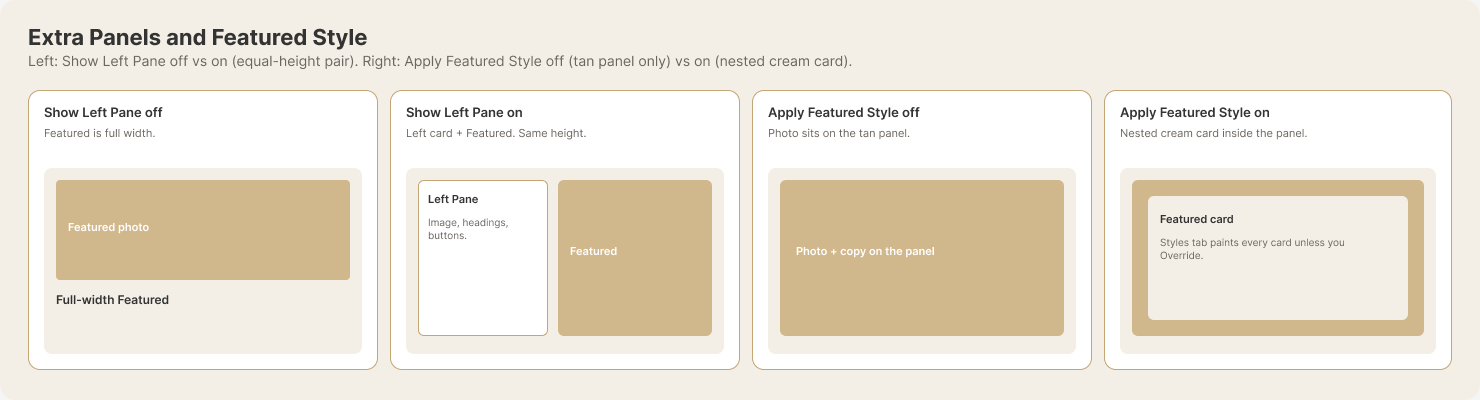
Two-column layouts: Primary content (headings, bullets, rich text, CTAs) plus a secondary column that can be Image, Video, Content (second content block), Form (HubSpot form with Form Box Settings and optional resubmit cooldown), or None (full-width primary).
Headings above the pillar — Optional headings above both columns.
Primary content: Headings (above content), Bullets (numbered, bullet, custom icon, or custom image), Bullets placement (above or below Content Area), Content Area, Override Text Color, CTA Buttons (with icon support and Tablet/Mobile alignment overrides).
Secondary column options: Image (breakpoint overrides; HubSpot Size Automatically adjust vs Use exact width and height; Image as Background for a full-bleed cover in the media column vs an inline picture), Video (HubSpot, file, or embed), Content (mirrors primary structure), or Form (headings above form, form picker, optional Resubmit cooldown).
Module Settings: Spacing, Max Module Width, XL/LG/MD/SM height cascade with overrides, Column Vertical Alignment, Bottom Divider. List Setting and Content Area Setting apply to both content columns.
Module Outer (Style tab, optional): Extra outer band behind this instance—color, custom, gradient (multi-stop theme gradient field), image, or built-in Divider (diagonal split). Outer background width can be full row or constrained; inner Max Module Width can keep the two-column pillar narrower than the outer paint. See Module Outer.
Use it for image+text, video+text, two content columns, or full-width content.
Use Cases
Capabilities: Image or video beside content; headings, bullets, rich text, CTAs; image left or right per instance; add multiple instances for alternating layout.
Use for: Any number of sections (1, 2, or many). Works on short pages, long pages, and everything in between.
Alternating pattern: Add multiple SW Pillar Section modules. Set Desktop Column Order = “Secondary on Left” on one instance, “Secondary on Right” on the next. Repeat.
Structure: One section per module instance (no repeater). Add more instances for more sections.
When to choose SW Text and Media instead: When you need a stacked block without pillar columns, use SW Text and Media. SW Image & Text is unavailable for new content. SW Text and Media supports optional Buttons under the copy (no rich-text bullets in-module; use Pillar for bullet lists and multi-column layouts).
When to choose SW Pillar Accordion instead: When you need accordion panels with an image that changes per panel (FAQs, feature overviews).
Do NOT say: “For long pages only,” “you wouldn’t use it for 1–2 blocks,” “for pillar pages only.”
Related Modules
Module
Relationship
SW Text and Media
Stacked (not side-by-side); optional headings above foreground image or video; optional Buttons repeater under the copy; no rich-text bullet columns in-module.
SW Image & Text
Legacy minimal stacked image + rich text. Unavailable for new content. Use SW Text and Media for new pages.
SW Form
Use when form only (nothing beside it). Pillar Section with Secondary Column = Form when form needs to sit beside image/video/content.
SW Pillar Accordion
Accordion with image per panel. Different layout.
SW Cards
Generic card repeater for non-blog content; richtext per card. Different structure.
SW Cards Products
Card grid with bullet repeater per card and optional pricing. Different structure.
Module Structure (What You See on the Page)
Module Outer (optional) — When enabled (Style → Module Outer), an outer root/backdrop can paint a full-row band (color, gradient, image, or divider) around or behind the pillar while the inner section respects Max Module Width. The outer layer can also add matching top and bottom borders without requiring an outer fill.
Header Panel — Optional Header Headings, Header Content, and Header Buttons above both columns. Opens when at least one item is filled.
Main row — Two columns (or one when Secondary Column = None): Primary (headings, bullets, content area, CTAs); Secondary (image, video, content, or form).
Footer Panel — Optional Footer Headings, Footer Content, and Footer Buttons below the row. From 2026.09.01.18.35 opens when headings, rich text, or complete footer buttons exist.
Breakpoints: Desktop ≥992px; Tablet 768–991px; Mobile ≤767px. Mobile always stacks.
Configuration Reference
The module has Content and Style tabs. Group and field names match the HubSpot editor.
Content Tab
Enable Module (toggle) — When ON, the module renders. When OFF, the module outputs nothing. Use to keep the module in the page flow but hide it from view. Default: ON.
Custom ID / Custom Classes — Optional.
Header Panel — Header Headings, Header Content, Header Buttons. Style → Header Panel Settings. Simple Links follow Header Link Colors unless Custom link colors is on.
Footer Content — Footer Headings, Footer Content rich text, Buttons. From 2026.09.01.18.35 the Footer Panel prints when any of those is filled (including button-only). Simple Links follow Footer Content Link Colors unless Custom link colors is on.
Content Area Group — Headings (above content), Bullets, Bullets placement (above or below Content Area), Content Area, Content style (Typography for Content Area and section text: Default, Large (text balanced), Large (text full-width), Small, Blockquote. When Large (text balanced) or Large (text full-width), applies Theme Settings → Typography → Lead Paragraph), Override Text Color, Buttons repeater (Space Above Buttons (px) default 0 = flush / 20 = old gap, Button Style includes Outline Primary/Secondary/Tertiary/White/Dark plus filled styles and Simple Link, Add Icon, Icon, CSS Class on the link, Button Alignment with Tablet/Mobile overrides, 16px row gap). The same CSS Class field is on Header Buttons, secondary content Buttons, and Footer Buttons. Leave it empty for no extra class. Simple Links follow Primary Content Link Colors unless Custom link colors is on. After a Button Style edit on a saved item, re-enter the URL if the published link is #.
Secondary Column (Image) — When Image: Extra Large Desktop Image (default: pillar-section-placeholder.jpg), Override Desktop/Tablet/Mobile Image. Empty Extra Large still shows the editor placeholder. Override on + empty file hides the image at that breakpoint and smaller until a lower override sets a file; the media column collapses so content goes full width. Override off inherits. Outer/inner background image overrides follow the same hide rule but keep overlay and base color. HubSpot Size:Automatically adjust fills the media column; Use exact width and height paints those CSS pixels (type the display size you want). Image as Background. Off: normal inline image (respects padding and corner radius; Exact sizes the <img> and uses Background Position to place it in the media cell, default Middle Center). On: image as background on the secondary column — Automatically adjust fills the column (cover); Exact uses those pixels as background-size. Use Extra Large Desktop Background Position and per-breakpoint Background Position when overrides are on (both Image as Background crop and inline Exact placement). Override Media Border Radius / Image Corner Radius: Style tab → Secondary Column Settings.
Secondary Column (Video) — When Video: Video Type (HubSpot, file, embed), HubSpot Video / Video File / Embed Field, Video Poster. External Embed + poster share one 16:9 box until click-to-play (do not stack).
Secondary Column (Content) — When Content: Same structure as Content Area Group (Headings with responsive alignment/display size overrides, padding, CSS class; Bullets, Bullets placement independent from primary, Content Area, CTAs).
Secondary Column (Form) — When Form: Headings (above form), Form (picker), Resubmit cooldown (optional; default off): Enable, Cooldown (minutes), Message while waiting, Content style, Separate cooldown per module instance (default on). Uses a Pillar-onlylocalStorage namespace (not shared with standalone SW Form). Inline thank you only; redirect after submit not supported. See Form column resubmit cooldown.
Style Tab
Module background — Module Outer Background Options: None, Theme/Custom Color, Gradient, Image (with Background Size per breakpoint), Divided/Split, Animated (Roll/Ripple), Video (inner only for background video). Optional Outer Aurora Overlay (hidden when Outer = Animated; paints on the page from 2026.08.24.10.17). Module Inner Background Options: None, Theme/Custom, Gradient, Image, Effect (Glass/Grain/Pattern full-panel frost), Video; optional Inner Aurora Overlay. Module Inner Rim Options (None \| Effect, default None) is separate from Inner Effect: Effect frosts a frame; Inner Background paints the face. Rim default 25px. Inner radius is the frost outer; Override Face Corner Radius sets the inside (default Auto = outer minus Rim). Inner border fields hidden when Inner = Effect or Inner Rim = Effect. Inner paint respects Max Module Width on the inner container (or the face when Rim is on).
Primary / Secondary content columns — Column Background Options: None, Color, or Effect with rim (default 25px) and face fill when rim > 0. Override Primary/Secondary Column Border Radius + Corner Radius (px) round the column (including glass/rim). With Override off, Effect columns use the theme Global Border Radius.
Column Width Settings — Desktop/Tablet Column Width, Desktop/Tablet/Mobile Column Order (visible when Secondary Column = Image, Video, Content, or Form).
Form Box Settings (when Secondary Column = Form) — Form Box Background Options (None/Color/Effect); Form Box Background Color when Color only; Override Form Box Border Radius / Form Box Corner Radius round the form box wrapper (including Effect/glass), not only HubSpot form fields; border, shadow, field/button styling, padding. Effect paints on the form box wrapper.
Secondary Column (Media) Setting — Column order; Media Column Background Options (None/Color/Effect + rim). Override Media Column Border Radius / Media Column Corner Radius round the Effect wrapper. Override Media Border Radius / Image or Video Corner Radius still round the bitmap only. Image as Background.
Content Settings — Text Alignment for content area; Override Tablet/Mobile Text Alignment.
List Setting — List Type (Numbered, Bullet, Custom Icon, Custom Image); Default Bullet Icon/Image; Bullet List Font Size; Disable text balancing (toggle, default on — full-width wrapping for heading-sized list text; turn off for theme “balanced” short lines); List Item Bottom Spacing, List Left Padding, Space Between Icon and Text.
Module Outer (Style tab)
Module Outer lives at the top of Style → Module background. It adds an optional outer visual band behind this module instance: theme color, custom color, gradient (multi-stop), image, or a built-in Divider (diagonal split with configurable edge height and top/bottom fills). The same outer block also includes Module Outer Border Style, Module Outer Border Weight (px), and Module Outer Border Color so editors can add matching top and bottom borders without needing an outer fill. There is no background video on the outer layer; use Module Inner Background Options / the inner background-video flow for video.
Outer background width can span the full content row or a narrower band. When the band is narrower than the row, the implementation still paints full-row color/gradient/divider where needed, while the inner section / pillar grid can respect Module Settings → Max Module Width so the two-column content stays visually contained.
When to use vs a HubSpot section background: Prefer a dedicated page section when several modules should share one contained width, alignment, or a single shared background. Prefer Module Outer when this pillar instance needs its own outer treatment (especially multi-stop gradients or the diagonal divider) without custom CSS. Native section gradients are typically two stops; Module Outer uses the theme gradient field so editors can add more stops.
Form column: resubmit cooldown
When Secondary Column = Form, optional Resubmit cooldown (Content → Secondary Column (Form)) delays showing the form again after a successful submit using the visitor’s browser localStorage. It uses a Pillar-only key prefix (not the same storage as standalone SW Form).
Same rules as SW Form resubmit cooldown: the HubSpot form must use On submission → Show thank you message. If the form redirects, the module does not run the timer or show the wait message.
Separate cooldown per module instance defaults to on so each SW Pillar Section on the page has its own timer; turn off to share one timer by portal + form id across Pillar instances on the page.
Common Tasks (“How Do I…”)
Change headings above the pillar → Content → Header Headings. Use Override Text Alignment (Tablet/Mobile) and Override Tablet/Mobile Display Size for breakpoint-specific alignment and size.
Show Footer Content with buttons only → Content → Footer Content → add a complete Footer Button. From 2026.09.01.18.35 the Footer Panel opens for headings, rich text, or complete buttons.
Recolor Simple Links → by default uses that grouping’s Link Colors. On the button, turn on Custom link colors and set Link Color and Link Hover Color (hover also active/focus).
Change main content heading → Content → Content Area Group → Headings (above content). Same responsive overrides as above-pillar headings.
Change bullet list items → Content → Content Area Group → Bullets. Use Override bullet for custom icon/image per item.
Put bullets below the main paragraph (or back above it) → Content → Primary Column (Content) or Secondary Column (Content) → Bullets placement → Below content area or Above content area.
Change list type → Style → List Setting → List Type.
Change bullet line wrapping when using a heading size for the list → Style → List Setting → Disable text balancing (default on for full-width lines).
Change content area text → Content → Content Area Group → Content Area.
Change content typography (lead, small, blockquote) → Content → Content Area Group → Content style. Options: Default, Large (text balanced), Large (text full-width), Small, Blockquote. When using sections, Content style can be set per section. Large options use Theme Settings → Typography → Lead Paragraph for font size.
Change content area text alignment → Style → Content Settings → Text Alignment (Override Tablet/Mobile for breakpoint-specific).
Add/edit buttons → Content → Content Area Group → Buttons. Set Space Above Buttons (px) (default 0 flush; 20 restores the old gap). Button Style includes Outline Primary, Outline Secondary, Outline Tertiary, Outline White, and Outline Dark. Button row gap is 16px. If you change Button Style on an existing button and the live link is #, re-enter the URL and save.
Add a class on one button → that button row → CSS Class. It prints on the link. Header, primary, secondary content, and footer buttons each have the field. Leave it blank when you do not want an extra class.
Add space above the button row → Content → Content Area Group or Secondary Column (Content) → CTA Buttons → Space Above Buttons (px). 0 means 0px.
Configure form in secondary column → Content → Secondary Column = Form; Secondary Column (Form) for headings and form picker. Style → Form Box Settings for box styling.
Limit repeat submissions (form column) → Content → Secondary Column (Form) → Resubmit cooldown. Use inline thank you on the form; see Form column: resubmit cooldown.
Hide the image on desktop, tablet, or mobile → Content → Secondary Column (Image) → turn Override Desktop/Tablet/Mobile Image on and leave that image empty. The picture hides at that breakpoint and smaller until a lower override has a file. The media column collapses (content full width). Extra Large empty still shows the placeholder. For Module Outer/Inner background images, empty override drops the photo but keeps overlay and base color.
Set an exact pixel size for the secondary image → on the image field, HubSpot Size = Use exact width and height, then type width and height in pixels (for example 350×350). Automatically adjust still fills the column. With Image as Background on, Exact uses those pixels as background-size instead of cover.
Position an exact-size image in the media column → Size = Use exact width and height, then Extra Large Desktop Background Position (default Middle Center). Desktop/Tablet/Mobile when overrides are on. Automatically adjust still fills the column. Image as Background still uses the same fields for crop.
Stop a first-load flash of a huge GIF or image → after 2026.08.22.12.24, Pillar CSS loads with the page so the two-column grid is present on first paint. Hard-refresh once after the theme update.
Make the image fill the secondary column (edge to edge, background style) → Content → Secondary Column (Image) → Image as Background ON (or Style → Secondary Column (Media) Setting) with Size = Automatically adjust. Adjust Background Position fields if the crop is wrong. OFF keeps a standard inline image in the column.
Change column order (desktop/mobile) → Style → Column Width Settings or Secondary Column (Media) Setting → Desktop/Mobile Column Order.
Change max module width → Style → Module Settings → Max Module Width.
Change module height or spacing → Style → Module Settings (XL Module Height; Override Desktop/Tablet/Mobile Height for breakpoint-specific height). Spacing default: margin 0px top/bottom; padding 50px top/bottom, 25px left/right.
Add glass, grain, or pattern to a column or form box → Style → open Primary Column Settings, Secondary Content Column Settings, Form Box Settings, or Secondary Column (Media) Setting → set the background option to Effect → choose Glass, Grain, or Pattern. Adjust rim (default 25px) and face fill when rim > 0. For Module Inner full-panel frost, use Module background → Module Inner Background Options → Effect.
Add a glass frame around the Inner card (keep the fill white or an image) → Style → Module background → set Module Inner Background Options to Custom Color / Image / etc., then set Module Inner Rim Options to Effect. Inner radius is the frost outer. Turn on Override Face Corner Radius to round the inside independently (otherwise the face is outer minus Rim, minimum 0).
Round the corners of a glass or rim column → Style → the same column or form group → turn on Override … Border Radius → set Corner Radius (px). That radius still applies when Background Options = Effect. Image Corner Radius / Video Corner Radius only round the photo or video, not the glass wrapper. With Override off, Effect columns use the theme Global Border Radius. Existing pages stay square until Override is enabled.
Change image or video corner radius → Style → Secondary Column Settings → Override Media Border Radius (toggle). When ON: Image Corner Radius (when Image) or Video Corner Radius (when Video). When OFF, uses global theme border radius. This does not round the media-column glass wrapper — use Override Media Column Border Radius for that.
Add outer band, gradient, image, diagonal divider, or top/bottom borders behind the pillar → Style → Module background → Module Outer Background Options. Set the outer background as needed, then use Module Outer Border Style plus Module Outer Border Weight (px) / Module Outer Border Color for the top and bottom borders. Combine with Module Settings → Max Module Outer Width and Max Module Width if the outer paint should read wider than the two-column content. See Module Outer.
Add top and bottom borders to the inner pillar layer → Style → Module background → configure Module Inner Background Options as needed, then scroll to the bottom of the same group and set Module Inner Border Style, Module Inner Border Weight (px), and Module Inner Border Color.
When to Use Custom CSS
Use custom CSS when the change cannot be done via Content or Style fields. Add overrides in your theme’s custom CSS file—for Sprocket Rocket themes, usually custom-styles.css. Use the CSS classes in the Appendix below.
Appendix: CSS Classes and Selectors
Element
Class(es)
Notes
Module wrapper
.sw-pillar, .sw-pillar-section
Plus custom_classes if set; id = Custom ID if set.
.sw-pillar__list--numbered, --bullet, --custom_icon, --custom_image; optional .sw-pillar__list--no-text-balance when Disable text balancing is on
Media (image/video)
.sw-pillar__media
When Image as Background, column stretches; data-bg="true" on .sw-pillar. Hidden when .sw-pillar--hide-media-lg / --hide-media-md / --hide-media-sm (override on + empty file); content then spans full width.
Breakpoints: Desktop ≥992px; Tablet 768–991px; Mobile ≤767px.
Document Version
2026.09.09.19.42: Form Box Field Styling Custom on new SW Landing Page pages (white fill, 1px gray border, 8px corners). Existing Pillar instances keep saved Field Styling. Synced SW-Pillar-Section.txt, public changelog, HubDB FAQs.
2026.09.01.20.40:Button Style includes Outline Primary, Outline Secondary, Outline Tertiary, Outline White, and Outline Dark (plus the existing filled styles and Simple Link). Changing Button Style on a saved button can clear the stored URL; the button still shows (Learn More / #) — re-enter the link if you need a real href. Synced SW-Pillar-Section.txt, HubDB FAQs, public changelog.
2026.09.01.18.35: The Footer Panel opens when Footer Headings, Footer Content rich text, or complete Footer Buttons exist. Simple Links follow that grouping’s Link Colors; turn on Custom link colors on a button for Link Color and Link Hover Color (hover also active/focus). Synced SW-Pillar-Section.txt, HubDB FAQs, public changelog.
2026.09.01.13.59:Module Inner Rim is independent of Inner Background Effect. Set Inner fill (for example Custom Color white) and Inner Rim = Effect for a frosted frame. Inner radius is the frost outer; Override Face Corner Radius (default off) sets the face independently. Inner Effect remains full-panel frost. Synced SW-Pillar-Section.txt, HubDB FAQs, public changelog.
2026.08.28.22.49: Header and Footer Panels now support headings, rich text, buttons, responsive alignment and spacing, panel backgrounds, borders, and full-panel Glass, Grain, or Pattern effects. Auto headings inherit the matching panel Content Colors and alignment. The default-image CLS follow-up remains deferred.
Module: SW Pillar Section (smithworks-2025). Doc last updated: 2026-08-24. 2026-08-24 (Master 2026.08.24.19.13): Outer SVG Overlay + Disable SVG Overlay XL/LG/MD/SM (independent). Animated first-paint. Outer/Inner image type image at existing paths. Primary sample copy + primary Buttons documentation URLs. Synced SW-Pillar-Section.txt, HubDB FAQs, public changelog. 2026-08-24 (Master 2026.08.24.11.36): Desktop/Tablet/Mobile image override on + empty file hides that breakpoint and cascades down until a lower override sets a file. Media column collapses (content full width). Outer/inner background images drop the photo and keep overlay/base color. Empty Extra Large still uses the editor placeholder. Synced SW-Pillar-Section.txt, HubDB FAQs, public changelog. 2026-08-24 (Master 2026.08.24.10.17): Outer and Inner Aurora now paint when enabled. Animated Outer hides Aurora and no longer flashes a first frame on published pages. Custom Aurora SVG supported. Button row gap 16px. Additive Space Above Buttons (px) (default 0 = flush; set 20 to match the old built-in gap). Synced SW-Pillar-Section.txt, HubDB FAQs, public changelog. 2026-08-22 (Master 2026.08.22.09.21): Image field Use exact width and height paints those CSS pixels (inline image and Image as Background). Automatically adjust still fills the media column. Synced SW-Pillar-Section.txt, HubDB FAQs, public changelog. 2026-08-21 (Master 2026.08.21.21.11): Additive Override + Corner Radius on Primary Column, Secondary Content Column, and Media column. Form Box existing radius fields now round the Effect/glass wrapper (not only form fields). Face when rim > 0 uses surface-radius minus rim. Existing pages stay square until Override is on. Synced SW-Pillar-Section.txt, HubDB FAQs, public changelog. 2026-08-19 (Master 2026.08.19.18.03):Aurora Updates — Module Outer Animated + Aurora; Module Inner Effect + Inner Aurora; per-column, form-box, and media-column Effect with rim (default 25px); Content Colors applies to content-area paragraphs; Form Box Background Color visible only when background option is Color. Synced SW-Pillar-Section.txt, HubDB FAQs, public changelog. 2026-07-30 (Master 2026.07.30.21.35):Module Inner Spacing always applies on the inner pillar container whether Module Outer is on or off (same pattern as Cards / CTA Simple Bar). Documentation link → /faqs. Synced SW-Pillar-Section.txt. 2026-05-12 (Master 2026.05.12.19.51): With Override Module Inner Borderoff, the module does not draw an inner border stroke around the pillar content layer (no implicit theme border). Turn the override on to reveal Module Inner Border Style and related fields and to paint a visible inner frame. Inner-layer corner rounding can still follow theme defaults when the override is off. Synced SW-Pillar-Section.txt, SW Module FAQs, public changelog. 2026-05-11 (Master 2026.05.11.15.23):Style → Module background now includes matching top and bottom border controls on both layers: Module Outer Border Style / Weight (px) / Color and Module Inner Border Style / Weight (px) / Color. The outer border controls sit after the rest of the outer fields and immediately before Module Inner Background Options. The outer background choice labels were also shortened to plain labels (for example Theme Color, Custom Color) without repeating Module Outer:. Synced SW-Pillar-Section.txt, SW Module FAQs, public changelog, and the local changelog mirror. 2026-05-07 (Master 2026.05.07.17.28): Style tab Module Outer controls reorganized under Module background (Module Outer Background Options, hoisted outer_* fields); Module Settings adds Module Outer Spacing, Max Module Outer Width, Module Inner Spacing; inner fill labeled Module Inner Background Options. List Settings — optional bullet marker width override + px slider for square markers. Synced SW-Pillar-Section.txt, SW Module FAQs, public changelog; maintainer registry updated. 2026-05-06 (Master 2026.05.06.22.12): Content Bullets placement — Above content area (default) or Below content area on Primary Column (Content) and Secondary Column (Content) independently; headings stay above bullets and rich text; DOM order matches visual order. Synced SW-Pillar-Section.txt, SW Module FAQs, public changelog. 2026-05-06 (Master 2026.05.06.11.02): Style List Setting — Disable text balancing (list_disable_text_balance, default on); sw-pillar__list--no-text-balance + text-wrap: wrap vs theme heading balance on the list; config, tasks, appendix, SW-Pillar-Section.txt, SW Module FAQs, public changelog. 2026-04-16 (Master 2026.04.16.18.24): Style Module Outer — outer band (color, gradient, image, diagonal divider), width vs Max Module Width, vs page section backgrounds; dedicated subsection, appendix classes, common task; synced SW-Pillar-Section.txt; SW Module FAQs; public changelog. 2026-04-02 (Master 2026.04.02.11.34): Secondary Column (Form) Resubmit cooldown (Pillar-only localStorage; inline thank you; per-instance default on); config, tasks, appendix, dedicated subsection; SW Module FAQs. 2026-03-25: Image as Background: documented inline vs full-bleed secondary column (tablet/desktop cover; Content + Style tab; background position; appendix data-bg, .sw-pillar__bg). Marketer FAQ on SW Module FAQs. 2026-02-24: Module Settings Spacing default: padding 50px top/bottom, 25px left/right; margin 0px. Override Media Border Radius for both image and video; Image Corner Radius (when image); Video Corner Radius (when video). Enable Module toggle (Content tab, first field); when OFF, module outputs nothing. 2026-02-16: Content Area Setting renamed to Content Settings; added common task for content area text alignment. 2026-02-14: Image column default changed to pillar-section-placeholder.jpg. 2026-02-13: Added Use Cases and Related Modules; capability-based language; alternating pattern; do NOT say page-type limits. 2026-02-12: Button Size (Small/Default/Large) in primary and secondary column CTA button repeaters. When the module changes materially, this page is updated; use this URL to always have the latest version.
Module path:smithworks-2025/sw-modules/SW Cards Blog.module Use this document when: The user asks about SW Cards Blog—blog listing grids, website Insights rows, listing hero offset, infinite scroll, Showcase Middle Card, or migrating from SW Blog Cards. For related posts on a single post, use SW Blog Related Posts. For manual non-blog cards, use SW Cards.
Default state: Heading Strategic Marketing Blog as H1; Outer spacing 50/0/50/0; Inner 0; Posts to show 18; Post start 2; card as link on; hover off; Showcase Middle Card off; Read More Primary. Website/landing with no listing hero: set Post start to 1.
Overview
SW Cards Blog is the current blog-post card section. It uses SW Cards chrome (Module Outer / Inner, Aurora, Animated, SVG overlay, heading panel, card Effect) and the blog query loop from the former SW Blog Cards module. Use it on blog listing pages and website or landing pages. Do not overwrite SW Blog Cards.module.
Five-up: Never on this module. A five-column helper class is SW Cards only (the designer adds it). It is never used on blog cards.
Critical: Slider and infinite scroll are mutually exclusive. Infinite scroll is ignored on blog listing pages. On website/landing it uses blog_recent_posts (HubL cap 200).
Related Modules
Module
Relationship
SW Blog Cards
Deprecated predecessor. Existing instances keep working. New work uses SW Cards Blog.
SW Blog Related Posts
Read-next on blog post templates.
SW Cards
Manual cards (not blog-driven). Five-up helper class lives here only.
SW Blog Listing Hero
Featured post on listing page 1. Pair with Post start = 2.
Context-Specific Behavior
Blog listing
Uses HubSpot contents. Tag Filters empty keeps the listing slice. Add tags to keep a post when it has any selected tag, once each. Posts to show = 0 uses HubSpot pagination. Posts to show > 0 slices the listing (respects Post start). Infinite scroll is ignored.
Tag / author / all-posts: Cards Blog outputs nothing on /blog/tag/, /blog/tagged/, /blog/author/, and /blog/all. Those views use the listing template partials (their own H1 and search/sort lists). Website and landing Cards Blog is unchanged.
Website or landing
Fetches from the Blog field. Tag Filters empty shows all recent posts. Add tags to show posts that have any selected tag, once each. Default Post start 2 is for listing + hero—set Post start to 1 when there is no hero so the newest post is not skipped. Infinite scroll is supported.
Listing Hero Alignment
Formula: HubSpot Number of posts per listing page = Posts to show + (Post start − 1).
Smithworks /blog defaults: 18 cards + Post start 2 → set HubSpot to 19. Too low = fewer cards; too high = skipped posts on page 2+.
Listing title: This module’s Headings repeater is the page H1. SW Blog Listing no longer has a hardcoded H1 wrap.
Post start first page only should stay ON when the listing hero shows only on page 1.
Showcase Middle Card
Style → Cards Layout. Default off. When on, the middle card of each odd 3-up row is slightly larger (~15px). Even rows and mobile 1-up skip. This is not five-up.
Empty State
When there are no posts (empty blog on a website Insights row, or a tag filter with zero matches), a centered box appears: “Check back later for our latest content.” Headings and the footer CTA still show. The box uses card colors/border. Tag / author / all-posts listing URLs still hide the whole module.
Common Tasks
New listing or Insights row → SW Cards Blog, not SW Blog Cards.
Related posts on a post → SW Blog Related Posts.
Slider not showing → turn off infinite scroll.
Show certain tags → Content → Tag Filters. Empty shows all posts. A post with any selected tag appears once.
Home Insights should include the newest post → Post start = 1.
No posts yet → empty-state box between headings and CTA; publish a post to replace it with cards.
Primary Read More text color → filled Primary uses theme button text, not card body color.
Document Version
2026.10.17.18.39:Align outer cards to the content edge defaults off. On, Card Gutter is only the space between posts, including wrapped rows, and the heading meets the content edge.
2026.10.16.08.34: Tag Filters replaces the single tag dropdown. Empty shows all posts. Any selected tag includes a post once. Override Module Inner Border Radius is separate from the inner border. Heading, footer, Read More, and Load More buttons have CSS Class.
2026.08.28.22.49: Added optional Header and Footer Panel settings with responsive alignment and spacing, panel backgrounds, borders, and full-panel Glass, Grain, or Pattern effects. Footer Content groups footer headings, rich text, style, and buttons. Auto headings inherit the matching content color and alignment.
Module: SW Cards Blog (smithworks-2025). Master: 2026.08.24.22.58. Doc last updated: 2026-08-24. Empty-state box when no posts (headings + CTA remain). Synced SW-Cards-Blog.txt, HubDB FAQs, public changelog. 2026.08.24.22.30: Hide on tag/author/all listing views; listing template uses this module as the index H1. 2026.08.24.21.39: First official ship.
Module path:smithworks-2025/sw-modules/SW Blog Cards.module Use this document when: The user asks about the SW Blog Cards HubSpot module—what it does, how to configure it, slider vs. infinite scroll, blog listing vs. website behavior, tag filter, empty state, or card styling. For related posts on blog post pages, use SW Blog Related Posts.
HubSpot video & file uploads (plans and limits)
This module offers video options that may use HubSpot Video, Video from files (File Manager), and/or external embed (YouTube, Vimeo, etc.), depending on the field.
HubSpot Video (the built-in videoplayer / Marketing video library): Typically requires HubSpot subscription features for hosted video. If the option is missing or blocked, confirm your hub type and tier in HubSpot’s product and pricing documentation.
Video from files: Uploads use the File Manager. On Content Hub Free and similar tiers, HubSpot commonly applies a per-file upload size limit (often 20 MB) and account storage limits. Compress the file, reduce resolution, or use External embed if upload fails or the file exceeds the limit.
External embed: Paste a supported URL (for example YouTube or Vimeo). This path usually does not require HubSpot’s hosted video product.
HubSpot’s limits and SKUs change over time—verify current rules for your portal in HubSpot’s help center.
Default state: Grid layout (no slider, no infinite scroll); posts from context (listing) or selected blog (website page); no tag filter; Read More as button; empty state message when no posts match.
SW Blog Cards displays blog posts in a grid or slider layout. It is used on blog listing pages and website or landing pages only. For related posts on blog post pages, use SW Blog Related Posts instead.
SW Blog Cards adapts its behavior based on where it is placed:
Blog listing page: Uses the listing’s posts; supports HubSpot pagination (Posts to show = 0) or manual slice.
Website or landing page: Fetches posts from the selected Blog; supports infinite scroll or grid.
Critical: Slider and infinite scroll are mutually exclusive. To use the slider, turn off Use infinite scroll. If the user wants the slider but doesn’t see it, they must disable infinite scroll first.
Related Modules
Module
Relationship
SW Blog Related Posts
For related posts on blog post pages. SW Blog Cards is for listing/website only.
SW Cards
Generic card repeater for non-blog content. SW Blog Cards is for blog posts only.
SW Cards Products
Manual card grid with bullets/pricing; not blog-driven. SW Blog Cards is for blog posts only.
Context-Specific Behavior
Blog Listing Page
When the module is on a blog listing template (e.g. main blog index):
Post source: Uses contents — the posts HubSpot provides for the listing.
Tag Filter: Optional. If set, filters the listing’s posts to those with the selected tag.
Posts to show = 0: Uses HubSpot’s built-in pagination (shows all posts with HubSpot pagination controls).
Posts to show > 0: Slices the listing to show that many posts (respects Post start).
Infinite scroll:Ignored on blog listing pages. The module does not support infinite scroll on listing pages.
Slider: Available when Use as slider is ON and posts exceed Cards per row (XL). Requires infinite scroll OFF.
Posts-per-page limitation: HubSpot’s contents only contains the number set in Marketing → Website → Blog → [Your Blog] → Templates → Number of posts per listing page. Max displayed = that setting. With Post start (offset): displayed = posts per page − (post start − 1). Blog setup: Set HubSpot posts per page = Posts to show + (Post start − 1). Example: 12 cards + 1 hero offset → set 13.
Post start first page only: When ON (default), offset applies only on page 1. Use when SW Blog Listing Hero shows on first page only—avoids skipping a post on page 2+ where the hero is not present. When OFF, offset on every page.
Blog Listing Hero + Blog Cards Alignment
Relationship: SW Blog Listing Hero shows one post (typically the featured/first post) on the first page. SW Blog Cards shows the remaining posts in a grid. Post start = how many posts to skip (offset). If hero shows post 1, cards need Post start = 2 to begin at post 2. HubSpot “Number of posts per listing page” = total posts HubSpot sends in contents. This must equal Posts to show (in cards) + offset.
Formula:HubSpot posts per page = Posts to show + (Post start − 1)
Hero shows
Post start
Example (12 cards)
HubSpot setting
Post 1
2
12 cards + 1 hero
13
Post 2
3
12 cards + 2 (hero + 1 skipped)
14
No hero
1
12 cards
12
Post start first page only: When the hero shows only on the first page, Post start first page only must be ON. Otherwise page 2+ will incorrectly skip posts (hero is not present, but offset still applies). When OFF, offset applies on every page—use only when hero shows on every page, or when there is no hero.
Misalignment problems:
Blog setting too LOW: Blog Cards won’t show all the posts selected in Post Display Settings. HubSpot sends fewer posts than cards need. Fix: Increase HubSpot “Number of posts per listing page” to Posts to show + (Post start − 1).
Blog setting too HIGH: When the user advances to the next page, posts are skipped. HubSpot sends more posts than the template displays; the “extra” posts on page 1 are never shown; page 2 starts after them. Fix: Decrease HubSpot “Number of posts per listing page” to match Posts to show + (Post start − 1).
Troubleshooting: “Why fewer cards than Posts to show?” → Blog setting too low. “Why do posts disappear on page 2?” → Blog setting too high, or Post start first page only = OFF when hero is first-page-only. “Hero shows first post, 12 cards” → Post start = 2, Post start first page only = ON, HubSpot = 13. “No hero” → Post start = 1, HubSpot = Posts to show.
Website or Landing Page
When the module is on a website page or landing page:
Post source: Fetches from the Blog field (Content tab). Select the blog to pull from.
Tag Filter blank: Shows all recent posts from the selected blog.
Tag Filter set: Shows only posts with the selected tag.
Infinite scroll: Supported. Use infinite scroll ON for On scroll or Load more button.
Slider: Available when Use as slider is ON and posts exceed Cards per row (XL). Requires infinite scroll OFF.
Pagination and Reaching More Posts (Blog Listing)
SW Blog Pagination is the Smithworks module that appears with SW Blog Cards on the blog listing template (default in current SW Blog Listing). Legacy themes may still use the old custom Blog Pagination module with the same field behavior.
7-page limit: HubSpot numbered pagination stops at 7 pages. Posts beyond page 7 are not reachable via numbered links.
Options for more posts:
Increase posts per page — Fewer pages, more posts per page. Still limited to 7 pages total.
Enable “Show all posts” link — SW Blog Pagination can show a link to /blog/all, which displays a simple listing of up to 200 posts.
Show all posts page (/blog/all): Uses the sw-blog_all partial (in sw-partials/). Title search — Client-side search by post title. Sort options — Date (newest/oldest), Title (A–Z, Z–A). CSS in sw-overrides.css (SW Blog All section).
Slider vs. Grid vs. Infinite Scroll
Display modes:
Grid — Default. Posts wrap into rows. Always available.
Slider — Use as slider = ON and infinite scroll = OFF and posts > Cards per row (XL). Slider settings are hidden when infinite scroll is ON. User must turn off infinite scroll to see/use slider.
Infinite scroll — Use infinite scroll = ON (website/landing only). Load trigger: On scroll or Load more button. Chunks revealed progressively.
If the user wants the slider but doesn’t see it:
Turn off Use infinite scroll. Content tab → Post Display Settings → Use infinite scroll = OFF.
Ensure Use as slider = ON. Style tab → Slider settings → Use as slider.
Ensure there are more posts than Cards per row (XL). Slider only activates when posts exceed the visible cards per row.
Slider settings group is hidden when Use infinite scroll is ON. The user cannot configure arrows, dots, autoplay, or bounce until infinite scroll is disabled.
Infinite scroll: Load trigger: On scroll (Intersection Observer) or Load more button. Load more button: Text, style (all Sprocket Rocket options), size, Add icon, Icon. Default: “Load More Posts”, Outline Primary, Chevron Circle Down icon. Chunk size = Posts to show. Max posts (default 24).
Tag Filter: Content tab → Tag Filter. Blank = all posts. Tag selected = filter by that tag.
Empty state: When no posts match (e.g. tag with zero posts), a centered message box appears: “Check back later for our latest content.” Box uses card-like styling.
Configuration Reference
Post Display Settings (Content tab): Posts to show, Post start, Post start first page only (offset on page 1 only when hero present), Use infinite scroll, Max posts, Load trigger, Load more button.
Content Colors (Style tab, 3rd group): Card content text (Theme defaults, Primary, Dark, Light, Custom), Custom Text Color when Custom, Card content links (Theme Defaults (auto), On Dark Background, On Light Background). Card content links applies only when Read More = simple link. Content Area text and Content Area links (for rich text below cards) with same text options; Content Area Link Colors uses the same three link-contrast options.
Content Area Settings (Style tab): Text align, Override Tablet/Mobile align; Spacing, Override Tablet/Mobile spacing for the Content Area (rich text below cards).
Cards Layout (Style tab): Cards per row (XL/Desktop/Tablet/Mobile), Card Spacing, Card Colors (Card Background only), Card Border Settings, Tags Settings, Text Box Spacing, Enable Hover Effect, Enable Card as Link. When Enable Card as Link is ON, the entire card is a link; title, summary, and meta stay plain text; Read More (simple link) uses link color.
Slider Settings (Style tab) — Visible only when Use infinite scroll = OFF: Use as slider, Show slider arrows, Custom arrows, Show slider dots, Auto advance, Slide bounce, Seconds between slides.
Common Tasks (“How Do I…”)
Show related posts on a blog post → Use SW Blog Related Posts on the blog post template instead of SW Blog Cards.
Use the slider → Content → Post Display Settings → Use infinite scroll = OFF. Style → Slider settings → Use as slider = ON. Ensure more posts than Cards per row (XL).
Slider not showing / Slider settings missing → Turn off Use infinite scroll. Slider settings are hidden when infinite scroll is ON.
Load more posts on scroll → Content → Post Display Settings → Use infinite scroll = ON, Load trigger = On scroll.
Load more button instead of scroll → Content → Post Display Settings → Use infinite scroll = ON, Load trigger = Load more button. Configure Load more button (text, style, icon).
Filter by tag → Content → Tag Filter → Select tag.
Change cards per row → Style → Cards Layout → Cards per row (XL, Desktop, Tablet, Mobile). Also affects slider slides.
Change Read More button → Content → Post Card → Read More (text, style, size, icon).
Change card text or link colors → Style → Content Colors → Text Color, Custom Text Color, Link Colors (Theme Defaults (auto), On Dark Background, On Light Background). Link Colors applies only when Read More = simple link.
Change content area (below cards) text or links → Style → Content Colors → Content Area text, Content Area links.
Make entire card clickable → Style → Cards Layout → Enable Card as Link = ON. Title, summary, meta stay plain text; Read More uses link color.
Use HubSpot pagination on blog listing → Content → Post Display Settings → Posts to show = 0.
Skip hero on page 1 only → Content → Post Display Settings → Post start = 2 (or N), Post start first page only = ON. Set HubSpot “Number of posts per listing page” = Posts to show + 1 (e.g. 13 for 12 cards + 1 hero).
When to Use Custom CSS
Use custom CSS when you need to: change card layout or spacing beyond Cards Layout fields; style the empty-state message beyond card-like styling; override Blaze Slider appearance beyond Slider settings; target specific breakpoints for cards per row or spacing; add hover effects or transitions beyond Enable Hover Effect. Place overrides in the theme’s custom-styles.css. Use the CSS classes in the Appendix.
Appendix: CSS Classes and Selectors
Element
Class(es)
Notes
Module wrapper
.sw-blog-cards
Plus data-instance, custom_classes, Custom ID. Modifiers: .sw-blog-cards--has-bg-video
Module: SW Blog Cards (smithworks-2025 / master). Master version number:2026.08.01.10.23. Doc last updated: 2026-08-01. 2026-08-01 (10.23): Section headings / content-area / CTA no longer use width: 100% with gutter side margins (that combo widened the page ~13–15px); root clips overflow-x; Documentation → /faqs. Prior 2026-03-24: Link Colors dropdown labels. Prior 2026-02-24: Blog Listing Hero + Blog Cards Alignment; Pagination and Reaching More Posts. Prior 2026-02-12: Content Colors; Content Area Settings; Enable Card as Link. Prior 2026-02-06: Initial AI documentation.
SW Blog Listing Hero
Sample Featured Post Title
Posted in: Agency · AI · Content Strategy
Posted by: Corey Smith on February 14, 2026
This is sample post summary text. On a real blog listing page, the SW Blog Listing Hero shows the featured post's image, title, metadata, optional summary, and Read More button. The module uses the most recent post from the listing or a selected post.
Module path:smithworks-2025/sw-modules/SW Blog Listing Hero.module Use this document when: The user asks about the SW Blog Listing Hero HubSpot module—what it does, hero configurations (Banner Above, Banner Background, Pillar Style), post source, Read More button, or design settings. Used only on blog listing pages; for blog post hero use SW Blog Post Hero; for website/landing hero use SW Simple Hero.
HubSpot video & file uploads (plans and limits)
This module offers video options that may use HubSpot Video, Video from files (File Manager), and/or external embed (YouTube, Vimeo, etc.), depending on the field.
HubSpot Video (the built-in videoplayer / Marketing video library): Typically requires HubSpot subscription features for hosted video. If the option is missing or blocked, confirm your hub type and tier in HubSpot’s product and pricing documentation.
Video from files: Uploads use the File Manager. On Content Hub Free and similar tiers, HubSpot commonly applies a per-file upload size limit (often 20 MB) and account storage limits. Compress the file, reduce resolution, or use External embed if upload fails or the file exceeds the limit.
External embed: Paste a supported URL (for example YouTube or Vimeo). This path usually does not require HubSpot’s hosted video product.
HubSpot’s limits and SKUs change over time—verify current rules for your portal in HubSpot’s help center.
Default state: Banner Image as Background; featured post image; post title (no link); tags below heading; author line; summary; Read More button. Uses most recent post from listing or selected post.
SW Blog Listing Hero is the hero section on blog listing pages that use the template’s top DnD area (main blog index with cards, and tag pages when Show on Blog Tag page is on). It shows a featured post’s image, title, metadata (tags, author, date), optional summary, and a Read More button. It uses the most recent post from the listing or a selected post. It does not render on author archive pages (/blog/author/[slug]) or Blog All (/blog/all) — those use template partials (sw-blog_author, sw-blog_all). Not used on blog post pages (use SW Blog Post Hero) or website/landing pages (use SW Simple Hero).
This module uses the Module Outer / Module Inner pattern (same family as SW CTA Simple Bar, SW Pillar Section, SW Breadcrumbs):
Control
Layer
What it affects
Module Outer Spacing
Full hero band
Margins/padding around the entire module (outer root). Default includes bottom padding on the hero band for text-box vertical position.
Module Inner Spacing
Content column
Margins/padding around the inner column (container / .blog-hero-content).
Max Module Outer Width / Max Module Inner Width
Outer band / inner column
Cap widths per theme containers or custom px.
Module Outer Background Options
Optional outer band
Extra full-width backdrop behind the hero (default None). Separate from the hero’s main background.
Module Inner Background Options
Hero inner layer
Blog Featured Image, theme/custom color, gradient, image, or video.
Text Box Side Spacing (overlay-only — duplicative by design)
Text Box Settings > Text Box Side Spacing controls horizontal offset of the text box overlay only (Banner Image as Background). It is intentionally duplicative of module spacing concepts so editors can adjust the white/transparent text box inset without re-learning Module Outer/Inner:
Use Module Outer Spacing / Module Inner Spacing for the hero band and content column.
Use Text Box Side Spacing when you only need to move the overlay text box left/right at each breakpoint (XL / Desktop / Tablet / Mobile). Defaults are 0; empty at a breakpoint inherits the larger breakpoint’s value; 0 means no gap.
The module zeros Bootstrap container/column gutters inside .sw-blog-hero-01 so side spacing values are exact.
Text box vertical position (Banner Image as Background): Controlled by Module Settings > Module Outer Spacing (padding, especially bottom; default bottom 50px) and Module Settings > XL Module Height > Vertical Alignment (Top/Middle/Bottom, default Bottom).
Post Source
Data — Optional. Select a specific blog post to feature. When blank, uses the most recent post from the listing.
Show only on first page — When enabled, the hero is hidden on paginated listing pages (page 2+).
Configuration Reference
Content tab: Custom ID, Custom Classes; Enabled; Show only on first page; Data (post picker); Tags (Show tags, Text before tags, Link tags to tag pages); Post Heading (Size, Display Size, Color); Show author, Text before author line, Include date, Include time; Show post summary, Lead text; Read More Button (Enabled, Button Style, Button Text, Button Size, Add icon). Read More destination is always the featured/selected post URL (do not rely on the locked Link field).
Style tab: Module Settings (Module Outer Spacing, Max Module Outer Width, Module Inner Spacing, Max Module Inner Width, XL Module Height with Vertical Alignment, Layout, Container Width); Module Background Settings (Module Outer Background Options, outer border controls, Module Inner Background Options, Module Inner Border); Content Colors; Blog Image Display (Hero Configuration, Override Image Border Radius); Text Box Settings (Text Box Width, Text Box Side Spacing, alignment, padding, background, border); Module Background Video (Content tab, when Video selected).
Common Tasks (“How Do I…”)
Feature a specific post → Content → Data → select the blog post.
Hide hero on page 2+ → Content → Show only on first page = ON.
Show or hide tags/author/summary → Content → Tags, Show author, Include date, Show post summary.
Change Read More button style → Content → Read More Button → Button Style (Primary, Secondary, Tertiary, Simple Link).
Change text box vertical position → Style → Module Settings → XL Module Height → Vertical Alignment (Top/Middle/Bottom).
Move overlay text box left/right only → Style → Text Box Settings → Text Box Side Spacing (per breakpoint; defaults 0).
Pad the full hero or content column → Style → Module Settings → Module Outer Spacing or Module Inner Spacing (not Text Box Side Spacing).
Related Modules
Module
Use for
SW Blog Post Hero
Blog post template hero
SW Simple Hero
Website/landing page hero
SW Blog Cards
Blog listing cards below hero
Hero Module Comparison
Module
Use for
Page type
SW Blog Listing Hero
Featured post with image, title, metadata, summary, Read More
Blog listing index (and tag pages when Show on Blog Tag page is on); not author archives or Blog All
SW Blog Post Hero
Post’s featured image, title, post meta
Blog post (single post)
SW Simple Hero
Heading, subheading, optional image, CTAs
Website/landing pages
Document Version
Module: SW Blog Listing Hero (smithworks-2025). Doc last updated: 2026-07-31.19.13. 2026-07-31.19.13: Read More always links to the featured/selected post via HubL post.absolute_url (fixes empty href from unevaluated link-field HubL). 2026-05-21.10.10: Module Outer/Inner spacing standards; Text Box Side Spacing duplicative-by-design note; responsive side spacing/width; defaults 0. 2026-02-14: Added AI documentation with sample demo; hero comparison table; configuration reference aligned with current fields (author/date/time, no avatar; Text before author line).
Module path:smithworks-2025/sw-modules/SW Blog Post Hero.module Use this document when: The user asks about the SW Blog Post Hero HubSpot module—what it does, featured image requirements and size, per-post vs default settings, how to configure banner image, title, post meta, or banner height/spacing. Max width: Hardcoded 1800px (not user-editable).
Default state: Uses post’s featured image; post title; post meta (tags, author, date) visible; banner with default height and spacing; no override image.
SW Blog Post Hero is the hero/banner section on blog post pages. It shows the post’s featured image (or an override image), title, and optional post meta (tags, author line with date/time). It replaces the standard HubSpot Header Image and Page Title on the blog single post template. Post meta (title, tags, author) renders above the banner image with correct z-index. Used only on blog post templates (e.g. SW Blog Single Post), not on blog listing or website pages.
Featured Image and Size
Featured image is required for blog posts in HubSpot when using this module with the post’s image (i.e. when “Override banner image” is off). The module uses the blog post’s Featured image from the post settings. If the post has no featured image, the banner area may be empty or fall back to theme behavior.
Ideal image size for optimized display:1280px × 640px. This aspect ratio (2:1) gives the most consistent results for this module (blog post hero), blog listing pages (e.g. SW Blog Cards), and shared posts on social media (Open Graph / Twitter cards). Recommend that users set the blog post’s Featured image to 1280×640 for best appearance.
Per-Post vs. Default Settings
When settings are changed on a specific blog post, only that post is affected. Editing the SW Blog Post Hero on one post does not change any other post.
To change the default settings that apply to all blog posts (or to posts that have not had their hero edited), edit the blog post template, not individual posts: In Design Manager (Main menu → Content → Design Manager), open the blog post template (e.g. SW Blog Single Post), click the SW Blog Post Hero module in the template preview, set the desired values in the module panel, and Save the template. Those values are the template default and apply to every blog post that does not have its own override. Changing the module’s default field values in code (e.g. fields.json) only affects new instances; for blog posts, the template default is what determines the default for all posts.
Configuration Reference
Content tab: Custom ID, Custom Classes; Title (Override title, Heading, Size, Display Size, Align, Color, Text wrap); Post meta (Show tags, Link tags, Show author line, Show author date, Show author time); Banner image (Override banner image, XL and optional Desktop/Tablet/Mobile images).
Style tab: Module Settings (Spacing, module height, vertical alignment; max width hardcoded 1800px, not user-editable); Module Background Settings (Theme Color, Custom Color, Gradient only; default Custom Color; use to set background color for banner/title block); Banner spacing (spacing CSS, Override border radius, Border radius (px), Banner height XL and optional Desktop/Tablet/Mobile min/max); Content Colors (Text Color, Link Colors for title block when Show post meta on—dropdown Theme Defaults (auto), On Dark Background, On Light Background); Post Meta (Title Block) (Spacing, Background Color, Override Border Radius, Border Color, Border Width when Show post meta on).
Common Tasks (“How Do I…”)
Use the post’s featured image → Override banner image = OFF; set the post’s Featured image (1280×640 recommended).
Use a different image for one post → Edit that post → Override banner image = ON → set XL Banner Image (and optional breakpoint overrides).
Show or hide tags/author line → Content → Post meta toggles.
Change the title for one post → Content → Title → Override title = ON, then set Heading and/or Size, Display Size, Align, Color.
Change default settings for all posts → Design Manager → open SW Blog Single Post template → click SW Blog Post Hero → set values → Save template.
Change title block background or border → Style → Post Meta (Title Block) (when Show post meta on): Background Color, Override Border Radius, Border Color, Border Width.
Change title block text/link colors → Style → Content Colors (when Show post meta on): Text Color, Link Colors.
When to Use Custom CSS
Use custom CSS when the change cannot be done via Content or Style fields. Add overrides in the theme’s custom CSS (e.g. custom-styles.css). Use the CSS classes in the Appendix below.
Appendix: CSS Classes and Selectors
Element
Class(es)
Notes
Module wrapper
.sw-blog-post-hero
Plus custom_classes if set; id = Custom ID if set.
Inner container
.sw-blog-post-hero__inner
Position relative, z-index 1.
Banner (image container)
.sw-blog-post-hero__banner
Border radius from theme or Override border radius.
Banner image
.sw-blog-post-hero__banner-img (or picture)
Min/max height from Banner spacing.
Breakpoints: Desktop ≥992px; Tablet 768–991px; Mobile ≤767px.
Document Version
Module: SW Blog Post Hero (smithworks-2025). Doc last updated: 2026-02-18. 2026-02-18: Content Colors; Post Meta (Title Block) styling; meta overlay z-index; Module Background Settings default. 2026-02-12: Max width hardcoded 1800px (not user-editable). 2026-02-10: Initial AI documentation. Featured image required and 1280×640 recommendation; per-post vs template default settings; configuration reference; common tasks; CSS appendix.
SW Blog Post Body
Sample Blog Post Title
Tags: Agency · AI · Content Strategy
Posted by Corey Smith on February 13, 2026
This is sample post body content. The SW Blog Post Body module wraps the blog post's main content with optional post meta (title, tags, author) and author bio.
On a real blog post page, this area would display content.post_body from HubSpot. Here we show representative content so you can see the layout, typography, and structure.
Sample Heading
Additional paragraphs and rich text elements appear here. The module supports full HubSpot rich text formatting.
About Corey Smith
Corey Smith is the founder of Smithworks Marketing. He helps businesses grow through strategic marketing and HubSpot development.
Module path:smithworks-2025/sw-modules/SW Blog Post Body.module Use this document when: The user asks about the SW Blog Post Body HubSpot module—what it does, how to configure post body wrapper, post meta, author bio, or content styling. Max width: Hardcoded 1400px (not user-editable).
HubSpot video & file uploads (plans and limits)
This module offers video options that may use HubSpot Video, Video from files (File Manager), and/or external embed (YouTube, Vimeo, etc.), depending on the field.
HubSpot Video (the built-in videoplayer / Marketing video library): Typically requires HubSpot subscription features for hosted video. If the option is missing or blocked, confirm your hub type and tier in HubSpot’s product and pricing documentation.
Video from files: Uploads use the File Manager. On Content Hub Free and similar tiers, HubSpot commonly applies a per-file upload size limit (often 20 MB) and account storage limits. Compress the file, reduce resolution, or use External embed if upload fails or the file exceeds the limit.
External embed: Paste a supported URL (for example YouTube or Vimeo). This path usually does not require HubSpot’s hosted video product.
HubSpot’s limits and SKUs change over time—verify current rules for your portal in HubSpot’s help center.
Default state: Post body content only; max width 1400px; post meta and author bio off; standard spacing.
SW Blog Post Body wraps the blog post body content on blog post pages. It displays the post’s main content (content.post_body), optional post meta (title, tags, author line), and optional author bio. Used only on blog post templates (e.g. SW Blog Single Post).
Max width: Fixed at 1400px. Not user-editable. To change, custom CSS or module code edits are required.
Configuration Reference
Content tab: Custom ID, Custom Classes; Show post meta (title, tags, author line); Show title (when post meta on); Title (Override title, Heading, Size, Display Size, Align, Color); Post meta styling; Show author bio (author name, image, bio text).
Style tab: Module Settings (Spacing, module height; max width hardcoded 1400px, not user-editable); Module Background Settings; Content colors; Post meta styling (when show_post_meta on); Author bio styling (when show_author_bio on).
Common Tasks (“How Do I…”)
Show or hide post meta → Content → Show post meta.
Show or hide title → Content → Show title (when Show post meta is on).
Override title for one post → Content → Title → Override title = ON.
Show author bio → Content → Show author bio = ON.
Change default settings for all posts → Edit the blog post template → click SW Blog Post Body → set values → Save.
Module: SW Blog Post Body (smithworks-2025). Doc last updated: 2026-02-12. 2026-02-12: Initial AI documentation. Max width hardcoded 1400px (not user-editable).
Module path:smithworks-2025/sw-modules/SW Blog Related Posts.module Use this document when: The user asks about showing related posts on blog post pages, “You might also like” sections, or the SW Blog Related Posts module.
HubSpot video & file uploads (plans and limits)
This module offers video options that may use HubSpot Video, Video from files (File Manager), and/or external embed (YouTube, Vimeo, etc.), depending on the field.
HubSpot Video (the built-in videoplayer / Marketing video library): Typically requires HubSpot subscription features for hosted video. If the option is missing or blocked, confirm your hub type and tier in HubSpot’s product and pricing documentation.
Video from files: Uploads use the File Manager. On Content Hub Free and similar tiers, HubSpot commonly applies a per-file upload size limit (often 20 MB) and account storage limits. Compress the file, reduce resolution, or use External embed if upload fails or the file exceeds the limit.
External embed: Paste a supported URL (for example YouTube or Vimeo). This path usually does not require HubSpot’s hosted video product.
HubSpot’s limits and SKUs change over time—verify current rules for your portal in HubSpot’s help center.
Default state: Use as related posts ON (any tag on the current post, newest first); grid layout; no infinite scroll; Tag Filter ignored while related mode is on.
SW Blog Related Posts displays related blog posts on blog post pages. It shows posts that share tags with the current post (excluding the current post). Use it for “Related Posts” or “You might also like” sections. Use this module on blog post templates; for blog listing and website pages, use SW Blog Cards instead.
When Use as related posts is ON (default): the row includes posts that share any tag on the current post, newest first, excluding the current post. Editor tag order does not choose the match. Tag Filter is ignored until Use as related posts is OFF. Supports grid, slider, and infinite scroll (On scroll or Load more button).
Related Modules
Module
Relationship
SW Blog Cards
For blog listing pages and website pages. SW Blog Related Posts is for single post pages only.
SW Cards
Generic card repeater for non-blog content. SW Blog Related Posts is for blog posts only.
SW Cards Products
Manual cards with bullets/pricing. SW Blog Related Posts is for blog posts only.
Configuration Reference
Content tab: Headings (repeater); Content area (rich text); CTA buttons; Blog (when not related); Use as related posts; Tag Filter; Post Display Settings (Posts to show, Post start, Use infinite scroll, Max posts, Load trigger, Load more button); Post Card settings.
Style tab: Module Settings (spacing, max width, heights); Module Background Settings; Content Area Settings; Content Colors (including Link Colors: Theme Defaults (auto), On Dark Background, On Light Background for card vs. content area, same pattern as SW Blog Cards); Cards Layout; Slider Settings (when infinite scroll OFF).
Common Tasks (“How Do I…”)
Show related posts on a blog post → Add SW Blog Related Posts to the blog post template (for example the After Post drop zone). Use as related posts = ON. Posts that share any tag on the current post are eligible.
Filter the row by one specific tag → Turn Use as related posts OFF, then Content → Tag Filter → Select tag.
Use slider → Use infinite scroll = OFF; Style → Slider settings → Use as slider = ON.
Use infinite scroll → Content → Post Display Settings → Use infinite scroll = ON.
Document Version
Module: SW Blog Related Posts (smithworks-2025). Doc last updated: 2026-09-28. 2026-09-28: Related mode matches any tag on the current post. 2026-02-12: Initial AI documentation.
SW Body + Inset
Add your section heading
Use this Content Area for the main story of the section. It supports rich text — paragraphs, headings, lists, links, and more. With Show Inset on, the inset card floats beside this copy on desktop so lines wrap around it instead of sitting in a rigid two-column layout.
Keep a short opening paragraph or two above any in-content heading so the float has room to settle. Longer body copy below is what makes wrap-under obvious in the editor and on the live page.
How the inset behaves
Inset Width controls how wide the card is at XL, Desktop, and Tablet (use Inherit to cascade). Set a breakpoint to 12 columns to stack full width. Inset Order chooses left/right when floated, and on mobile which block sits on top or on the bottom when stacked.
Inset Vertical Align (Top / Middle / Bottom) only applies while floated. Top is a classic float: text beside the card, then continuing underneath. Middle and Bottom sink the card so copy can fill above it as well; Bottom keeps the card flush with the end of this content so nothing sits under the card.
Inset Card Styles set background (Theme Color or Custom), border, radius, and inset text/link colors. Use the Headings repeater above for section titles; put supporting subheads like this one in the Content Area when you want them to participate in the float wrap.
Add enough paragraphs that the last lines clearly run full width under a Top-aligned inset (or stop beside a Bottom-aligned one). That wrap-under behavior is the point of this module — no empty sidebar column when the card is shorter than the body.
Primary purpose: Section with body copy that wraps around an optional inset card. Headings repeater + Content Area rich text + optional floated inset (subheadings, 4-tier image, rich text, buttons). True CSS float wrap—not equal-height columns. Not for: Rigid two-column layouts, secondary form/video columns, or pillar-style bullets—use SW Pillar Section. Stacked image/video above text—use SW Text and Media.
Module name: SW Body + Inset SW Category: Sections Use this document when: The user asks about float wrap, inset width/order/vertical align, inset card content, outer/inner Style (no heights), or when to choose this module vs Pillar / Text and Media.
Default state: Show Inset on; sample headings + body; inset with subheadings/content/buttons; XL inset width 4 cols; inset on right; vertical align top; Button Layout stacked; default button URL https://smithworks.marketing/sw-module-documentation; outer/inner Style with no height controls.
Intent: A theme-aligned section where an optional inset card floats left or right and body text wraps beside and under it. Short inset → no empty sidebar column. Outer float edge is flush; gap applies on the inner edge only.
Content:Headings repeater; Content Area + Content style; Show Inset; inset subheadings, 4-tier image, rich text, Buttons (inline/stacked + alignment).
Layout:Inset Width (XL default 4; Desktop/Tablet Inherit or override; 12 = stack); Inset Order L/R; mobile stack order; Inset Vertical Align Top/Middle/Bottom (Middle/Bottom use JS padding-top + shape-outside so copy can fill above the card).
Style: Module Outer / Inner like CTA Simple Bar / Pillar (no height controls); Inner Effect; Outer Aurora / SVG Overlay / Animated; independent Inner radius; Content Colors + Content Area Settings (Auto headings); Inset Card Styles; Heading text wrap default Auto.
Mobile order → Inset Settings → Mobile Inset Order.
Hide inset → Content → Show Inset = OFF.
Inset CTAs → Content → Inset → Inset Buttons; Layout Inline/Stacked; Alignment Left/Center/Right. Outline styles and Simple Link custom colors are available. Footer Content buttons are a separate band.
Footer band → Content → Footer Content (add a heading, copy, or a complete button).
Inner radius without a stroke → Override Module Inner Border Radius (separate from Override Module Inner Border).
Appendix: CSS Classes and Selectors
Root sw-body-inset; flow sw-body-inset__flow; float sw-body-inset__float; card sw-body-inset__inset; body sw-body-inset__body; CTAs sw-body-inset__inset-cta (+ layout/align modifiers). Prefer Custom ID / Custom Classes for instance overrides. Full table in SW-Body-Inset.txt.
Document Version
Module: SW Body + Inset (smithworks-2025 / sw-master). Master version number: 2026.10.16.12.46. Doc last updated: 2026-10-16. 2026.10.16.12.46: Each inset button and each Footer Content button has CSS Class on the link. Leave it empty for no extra class. 2026.09.17.15.04: Header Panel + Footer Content (defaults off); Content Inset group (Show Inset stays outside); inset vs footer button labels. Inner Rim not installed. 2026.09.17.11.04: Inner Effect; Outer Aurora / SVG Overlay / Animated; Auto headings (Desktop left); Button Style 15 + Simple Link custom colors; Inner radius independent of stroke (default off). Default CTA https://smithworks.marketing/sw-module-documentation. 2026.07.30.21.35: Inset text/link colors under Content Colors → Inset Content (aliased from former Inset Card Styles paths); Inset Position labels; inset heading override visibility fixed. 2026.07.30.19.25: Initial module—float-wrap section, inset card, width/position/valign, outer/inner Style (no heights), vs Pillar / Text and Media.
Module path:smithworks-2025/sw-modules/SW Breadcrumbs.module Use this document when: The user asks about breadcrumb navigation on blog posts or site pages, BreadcrumbList schema, trail modes (Auto, URL path, Blog automatic, Manual, Website menu), or placing breadcrumbs on pages or above the blog hero.
Default state:Enable Module on; Trail mode Auto (blog + website); blog posts show Home → blog name → post title; listing index shows Home → blog name; tag/author/all-posts add a current crumb; Output BreadcrumbList schema on; Module Outer padding 0 / 25 / 10 / 25; inner background white at 0% opacity. Site pages: drag module into a section or use URL path for hub URLs.
SW Breadcrumbs outputs an accessible <nav aria-label="Breadcrumb"> and optional BreadcrumbList JSON-LD. Drag it into any page section, or use the instance on SW Blog Single Post (above SW Blog Post Hero) and SW Blog Listing (above the listing hero). Do not nest inside sw-site_header.html.
Style: Module Settings (outer/inner spacing, max width); Module Background Settings; Content Colors; Breadcrumb design (separator, link style, text size).
Common Tasks
Breadcrumbs on blog posts → SW Blog Single Post includes the module; use Trail mode Auto or Blog (automatic) on that instance.
Breadcrumbs on the blog listing → SW Blog Listing includes the module above the hero. Index: Home → blog name. Tag / author / all-posts: Home → blog name (linked) → current crumb.
FAQ hub category pages → Drag module; Trail mode URL path (website); Path root /faqs; Root segment label FAQs. Leave off on hub index if you prefer (same as blog listing).
Site pages from main nav → Trail mode Auto or Website; set Navigation menu (page must be in that menu).
Module name: SW CTA Popup Use this document when: The user asks about the SW CTA Popup HubSpot module—what it does, how to configure it, or when to choose it over SW Popup Panel.
SW CTA Popup is a simple, quick-setup popup for one-off CTAs. Use it when:
You need a single popup on one page or across all pages (via global footer)
You want fast setup with minimal configuration
One headline, body text, optional thumbnail, and optional button is enough
You do not need multiple variants, page-specific popups, announcement banners, or advanced triggers
Placement options: Add to a single page for a page-specific popup. For all pages, use the global footer content editor (same UI steps as SW Popup Panel)—see Site-wide: global footer (content editor) under SW Popup Panel. Add SW CTA Popup in the footer drag-and-drop area next to SW Footer Simple; Publish global content.
Choosing vs SW Popup Panel
When to choose SW Popup Panel instead: When you need multiple popup variants, page-specific content (body class matching), announcement banners, more positioning options (top, left, right, modal), per-variant triggers, or greater extensibility. SW Popup Panel requires more setup but offers maximum flexibility.
SW CTA Popup is not deprecated. It serves quick, simple popups. SW Popup Panel serves advanced use cases.
Configuration Reference
Content tab:Enabled (toggle). CTA Variants (repeater)—first item displays; each variant has Variant Label, Headline, Body Text, Content Alignment, Button Visibility, Thumbnail Image, Button Text, Button URL. Positioning (group)—Position (Bottom Right or Bottom Left), Bottom Offset (px), Panel Width (px). Timing & Triggers—Time Delay, Scroll %, Exit Intent.
Common Tasks
Add popup to one page: Add SW CTA Popup module to the page. Configure CTA Variants (first item shows).
Add popup to all pages: Follow Site-wide: global footer (content editor) (SW Popup Panel section). In the global footer DnD area, add SW CTA Popup alongside SW Footer Simple, then Publish global content.
Change which variant shows: Content tab → CTA Variants. Reorder items; the first displays.
Module name: SW CTA Popup Events Use this document when: The user asks about the SW CTA Popup Events HubSpot module—what it does, how it picks an event from a Google Sheet, or when to choose it over SW CTA Popup or SW Events Basic.
SW CTA Popup Events is a corner slide-in that shows one upcoming event from a Google Sheet (same columns as SW Events Basic). Chrome is SW CTA Popup (position, triggers, panel width). The list is pick-one: featured upcoming, else next by date. Empty upcoming: hide completely (default) or show a Default CTA.
Use it when you want a popup for the next workshop / RSVP, not a full events page. Add it to one page, or in the global footer content editor next to SW Footer Simple. Photo is landscape 3:2; height follows the text column; overflow crops left/right or stacks at 767. Optional View All Events is a simple link under RSVP, not a second button.
Choosing vs SW CTA Popup and SW Events Basic
SW CTA Popup is an authored one-off (headline, body, optional thumbnail). SW CTA Popup Events auto-picks the next Sheet event. SW Events Basic is the full card list plus RSVP form. SW Popup Panel is still the choice for multiple variants and page-specific rules.
Configuration Reference
Content tab: Enabled. Google Sheet Settings (Sheet URL + fallback Button URL). When no events (hide vs Default CTA). Default CTA fields. View All Events (label + URL). Positioning (Bottom Left/Right, offset, Panel Width = text column). Timing & Triggers (arm after paint).
Style tab (slim): No Module Outer / Aurora / SVG / Animated / Inner Video / Inner Effect / Inner Rim. Module Inner fill (None, Theme, Custom, Gradient, one Image). Override Module Inner Border = panel stroke. Override Module Inner Border Radius is independent (default off = theme Global Border Radius). Content Colors. Image Settings: Override Image Border Radius (default off); When the panel is narrow (default Stack above content). Photo does not inherit panel stroke or panel radius. Button Style locked 15.
Common Tasks
Show the next event on every page: Add SW CTA Popup Events in the global footer DnD area, paste the Sheet URL, Publish.
Force a featured workshop: Mark that Sheet row featured while it is still upcoming.
Hide when the calendar is empty: When no events = Hide completely.
Hide on the events page: Add cta-popup-hide in Page contents → Hidden modules → Body Class (see Page Body Class field). The popup does not load the Sheet and does not open. The same class also hides SW Popup Panel on that page.
Close button: The × fades the panel out and releases the page. Links and images that were under the popup can be used again. No setting.
Round the photo without changing the panel: Style → Image Settings → Override Image Border Radius.
Document Version
Module: SW CTA Popup Events. Master version number: 2026.09.29.16.42. Doc last updated: 2026-09-29. Closing the popup releases clicks on the page underneath. Page Body Class cta-popup-hide hides the popup (same token as SW Popup Panel). First release was 2026-09-16.
Module name: SW CTA Simple Bar Use this document when: The user asks about the SW CTA Simple Bar HubSpot module—what it does, how Module Outer differs from the page section, how to style the bar, or how icons and buttons work.
SW CTA Simple Bar is a single-row in-page CTA band: optional icon, rich text Content Area, and one or more Buttons (repeater). On small screens the row stacks; on large screens it uses a Bootstrap column split (default icon + message + button columns). Use it for announcement-style strips, secondary offers, or “one more” conversion paths that are not a popup.
Not a replacement for SW CTA Popup / SW Popup Panel. Those modules are overlay popups. SW CTA Simple Bar stays in the page flow.
Module Outer and layered backgrounds
Why Module Outer: HubSpot section settings do not cover every layered look editors need inside one module. Module Outeroverlays the section: it paints a full-width band behind the module’s inner column so you can stack treatments.
Transparent outer image + section color: Set the page section background as needed, then use Style → Module background → Module Outer Background Options (e.g. Image) so a semi-transparent asset shows the section color through it.
Depth with multiple background levels: e.g. section fill → Module Outer at a large max width with a second color or gradient → Module Inner (the bordered bar) narrower with a third fill—classic “band inside a band” look.
Spacing note:Module Inner Spacing applies inside the bordered bar. Prefer padding there; vertical margin can margin-collapse through the container. Use Module Outer Spacing for space around the whole band.
Border note: In the same Module background group, the outer band has optional border controls plus Module Outer Border Position (top only, bottom only, or both). Module Inner owns the full inner-layer border and radius. New instances default to Override Module Inner Border on with a subtle solid 1px #eeeeee border at 100% opacity and 3px radius; turn the override off when the module should emit no module-level inner border or radius.
Configuration Reference
Content tab:Enable module; Custom ID / Custom classes; Icon type (Font Awesome / image / SVG / none); icon fields; Content Area (richtext); Content style; Buttons repeater (text, link, style, size, optional icon per row); Buttons layout (Inline / Stacked); Module Inner: Background Video when Style → Module Inner Background Options = Video.
Style tab:Module Settings — Module Outer Spacing, Max Module Outer Width, Module Inner Spacing, Max Module Inner Width, Module Height groups (XL/LG/MD/SM). Module background — Module Outer fields first (option, images, color, gradient, divider) with plain choice labels like Theme Color and Custom Color, then Module Outer Border Style / Position / Weight / Color, then Module Inner Background Options with the same plain label style and the inner image/color/video controls, ending with Override Module Inner Border plus Module Inner Border Style / Weight / Color / Radius. CTA Bar Layout (desktop column weights, border style/weight/color, optional radius override). Icon Settings. Content Colors (text color, link context).
Common Tasks
Add a second button → Content → Buttons → add row (up to 8).
Stack buttons on mobile/desktop → Content → Buttons layout Stacked vs Inline.
Hide the icon → Content → Icon type = No icon; message column expands.
Widen or narrow the inner bar → Style → Module Settings → Max Module Inner Width.
Outer band behind the bar only → Style → Module background → set Module Outer Background Options (and Max Module Outer Width in Module Settings as needed).
Add top and bottom borders to the outer band or inner layer → Style → Module background → choose Module Outer Border Style or keep Override Module Inner Border on and set the matching inner border style, weight, color, and radius fields.
Appendix: CSS Classes and Selectors
Root: .sw-cta-simple-bar. Outer row: .sw-cta-simple-bar__module-outer-root, .sw-cta-simple-bar__module-outer-bg, .sw-cta-simple-bar__module-outer-inner. Inner column: .sw-cta-simple-bar__container. Bordered bar: .sw-cta-simple-bar__inner. Layout row/cols: .sw-cta-simple-bar__row, .sw-cta-simple-bar__icon-col, .sw-cta-simple-bar__message-col, .sw-cta-simple-bar__button-col. Content: .sw-cta-simple-bar__content-area. CTA clusters: .sw-cta-simple-bar__cta-wrap--inline, .sw-cta-simple-bar__cta-wrap--stacked. Module Outer shared classes may include .smithworks-module-outer-root, .smithworks-module-outer-bg, .smithworks-module-outer-inner (same contract as SW Pillar Section).
Document Version
Module: SW CTA Simple Bar (smithworks-2025 / sw-master). Master version number: 2026.05.12.19.15. Doc last updated: 2026-05-12. Finish Up 2026.05.12.19.15: Inner border defaults now live in module fields: Override Module Inner Border on, solid 1px, #eeeeee at 100%, 3px radius; HubL no longer emits an off-state theme-default inner border/radius fallback. Finish Up 2026.05.12.18.34: Module Inner now owns the canonical full inner border/radius, Override Module Inner Border controls theme defaults vs custom values, and Module Outer Border Position selects top, bottom, or both outer edges. Finish Up 2026.05.11.17.10:Module background now gives both the outer band and the inner layer matching top and bottom border controls, and both background-option dropdowns use plain labels like Theme Color and Custom Color instead of repeating Module Outer / Module Inner in every choice. Finish Up 2026.05.07.17.28: Icon column centers when the bar stacks; flex-start at lg+ beside message/buttons; bundled with Pillar Finish Up. Finish Up 2026.05.07.15.15: Official version + merged pending queue; Module Outer doctrine documented in standard, FAQs, and this section; downloadable SW-CTA-Simple-Bar.txt.
Module name: SW Phone Animation Ai Products Use this document when: The user asks about a typewriter + phone/hand icon cycle, omni-channel animation, desktop hand vs mobile phone, or this client-exclusive section. Do not invent it on a standard SW theme.
SW Phone Animation Ai Products is a page section: heading panel, a content stage with typewriter text synced to icons on a device image, and optional footer. Prefer it only on themes that include this client-exclusive module. It is not on SW Theme Master and not on every client theme. Page FAQs → SW FAQs Basic. Generic hero → SW Hero.
Stage and animation
Desktop / XL (and tablet when Use Mobile Layout on Tablet is off): hand + phone, bottom of the stage. Mobile (always) and tablet when that option is on: phone-only. Each Animation Item is one typewriter string plus one icon. Sequence: pause, fade in while typing, hold after type-in, fade out together, next item. Type speed is not an editor field. prefers-reduced-motion freezes on item 1.
Outer default is Image (theme wave SVG, base #f1f0ec), not Outer Animated. Inner default None. If Animated is off, the typewriter does not wait for the Outer Animated canvas fade.
Style tab: Standard Module Outer / Inner. Outer Background Option default Image. Animation Settings: Fade 100, Hold 1800, Pause 500, Animate on Mobile on, Use Mobile Layout on Tablet off. Icon overlay Left/Top/Size are desktop. Icon Size Mobile (default 56) is the phone-image percent and always applies. Override Mobile Icon Overlay adds mobile nudge and rotate only.
Swap devices: Replace Desktop Image and/or Mobile Image.
Wave: Leave Outer on Image, or pick another image. Animated is not required for the wave.
Nudge icons: desktop Nudge X/Y and Rotate; turn Override Mobile Icon Overlay on for a different mobile overlay. Use Icon Size Mobile to size icons on the phone image (default 56).
Tablet like phone: Use Mobile Layout on Tablet on.
Stop motion on phones: Animate on Mobile off.
Document Version
Module: SW Phone Animation Ai Products (client-exclusive; production itt/ai-products-2026). Master version number: 2026.09.11.09.54. Doc last updated: 2026-09-11. 2026.09.11.09.54: Icon Size Mobile (%) default 56 (phone image; not desktop Icon Size). Prior first ship: typewriter + icon cycle; desktop hand / mobile phone; outer Image wave SVG (not Animated default); Override Mobile Icon Overlay.
Module name: SW Careers Basic Use this document when: The user asks about a careers / jobs / openings list, an in-module apply form, Google Sheet or CSV job listings, Apply Destination, JobPosting schema, Job Cards, Accordion 1 vs Accordion 2, resubmit cooldown, or SW Careers Intro / Advanced (parked — not shipped).
SW Careers Basic is the page-level job listing module: openings (Job Cards on by default; accordion still inside each card) plus an optional in-module HubSpot form. Prefer it for a careers section on a website page. A starter careers page (hero plus this module) is page template SW Careers Page. Do not use HubDB here — that is SW Careers Advanced (later, not shipped). Do not invent SW Careers Intro. Form-only (no jobs) → SW Form. Form beside image or copy → SW Pillar Section.
Inline Repeater vs Google Sheet vs CSV
Inline Repeater (default): Edit jobs in the module. Best for a few openings. Four sample jobs ship by default.
Google Sheet: Share link (Anyone with the link → Viewer). Same columns as the sample CSV. Rows are public; browser filtering is not access control.
HubSpot’s Link-to dropdown cannot target a form. Use Apply Now — Destination: In-module form (default) hides Button Link, scrolls to #careers-form, and prefills position_of_interest; Custom link shows Button Link. Form dest ignores href so an empty URL placeholder cannot win. Show Form (default on) hides the panel; an empty Form picker still renders HubSpot’s default
. Resubmit cooldown is off by default; it needs a picked Form (empty picker cannot key storage). Inline thank you only.
Configuration Reference
Content tab: Enable Module; Heading Panel (default Open Positions, H2, Display Size Auto); Content Area headings default empty; Job Source; Job Items or Sheet/CSV; Output JobPosting Schema + Hiring Organization; Show Form; Form; Resubmit cooldown (off by default; needs a picked Form); When no jobs; Footer Content.
Style tab: Module Outer Spacing default padding 50 / 20 / 50 / 20; Inner transparent (padding 0, background None); Content Area pale card; Form Box white, Large, Center, padding 32 (HubSpot extra .hsfc-Step_Content padding zeroed inside the form box). Job Cards default on (white card, 1px #e5e5e5, 8px radius). Accordion Mode default Accordion 2 (hairline hidden while cards are on).
Schema: Repeater emits JobPosting in page HTML when schema is on, org is set, and date_posted is present. Sheet/CSV inject after load. Skip a job if date or org is blank.
Common Tasks
Add jobs in HubSpot: Job Source = Inline Repeater; edit Job Items.
Use a spreadsheet: Job Source = Google Sheet; paste Share link; keep headers; delete sample rows before go-live.
Use a CSV: Job Source = CSV File; pick the File Manager file.
Apply on the page: Apply Destination = In-module form; add a form field named position_of_interest.
Apply off-site: Apply Destination = Custom link; set Button Link.
Hide the form: Show Form off.
Job Cards off: Style → Job Cards off for the previous stacked Accordion 2 look.
Resubmit cooldown: Pick a HubSpot form, then enable Resubmit cooldown.
Start from the kit template: Create a website page from SW Careers Page (Hero + this module). Pick your HubSpot form in the careers module. Existing pages keep saved modules until you recreate them.
Document Version
Module: SW Careers Basic. Master version number: 2026.09.11.20.39. Doc last updated: 2026-09-11. 2026.09.11.20.39: Job Cards default on; resubmit cooldown (off by default; needs a picked form); Accordion/Job box group renamed (saved Accordion settings still apply). 2026.09.11.11.55: kit page template SW Careers Page (Hero + this module). First ship: job list + in-module apply form; Inline Repeater / Google Sheet / CSV (no HubDB); Apply Destination; Show Form; Heading Panel Open Positions; Form Box padding vs HubSpot extra padding; JobPosting skip rules.
Module name: SW Events Basic Use this document when: The user asks about an events / workshops / RSVP list, an in-module RSVP popup, Google Sheet or CSV event listings, hide-past dates, Form Box Pattern on the RSVP modal, resubmit cooldown, or SW Events Advanced (parked — not shipped).
SW Events Basic is the page-level event listing module: always-open Style 1 cards (image, title, datetime, location, teaser, RSVP on the right) plus an optional HubSpot form in an RSVP popup. Prefer it for an events section on a website page. It is not an accordion. Do not use HubDB here — that is SW Events Advanced (later, not shipped). Form-only (no events) → SW Form. Job listings → SW Careers Basic.
Inline Repeater vs Google Sheet vs CSV
Inline Repeater (default): Edit events in the module. Best for a few listings.
Google Sheet: Share link (Anyone with the link → Viewer). Same columns as the sample CSV. Rows are public; browser filtering is not access control.
Headers: title,event_date,datetime,location,image,teaser,rsvp_url,rsvp_label. Starter Sheet: sample spreadsheet. event_date is ISO hide+sort (America/Denver; still shows on the day). datetime is display only.
RSVP popup and form
Empty rsvp_url opens the RSVP popup (#events-form-Smithworks Modules AI Agent Documentation) and prefills hidden HubSpot field event_name with the event title. A filled URL is a leave-page link. The modal hoists to document.body (z-index 100000), stays open after the inline thank-you, and closes with X or Escape. Show Form (default on) hides the form panel; an empty Form picker still renders HubSpot’s default
. Resubmit cooldown is off by default; it needs a picked Form. Form Box Pattern (dots/grid/lines/custom SVG) survives the hoist. No Event JSON-LD.
Configuration Reference
Content tab: Enable Module; Heading Panel; Content Area headings default empty; Event Source; Event Items or Sheet/CSV; Show Form; Form; Form intro (optional rich text; no Form Headings repeater); Resubmit cooldown (off by default; needs a picked Form); When no events; Footer Content. Field names still job_source_type / job_items (labels Event Source / Event Items).
Style tab: Module Outer Spacing default padding 50 / 20 / 50 / 20; Inner transparent; Event Card Settings (white card, 1px #e5e5e5, 8px radius, padding 25). Form Box white, Large, Center, padding 32. Form Content Style and Form Text/Link colors are parked. Inherited Outer Animated chrome is present; this product is not an Animated module.
Use a spreadsheet: Event Source = Google Sheet; paste Share link; keep headers; delete sample rows before go-live.
Use a CSV: Event Source = CSV File; pick the File Manager file.
RSVP on the page: Leave rsvp_url empty; add a form field named event_name.
RSVP off-site: Set rsvp_url to a custom URL.
Hide past events: Set ISO event_date on each row (today still shows).
Hide the form: Show Form off.
Resubmit cooldown: Pick a HubSpot form, then enable Resubmit cooldown.
Document Version
Module: SW Events Basic. Master version number: 2026.09.11.20.50. Doc last updated: 2026-09-11. First ship: Style 1 always-open event cards; Inline Repeater / Google Sheet / CSV (no HubDB); RSVP popup vs custom link with hidden event_name; hide-past via event_date; Form Box Pattern hoist-safe; resubmit cooldown off by default; inherited outer only (not an Animated product).
Module name: SW FAQs Basic Use this document when: The user asks about page FAQs with Inline Repeater or Google Sheet, Accordion 1 or Accordion 2, FAQ Cards, empty-state hide/message, or FAQPage schema on a page section (not the FAQ hub).
SW FAQs Basic is the current module for a visible FAQ block on a page or blog post. Prefer it for new page FAQs. Use SW FAQs Advanced HubDB for the crawlable FAQ hub at /faqs. Do not use Basic for the hub. Do not overwrite deprecated SW FAQs Simple with Basic.
Inline Repeater vs Google Sheet
Inline Repeater (default): Edit questions and answers in the module. Best for a few page-specific FAQs. Each row supports Question, Answer, and optional Long Answer.
Google Sheet: Load from a Share link (Anyone with the link → Viewer). Keep the core columns question, answer, tags, active, sort_order; optional association and forward-compatible columns include page_paths, group_key, body_classes, name, long_answer, category, category_order, subtopic, related_posts_urls. Tag and association filtering happen in the browser, so Sheet rows are public data and filtering is not access control. Optional simple HTML in answers is supported.
Configuration Reference
Content tab: Enable Module; optional Heading Panel; Headings repeater; Content Area; optional Footer Content; Output FAQPage Schema; FAQ Source; FAQ Items or Google Sheet Settings; When no FAQs (empty message or hide completely); Module Inner Background Video when Inner = Video.
Style tab: Module Settings (Module Outer Spacing default padding 0/25/0/25); Module Background; Content Colors; Content Area, Heading Panel, and Footer Panel settings; FAQ Layout Settings. Shared accordion controls include Accordion FAQs, Only one open at a time, FAQ Item Spacing, and Question to Answer Gap. Independent FAQ Cards is off by default. For Sheet CLS, optionally set Module Height minimum after measuring a published instance.
Accordion modes: Accordion 1 is the original accordion presentation and default. Accordion 2 is a flat, full-width stacked-row presentation with solid bottom dividers (default 1px #dedede), right-side plus/minus indicators, theme display-size questions, optional question color, and Font Awesome or sanitized custom SVG indicators sharing one icon-size control. Accordion 1 answers indent to the question (not the caret). When Only one open is on, the first FAQ starts expanded. Accordion 2 rows otherwise start closed and the last row has no divider (full card border when FAQ Cards is on).
FAQ Cards: Turn on under FAQ Layout Settings. Each item becomes a card (white fill, 1px #e5e5e5, 8px radius, padding 25, margin top 15). Accordion off + cards on = always-open cards. Accordion on + cards on = expand inside the card. Do not default this on for existing pages.
Use a spreadsheet: FAQ Source = Google Sheet; copy the starter Sheet; paste your Share link; delete sample rows before go-live.
Accordion 1: Style → FAQ Layout Settings → turn on Accordion FAQs and leave Accordion Mode at Accordion 1.
FAQ Cards: Style → FAQ Layout Settings → turn on FAQ Cards (stays off until you opt in). Combine with Accordion off for always-open cards, or Accordion 1/2 for expand-inside-card.
Accordion 2: Turn on Accordion FAQs, choose Accordion 2, then set the row border, indicator, question typography/color, and shared spacing controls. Optional long_answer content stacks below answer.
Hide when empty: When no FAQs → Hide module completely.
Document Version
Module: SW FAQs Basic. Master version number: 2026.09.11.21.27. Doc last updated: 2026-09-11. FAQ Cards is an independent Style toggle, default off. Accordion 1 caret/indent and first-open apply to existing Accordion 1 pages. Accordion 2, Google Sheet association/loading, Inline Repeater, empty-state, surface, and schema controls are unchanged from 2026.08.30.19.50.
Module name: SW FAQs Simple (deprecated) Use this document when: The user asks about existing SW FAQs Simple instances (HubDB + Inline Repeater). For new page FAQs use SW FAQs Basic.
Deprecated for new content. Prefer SW FAQs Basic for new page FAQs and SW FAQs Advanced HubDB for the FAQ hub. Existing pages may keep SW FAQs Simple (HubDB or Inline Repeater). Do not overwrite Simple with Basic.
SW FAQs Simple creates a visible FAQ section for pages and blog posts. It can output optional FAQPage JSON-LD schema from the same visible questions and answers.
Do not use QAPage schema for this module. QAPage is for pages where users submit answers to one question.
Inline repeater vs HubDB
Inline Repeater: Best for simple portals or one-off FAQ sections. Editors add each Question and Answer in the module.
HubDB: Best when FAQ rows should be reusable or centrally maintained. Rows can match the current page path or a shared group key.
FAQPage schema
Turn on Output FAQPage Schema only when the same FAQ questions and answers are visible in this module. The module uses each visible Question as the schema Question.name and each visible Answer as acceptedAnswer.text. When Section heading is set, the JSON-LD also includes FAQPage.name from that heading (matches the visible H2).
Configuration Reference
Content tab:Enable Module; Custom ID / Custom Classes; Section Heading; Intro Content; Output FAQPage Schema; FAQ Source; FAQ Items when source = Inline Repeater; HubDB Settings when source = HubDB; Module Inner: Background Video when the inner background is Video.
HubDB Settings:HubDB Table ID; Association Mode; Group Key; Page Paths Format. Page paths should be root-relative and pipe-separated when multiple paths share a row set.
Style tab:Module Settings controls outer spacing/width and inner spacing/width. Module Background Settings controls Module Outer background and border position, then Module Inner background, full border, and radius. Content Colors controls FAQ text/link contrast. FAQ Layout Settings controls spacing for the heading, intro, and rows.
Common Tasks
Add FAQs directly: Set FAQ Source = Inline Repeater and add rows under FAQ Items.
Use HubDB: Set FAQ Source = HubDB, confirm the table ID, and choose page-path or group-key matching.
Reuse FAQ rows: Use Association Mode = Group Key and match the module group key to HubDB rows.
Related posts output: In HubDB mode, related post links now display with a dot separator (·) between titles.
Change panel background or border: Use Style → Module Background Settings → Module Inner.
Add a top-only outer border: Set Module Outer Border Style, then Module Outer Border Position = Top Border Only.
Document Version
Module: SW FAQs Simple (deprecated). Master version number: 2026.08.06.18.17. Doc last updated: 2026-08-06. 2026.08.06.18.17: Deprecated for new content; prefer SW FAQs Basic; Module Outer Spacing default padding 0/25/0/25; Documentation → /faqs. 2026.05.26.23.52: HubDB related-post links now render with a dot separator (·) between titles. 2026.05.20.23.15: FAQPage name from Section heading when set. 2026.05.12.18.34: Initial shipped documentation for inline repeater and HubDB modes, FAQPage schema, Module Outer / Module Inner styling, default FAQ panel styling, and outer border position.
Module name: SW FAQs Advanced HubDB Internal name: SW FAQs Advanced HubDB (unique vs deprecated SW FAQs Advanced) Use this document when: The user asks about the FAQ hub at smithworks.marketing/faqs, HubDB hub setup, category pages, topic tags, hub search, pagination, canonical URLs, or how module FAQs differ from blog-embedded FAQs.
SW FAQs Advanced HubDB powers the Smithworks FAQ hub from HubDB. Use it on a hub index page, on category pages, and, with Page FAQs, for one page’s questions from the same table. For an inline repeater or a Google Sheet on a page, use SW FAQs Basic. Legacy instances may still use deprecated SW FAQs Simple.
Marketer and AI grounding for module FAQs:smithworks.marketing/faqs (HubDB table faqs). New or updated module FAQ content goes in HubDB, not in SW Module FAQs.html.
HubDB: one table, two modules
SW FAQs Simple uses a subset of columns (name, question, answer, plus page_paths or group_key). SW FAQs Advanced HubDB needs category for hub rows, plus category_order, sort_order, long_answer, and subtopic. page_paths, group_key, and optional body_classes select rows in Page FAQs. page_paths also feeds Appears in blog post. A row with no category stays off the hub and can still show in Page FAQs.
Theme dependencies (mandatory)
Paginated category URLs need sw-partials/sw-faq-pagination-canonical.html included from templates/header.htmlbefore HubSpot’s standard_header_includes output (same placement as other head partials). Without this, HubSpot may treat ?page=2+ as duplicates of page 1. See module header THEME DEPENDENCIES and docs/PROCESS-FAQ-HUB-THEME-SETUP.md.
Configuration Reference
Content tab:Headings repeater; Content Area + Content style; Hub Page Mode (index, category, or Page FAQs); Page Association Mode and Page Group Key; HubDB Category Name; Hub Navigation; Output FAQPage Schema; Answer Display Mode; related posts and appears-in-blog toggles; Topic Tags; FAQ Hub Search and Pagination; HubDB Settings (table ID). Footer buttons include CSS Class. Custom ID and Custom Classes are side by side.
Style tab:Module Settings; Module Background Settings (Outer/Inner, including aurora, animated waves, SVG overlay, and inner glass/grain/pattern — all default off); Override Module Inner Border Radius (off uses the theme corner radius; the border toggle no longer sets the radius); FAQ Layout Settings (Accordion 1, Accordion 2, and FAQ Cards — all default off, same options as SW FAQs Basic); Content Area Settings (intro alignment); Heading Panel Settings; Footer Content Settings; Content Colors (content area and a separate footer set). Search results show an excerpt and a View answer link, not the full answer.
Common Tasks
Answer a module FAQ question: Start at /faqs or search the hub; use this section for field paths.
Add or edit module FAQs: Update HubDB faqs rows (not SW Module FAQs.html). Refresh snapshot CSV per process doc after publish.
FAQ on one page from this table: Set Hub Page Mode to Page FAQs and Match Group Key. Put the same group_key on the module and the rows. Leave category blank to keep those rows off /faqs.
Accordion or FAQ cards: Style → FAQ Layout Settings. Accordion and FAQ Cards stay off until you turn them on.
FAQ on one blog post: Use SW FAQs Basic (Inline Repeater or Google Sheet). Legacy: SW FAQs Simple + HubDB row with page_paths = that post URL.
New hub category: Add HubDB rows with category + category_order; create CMS page at /faqs/{slug} with module in FAQ Category Page mode.
Fix paginated SEO: Confirm canonical partial + header merge on the theme.
Document Version
Module: SW FAQs Advanced HubDB. Master version number: 2026.10.15.20.28. Doc last updated: 2026-10-15. 2026.10.15.20.28:FAQ Layout Settings match SW FAQs Basic (Accordion 1, Accordion 2, FAQ Cards). Defaults stay off. 2026.10.15.19.16:Page FAQs matches rows by exact path, group key, body class, or any of those. A blank category stays off the hub. Footer buttons have CSS Class. 2026.09.29.16.26: Search results show an excerpt and a View answer link. Style adds aurora, animated waves, SVG overlay, and inner effects (default off), plus Header and Footer panels and a separate inner corner-radius toggle. 2026.07.16.18.35: Search and topic-tag filter results keep browse parity — topic tags, related posts, appears-in blog links, and On this page rebuilt from matches (pagination still hides while filtering). 2026.05.27.22.44: Standard Headings + Content style; fuzzy search and full-card search results; Ask AI (ChatGPT); editor Documentation link /faqs. 2026.05.27.20.13: Initial hub ship; 109+ module FAQ rows in HubDB; theme canonical partial; tags, pagination. Deprecated: inline SW FAQs Advanced—do not overwrite on legacy pages.
Module name: SW EGB Redirect Smithworks Use this document when: A visitor should open a passworded Executive Growth Brief from a normal page link on smithworks.marketing. Smithworks-only. Do not install this module on a client theme.
Purpose and When to Use
Put one instance in the Smithworks global footer. It draws no button. A link with href="#egb-access" opens a modal for first name, last name, email, a letter, and four digits. The module stores that contact on the HubSpot form EGB Redirect Module (one property, EGB ID) and checks /egb/{id}. A real brief redirects the page. HubSpot shows the password wall. A missing brief stays in the modal.
Configuration Reference
Content: Form, Processing heading, Processing line, Not found heading, Not found message (HTML allowed, including links), ID field label, Try again label. Return link fields are unused.
Document Version
Module: SW EGB Redirect Smithworks. Master version number: 2026.09.24.15.12. Doc last updated: 2026-09-24. Smithworks-only. Not on SW Theme Master.
Module path:smithworks-2025/sw-modules/SW Form.module Use this document when: The user asks about the SW Form HubSpot module—what it does, when to use it vs SW Pillar Section (Form column), or how to configure it.
HubSpot video & file uploads (plans and limits)
This module offers video options that may use HubSpot Video, Video from files (File Manager), and/or external embed (YouTube, Vimeo, etc.), depending on the field.
HubSpot Video (the built-in videoplayer / Marketing video library): Typically requires HubSpot subscription features for hosted video. If the option is missing or blocked, confirm your hub type and tier in HubSpot’s product and pricing documentation.
Video from files: Uploads use the File Manager. On Content Hub Free and similar tiers, HubSpot commonly applies a per-file upload size limit (often 20 MB) and account storage limits. Compress the file, reduce resolution, or use External embed if upload fails or the file exceeds the limit.
External embed: Paste a supported URL (for example YouTube or Vimeo). This path usually does not require HubSpot’s hosted video product.
HubSpot’s limits and SKUs change over time—verify current rules for your portal in HubSpot’s help center.
Primary purpose: Standalone form module. Use when you need only a form (with optional headings above). If the form needs to sit beside an image, video, or content block (two-column layout), use SW Pillar Section with Secondary Column = Form instead.
Default state: Headings above form (default “Your Awesome Form Header”); optional Header Content; HubSpot form picker; Form Box Settings (background, border, field/button styling); Module Settings and Background standard (outer/inner + optional Aurora surfaces).
SW Form is a standalone form module. Use it when you need only a form (with optional headings above). If the form needs to sit beside an image, video, or content block (two-column layout), use SW Pillar Section with Secondary Column = Form instead.
SW Form vs SW Pillar Section (Form column)
Scenario
Use This Module
Why
Form only; no image or content beside it
SW Form
Standalone form. Headings above form; full form styling (Form Box Settings).
Form beside image, video, or content (two columns)
SW Pillar Section
Set Secondary Column = Form. Form sits in one column; image/video/content in the other.
Form with more design elements (bullets, rich text, CTAs beside it)
SW Pillar Section
Pillar Section supports headings, bullets, Content Area, CTAs in the primary column with Form in the secondary column.
Rule of thumb: SW Form = Form is the main focus; nothing beside it. SW Pillar Section (Form column) = Form needs to share the layout with image, video, or content (side-by-side).
Resubmit cooldown
Optional Content → Resubmit cooldown uses the visitor’s browser localStorage to show a wait message after a successful submit so they cannot immediately submit again (minutes you set; the feature defaults to off). It runs only when the selected HubSpot form’s On submission action is Show thank you message (inline confirmation in the page). If the form redirects (another page, URL, meeting, payment, etc.), the visitor navigates away before that inline state appears in the DOM—redirect flows are intentionally not supported for this feature; use inline thank you if you need cooldown.
Separate cooldown per module instance (default on for new instances) keeps keys distinct per SW Form module on the page. Content style controls typography for the wait message (same choices as SW Image & Text).
Related Modules
Module
Relationship
SW Pillar Section
Use when form needs to sit beside image, video, or content (two-column layout). Set Secondary Column = Form.
SW Button
CTA buttons; different purpose.
Configuration Reference
Content tab: Custom ID, Custom Classes; Headings (above form) (repeater: Heading, Size, Display Size, Color, Align; Override Text Alignment/Display Size for Tablet/Mobile); Header Content + Header Content Style; Form (HubSpot form picker); Footer Content group (Footer Headings repeater, Footer Content richtext, Footer Content Style — legacy Content below form values migrate here); Resubmit cooldown (optional: enable, minutes, message, content style, per-instance; see Resubmit cooldown); Module Background Video (when Style → Module Outer Background Options or Module Inner Background Options = Video). No header or footer Buttons repeater — the HubSpot form is the CTA.
Style tab: Module Settings (Module Outer Spacing default empty, Max Module Outer Width, Module Inner Spacing, Max Module Inner Width Default ~1800, XL/LG/MD/SM Module Height cascade); Module Background Settings (Module Outer Background Options for the full-bleed band; Outer Animated, Outer Aurora, Outer SVG Overlay; Module Inner Background Options default None with Inner Effect + Inner Aurora; outer/inner borders); Content Colors (Header Content / Footer Content + cooldown message); Heading Panel Settings and Footer Panel Settings (consolidated panel chrome); Form Box Settings (Background Option None | Color | Effect with glass/grain/pattern + rim default 25; Override Border Radius, Border, Override Shadow, Hide Field Labels, Field Styling, Button Styling, Form Box Padding — footer content matches Form Box horizontal padding).
Outer vs Inner: Put section band color/image/video/animated/aurora on Module Outer. Keep Max Module Inner Width on Default. Put inset padding on Module Inner Spacing. Leave Inner Background as None unless you want a nested fill. Upgraded pages map old Spacing → Inner Spacing and old Background → Outer.
Common Tasks (“How Do I…”)
Change headings above form → Content → Headings (above form).
Add intro copy above the form → Content → Header Content + Header Content Style.
Change form → Content → Form (HubSpot form picker).
Add legal or supporting copy under the form → Content → Footer Content → Footer Content (+ optional Footer Headings).
Style the heading or footer band → Style → Heading Panel Settings or Footer Panel Settings.
Add glass or pattern on the form box → Style → Form Box Settings → Background Option = Effect.
Change form box solid background → Style → Form Box Settings → Background Option = Color.
Change form field/button styling → Style → Form Box Settings → Field Styling, Button Styling. New pages from SW Home Page bake Field Styling Custom (white fill, 1px gray border, 8px corners); existing instances keep saved Field Styling.
Change full-bleed section background or animated wave → Style → Module Background Settings → Module Outer Background Options / Outer Animated. After 2026.09.01.11.45, the wave stage/canvas CSS ships with the module — hard-refresh if Animated was already selected and only a flat band showed.
Limit repeat submissions after thank you → Content → Resubmit cooldown; confirm the form uses Show thank you message (not redirect). See Resubmit cooldown.
Document Version
2026.09.09.19.42: New pages from SW Home Page bake Field Styling Custom (white fill, 1px gray border, 8px corners). Existing form instances keep saved Field Styling. 2026.09.01.11.45: Outer Animated stage/canvas/fallback CSS so waves paint; hard-refresh existing Animated instances. 2026.09.01.10.44: Aurora + Banshee — outer animated/aurora/SVG overlay; inner effect + inner aurora; Heading Panel + Footer Panel; form box Effect/rim default 25; Footer Content (aliases from legacy content-below paths). 2026.07.29.22.08: Outer/inner Style (band background on Module Outer; Spacing → Module Inner Spacing); optional content below form; Content Colors / Content Area Settings; Module Background Video shows when Outer or Inner = Video. 2026.07.27.22.21: Shared theme form styling — full-width submit aligns with fields; Primary/Secondary/Tertiary hover uses theme color tokens. Module: SW Form (smithworks-2025). 2026.04.02.10.29: Resubmit cooldown (inline thank you only; redirect not supported), per-instance keys, content style for wait message. 2026-02-18: Initial AI documentation. SW Form Section deprecated; migrate to SW Form (standalone) or SW Pillar Section (Form column).
Module path:smithworks-2025/sw-modules/SW Feature List.module Use this document when: The user asks about the SW Feature List module—plan comparison tables, category/feature rows, per-plan cells (checks, icons, text, stacked buttons), optional Label Icon on the feature-row name, Style → Table Box Settings (wrapper spacing, border, background), Style → Comparison Table Colors (Table Style Default vs Zebra Striping, backgrounds, row borders, sticky column vs table box), Style → Comparison Table Text (Font colors, Override … fonts, Feature Row Indent in every Table Style, plan cell override), Style → Row Spacing, optional Headings and Headings accent line, Style → Mobile scroll once / Mobile scroll edge fade, narrow screens / horizontal scroll, or how it differs from SW Cards Products.
HubSpot video & file uploads (plans and limits)
Content → Module Background Video may use HubSpot Video, Video from Files (File Manager), and/or external embed, depending on the field.
HubSpot Video: Often requires subscription-tier video hosting; confirm in HubSpot product docs if the control is missing.
Video from Files: Many hubs enforce a per-file size limit (often ~20 MB) and storage caps—compress or embed externally if uploads fail.
External embed: YouTube/Vimeo-style URLs when supported.
Default state: Sample Plan columns (three tiers) and multiple Rows—category headings and feature rows with checks, crosses, empty cells, and mixed cell types. New instances use theme + module defaults for spacing and comparison colors until you change them.
SW Feature List is a single comparison table: plans or tiers as columns (from Plan columns), features and section headings as rows (from Rows). Each feature row has one cell per plan in the same order as the plan headers. Use it when marketers need a classic matrix (included / not included, short text, icons, or small CTA buttons per cell). Use SW Cards Products when each plan should be a card with its own bullet list and optional dual pricing toggle; use SW Cards for rich-text story cards and optional one CTA row under all cards.
Use Cases
Software tiers with check/cross grids; membership levels with “Unlimited” vs numeric limits in Custom text cells; course packages with category bands (e.g. Support, Access); enterprise vs SMB rows with Button(s) only on specific plans; icon-backed benefits when checks are too generic. Skip this module for blog-driven columns, long prose per column, or accordion/tab layouts—use blog modules, SW Cards, or SW Magic Accordion as appropriate.
Every row is the same question across plans (feature parity)
Each plan reads as its own card with a bullet story
Pricing toggle
Not built-in (use text cells or external layout)
Optional Price Field Toggle pill across cards
Related Modules
Module
Relationship
SW Cards Products
Card-based plan bullets; see comparison above.
SW Cards
Rich text per card; section-level CTAs; not a comparison matrix.
SW Pillar Section
Side-by-side sections; not a multi-column feature grid.
SW Button
Standalone button row; Feature List embeds buttons inside table cells via Display = Button(s).
Configuration Reference
Content tab: Enable Module, Custom ID, Custom Classes; optional Headings repeater above the table; Plan columns (Plan title, Plan subtitle); Rows (Row type, Label, Show in Chart, Label Icon on feature rows when Show in Chart is on: None / Font Awesome / upload / custom SVG, Cells (per plan) with Display, icons, custom text, Buttons repeater, cell color overrides); Module Background Video.
Style tab: Module Settings (spacing, max width, XL/LG/MD/SM heights); Module Background Settings; Table Box Settings (spacing, border radius, border + colors, background none/theme/custom/gradient/image around the table only); Comparison Table Colors (Table Style Default or Zebra Striping; when Default: corner, plan header/body, category row, feature label backgrounds; when Zebra: Zebra Stripe Color; Row borders for plan title row, category & feature rows, and last row in every style; when corner/category/feature label use None (transparent) and Table Box uses Theme or Custom solid color, scoped CSS reuses that fill for sticky readability); Comparison Table Text (Font colors; Override plan title fonts / subtitle / plan cells / category heading / feature row — full font row when on, theme body inherit when off; Zebra Font Color when Table Style is Zebra; Feature Row Indent in every Table Style); Row Spacing (equal top/bottom padding on cells); Headings accent line (optional rule; line Width in px, max width %). At the bottom of Style (after Headings accent line): Mobile scroll once (Off | One-time peek | One-time full scroll) and Mobile scroll edge fade (right-edge gradient when the table overflows on small screens; works with any scroll-once mode).
Common Tasks (“How Do I…”)
Add a plan → Content → Plan columns → add item; add a matching cell to each feature row in Cells (per plan).
Section heading across the table → Content → Rows → Row type = Category heading → set Label.
Checks and crosses → open the cell → Display = Included (check) or Not included (cross).
CTAs in one tier only → that plan’s cell → Display = Button(s) → configure the Buttons repeater (alignment follows SW Button patterns).
Table backgrounds → Style → Comparison Table Colors → set Table Style to Default, then pick the region (header, body, category, feature label, corner).
Zebra striping → Style → Comparison Table Colors → Table Style = Zebra Striping; set Zebra Stripe Color and Zebra Font Color.
Theme body typography for titles, labels, and cells → Style → Comparison Table Text → Font colors = theme or custom; leave Override … fonts off (default on new modules).
Custom fonts for one row type → turn the matching Override … fonts on and edit the font row that appears.
Plan cell color/size only → turn Override plan cell fonts on, then set Plan Cell Color / Plan Cell Font Size.
Horizontal lines → Style → Comparison Table Colors → Row borders (0 weight or 0% opacity = no line).
Taller rows → Style → Row Spacing.
Indent feature labels → Style → Comparison Table Text → Feature Row Indent (Default and Zebra).
Icon before a feature label → Content → Rows → feature row → Label Icon (None / Font Awesome / upload / custom SVG). Hidden when Show in Chart is off. Font Awesome and custom SVG match the label color; uploads keep file colors.
Sticky labels look wrong on a phone → use a solid Table Box (theme/custom) or set corner/category/feature label backgrounds explicitly; preview at mobile width (see below).
Help visitors notice horizontal scroll → Style (bottom) → Mobile scroll once (peek or full scroll) and/or Mobile scroll edge fade; respects reduced motion and skips after the visitor scrolls.
Mobile & horizontal scroll
On narrow viewports, the table lives in a horizontally scrollable region (overflow-x) while the first column stays sticky: plan header corner, category heading labels, and feature row labels. Category rows use the same column grid as feature rows so headings do not scroll away. If sticky cells are transparent and the Table Box is only a gradient or image (or None), set Comparison Table Colors for those regions to Theme or Custom so icons in scrolling cells do not show through—match the module background if needed. After styling, resize the preview or check a real device.
Optional discoverability: At the bottom of the Style tab (after Headings accent line), Mobile scroll once can play a one-time horizontal nudge—peek or scroll to the last plan column—and Mobile scroll edge fade can show a right-edge gradient when content overflows. Front-end logic waits for load + 500ms, settles layout briefly, and skips when the table region is off-screen; prefers-reduced-motion skips motion; sessionStorage (sw-fl-scroll-once-…) limits repeats per instance. Legacy instances: HubL still reads old mobile_scroll_hint_mode (and nested mobile comparison table) until editors re-save.
Document Version
2026.08.31.12.33: Additive Label Icon on feature rows (None / Font Awesome / upload / custom SVG). Size matches the label; hidden when Show in Chart is off. Font Awesome and custom SVG inherit the label color; uploaded files keep their own colors. Existing tables stay icon-less until an editor picks one.
2026.08.31.12.00:Table Style (Default / Zebra Striping) replaces the old Zebra Striping boolean. Feature Row Indent applies in every Table Style. Existing pages that had zebra on need Table Style set to Zebra Striping after the update (no alias).
2026.08.28.22.49: Header and Footer Panels now expose backgrounds, borders, effects, responsive alignment, and spacing. Footer Content groups footer headings, rich text, style, and buttons. Auto headings follow the matching panel Content Colors and alignment, with aliases preserving existing panel values.
Module: SW Feature List (smithworks-2025 / master). Shipped version:2026.08.31.12.33. Doc last updated: 2026-08-31. Prior 2026.08.31.12.00 Table Style / indent; 2026.08.28.22.49 Header/Footer Panels; 2026.05.12.22.58 Mobile scroll once / edge fade. When the module changes materially, update the .txt first, then this HTML section.
SW Cards
Three Cards to Rule Them All
Your cards can have any image you like and you can have custom sizes for that image.
Module name: SW Cards Use this document when: The user asks about the SW Cards HubSpot module—what it does, how to configure it, or how to change cards, icons, images, videos, buttons, or layout.
HubSpot video & file uploads (plans and limits)
This module offers video options that may use HubSpot Video, Video from files (File Manager), and/or external embed (YouTube, Vimeo, etc.), depending on the field.
HubSpot Video (the built-in videoplayer / Marketing video library): Typically requires HubSpot subscription features for hosted video. If the option is missing or blocked, confirm your hub type and tier in HubSpot’s product and pricing documentation.
Video from files: Uploads use the File Manager. On Content Hub Free and similar tiers, HubSpot commonly applies a per-file upload size limit (often 20 MB) and account storage limits. Compress the file, reduce resolution, or use External embed if upload fails or the file exceeds the limit.
External embed: Paste a supported URL (for example YouTube or Vimeo). This path usually does not require HubSpot’s hosted video product.
HubSpot’s limits and SKUs change over time—verify current rules for your portal in HubSpot’s help center.
Default state: Three cards (image, image, icon); grid layout; no slider. Card 1: custom image 225×150; Card 2: image 150×150 with button; Card 3: icon (rocket) 150×150 with button. New instances:Module Outer Spacing empty; Module Outer Background often Theme Color (full band); Module Inner Spacing50px top / 40px bottom; Max Module Inner Width Default (~1800). Upgraded sites keep prior color on Module Outer and prior Spacing on Module Inner Spacing.
SW Cards is a generic card module for non-blog content. It displays a grid or slider of cards, each with optional icon/image/SVG/video, rich text, and buttons. The intro block (headings, optional description, heading buttons) sits in an always-on heading panel you can style under Style → Heading Panel Settings. Use for feature cards, service cards, team cards, product cards, any non-blog card layout. Per card, you can optionally override background and rich-text color (and link treatment) via Override card background and rich text in the card repeater (Color-only; no per-card Effect); otherwise defaults come from Style → Cards Layout (card background / module-wide Effect) and Content Colors (card text/link vs Content Area). Style → Cards Layout → Icon Settings adds an optional colored band behind the media row (icon, image, SVG, or video) plus padding inside that band; see Media band (icon area). Module Outer/Inner can use the same Animated, Aurora, and Effect surface family as SW Hero. For structured bullet lists per card and optional dual pricing (with or without the visitor Price Field Toggle), use SW Cards Products instead.
Use Cases
Feature overview (icon + heading + description + CTA per card); service offerings; team members; product highlights with rich text bodies; section-level CTA row below all cards. When to choose another: Blog listing or related posts → SW Blog Cards or SW Blog Related Posts. Plan/feature bullets + optional Price 1/2 per card → SW Cards Products. Image beside content with headings/bullets/CTAs, alternating → SW Pillar Section. Accordion with image per panel → SW Pillar Accordion.
Related Modules
Module
Relationship
SW Cards Animated
Icons on a path that expand one at a time. Use when the story is a short sequence of steps, not a grid.
SW Cards Products
Same card-grid idea; bullet repeater + optional pricing per card; no module-level description or section CTA strip. See SW Cards vs SW Cards Products.
SW Blog Cards
Blog posts only. For blog listing pages.
SW Blog Related Posts
Blog posts only. For related posts on blog post pages.
SW Pillar Section
Image/video beside content with headings, bullets, CTAs. One section per instance; add multiple for alternating.
SW Pillar Accordion
Accordion panels with image that changes per panel.
Heading panel and heading buttons
Where: Style → Heading Panel Settings. The module always wraps the intro block (Headings repeater, optional Content Area, optional buttons) in a neutral panel. Choose None, Theme, Custom, Gradient, Image, or Effect (Glass / Grain / Pattern). Effect uses Rim (px) default 0 for full-panel glass; raise rim when you want a solid face with a frosted frame. Pattern Custom SVG lives in Content → Heading Panel Pattern — Custom SVG Code.
Heading buttons: Content → Heading Button Repeater (preferred for multiple buttons) with Button Alignment and Space Above Buttons (px) (default 15). Legacy single Heading Side Button remains. Card gutter applies to the heading section wrapper, not inside the panel—use panel Spacing for inner padding.
Content Colors:Content Area Text Color tints the description only; Card Text Color defaults card body rich text and does not inherit the content-area color.
Module backgrounds and card Effect
Module Outer: Style → Module Background Settings → Module Outer Background Options supports Theme/Custom/Gradient/Image/Divided-Split, Animated (Roll or Ripple), Outer Aurora, and Video. Animated hides Outer Aurora overlay. On the published page (from 2026.08.21.22.34), Animated stays quiet then fades the motion in about 200ms; the Design Manager editor still shows sliced ribbons. There is no separate wave image file.
Module Inner:Module Inner Background Options supports Color/Custom/Gradient/Image, Effect (glass/grain/pattern), Inner Aurora, and Video. Inner custom border controls hide when Inner = Effect. From 2026.08.26.17.53, with Override Module Inner Border off, Inner corner rounding uses the theme Global Border Radius (same as SW Pillar Section). Turn the override on to set a custom radius. There is still no inner border stroke when override is off.
All cards (module-wide): Style → Cards Layout → Card colors → Card background option None | Color | Effect (default Color). Effect rim defaults to 25px on cards (frosted frame + face); set rim to 0 for full-card glass. Per-card override remains Color-only.
Media band (icon, image, SVG, video)
Where: Style → Cards Layout → Icon Settings. Media section background sets a background-color behind each card’s media row (Font Awesome icon, uploaded image, SVG code, or video wrapper). Default is white at 0% opacity (off) so existing pages stay unchanged until you raise opacity or pick a color. Transparent PNG/SVG artwork shows the tint through the pixels.
Media section padding (same group) is a HubSpot spacing control; the module applies padding only (not margin) on the media wrappers, default 0 on all sides.
Per card: Content → Cards → open the card → Override media section background + Media section background when you need one card’s band to differ from Style.
Icon type “No Icon”: If the resolved color has opacity greater than zero, a short decorative band still renders (minimum height follows Style Icon width / Icon height).
Common Tasks
Add a CSS class to a module heading → Content → Headings → CSS Class (one class, e.g. red-underline). From 2026.08.24.13.53 the class applies on the heading without blocking page publish.
Add or edit a card → Content → Cards → Add item or edit existing.
Change card icon/image/video → Content → Cards → open item → Icon type, then configure Icon, Image, SVG, or Video fields.
Change icon or SVG size (per card) → Content → Cards → open item → Icon width, Icon height (visible when Icon type = Icon or SVG). Default 75px; set exact pixels for precise control.
Use slider → Style → Cards Layout → Use slider when overflow = ON. Ensure cards exceed Cards per row (XL).
Change cards per row → Style → Cards Layout → Cards per row (XL, Tablet, Mobile).
Change padding inside the content column → Style → Module Settings → Module Inner Spacing. Use Module Outer Spacing for padding outside the full-bleed band.
Round Inner corners from the theme → Style → Module Background Settings → leave Override Module Inner Border off (from 2026.08.26.17.53 Inner uses Global Border Radius). Turn override on only for a custom radius. No inner stroke when override is off.
Default text and link colors for all cards → Style → Content Colors → Card Text Color, Card Link Colors. Use Content Area Text Color for the description between heading and cards.
Style the heading intro as a panel → Style → Heading Panel Settings.
Add heading buttons below the intro → Content → Heading Button Repeater; set Space Above Buttons (px) (default 15).
Section Animated or Aurora background → Style → Module Outer Background Options. If you saw a static wave flash after a hard refresh, update to 2026.08.21.22.34+ and hard-refresh again.
CSS text next to heading or footer buttons → After 2026.08.21.22.34 Override Button Margins rules are CSS only. Hard-refresh / republish if leftover copy remains.
Default card background for all cards → Style → Cards Layout → Card colors.
Override one card’s background or rich-text color → Content → Cards → open card → Override card background and rich text ON → Card background, Card text (rich text), Link Colors as needed. Card headings still use their repeater color fields.
Tint or pad the icon/image/video row → Style → Cards Layout → Icon Settings → Media section background / Media section padding; per-card override → Content → Cards → Override media section background.
Left-align Footer Content copy → Style → Footer Content Settings → Footer Text Alignment (Desktop) = Left. From 2026.09.17.13.23 this aligns the footer rich text even when Content Area heading alignment is Center. Footer headings with Align Auto already followed this field. Footer buttons still use Button Alignment.
Slider Clipping (Troubleshooting)
Clipping can occur on smaller screens when the slider shows too many cards per row for the viewport. Icons or card content may appear cut off at the left or right edges.
Fix: Style → Cards Layout → Cards Settings. Reduce Cards per row (Tablet) and/or Cards per row (Mobile) for the affected breakpoints. For phones, set Mobile to 1 (one card per row). Breakpoints: XL (1200px+), Desktop (992px–1199px), Tablet (768px–991px), Mobile (≤767px).
Document Version
2026.10.21.18.45: A short last row keeps the same card width and sits in the center. A full row still meets both content edges. Two leftover cards stay side by side, and that pair is centered. Card Gutter still separates slider slides. No new setting.
2026.10.17.18.39:Align outer cards to the content edge (Style → Card Spacing) defaults on, including pages that never saved it. Card Gutter is only the space between cards, including wrapped rows. Turn it off to restore the half-gutter inset. A slider’s gap is the gutter when the switch is on.
2026.10.16.12.46: Each heading, card, and footer button has CSS Class on the link. Simple Link can set its own colors. Override Module Inner Border Radius is separate from the stroke toggle. A page that already had the stroke override on keeps its saved radius. Inner Rim was not added.
2026.09.17.13.23: Footer Text Alignment paints Footer Content rich text (independent of Content Area heading alignment). Footer headings on Auto already followed this field; footer buttons still use Button Alignment. No field-path change.
2026.08.28.22.49: Added Header and Footer Panel settings with responsive alignment and spacing, panel backgrounds, borders, and full-panel Glass, Grain, or Pattern effects. Footer Content groups footer headings, rich text, style, and buttons. Auto headings inherit the matching content color and alignment.
Module: SW Cards (smithworks-2025 / master). Shipped version:2026.10.21.18.45. Doc last updated: 2026-10-21. Cross-link to SW Cards Animated. 2026-08-26 (17.53): Module Inner uses theme Global Border Radius when Override Module Inner Border is off; custom px when on. No inner stroke when override is off. 2026-08-24 (19.13): Outer SVG Overlay (copy Hero; Enable default off) + Disable SVG Overlay XL/LG/MD/SM. Empty image override = hide on Outer, Inner, and Heading Panel. 2026-08-24 (13.53): Module-level heading CSS Class applies on the heading. 2026-08-21 (22.34): Outer Animated first paint (quiet Outer then ~200ms canvas fade; editor sliced ribbons; no wave image file); heading/footer Override Button Margins CSS no longer prints as page copy. Prior 2026-08-20 (20.37): Inner Effect + Outer Animated paint; Footer Buttons legacy Add Button 1/2 removed (Buttons repeater only); sample JPEG + card-image CDN ladder. Prior 2026-08-19 (13.18): Outer Animated + Aurora; Inner Effect + Aurora; module-wide Card Effect; Heading Panel Settings + Heading Button Repeater; Content Colors scope fix; CTA/heading button Header Simple extras. Prior 2026-08-01 (09.59): Card grid horizontal scroll fix. Prior 2026-07-30 (19.25): multi-row row-gap. Prior 2026-07-29 (20.43): Module Outer / Module Inner Style. Prior 2026-05-14 (09.47): Media section background + padding. Prior 2026-03-24: per-card override; Spacing default. 2026-02-19: Slider clipping. 2026-02-14: icon_width, icon_height. 2026-02-13: Initial AI documentation.
SW Cards Animated
SW Cards Animated
Smithworks path cards. Hover a tile on desktop to expand it; click to pin. On phones, one card stays open — tap or swipe the dock. Sample items below describe how the module works.
Hover
Hover a path tile on desktop. That card grows; neighbors slide aside to keep clearance.
Desktop Path
Click
Click or tap a tile to open it. On desktop, click the open tile again to close.
Open / Close
Stack
Phones always stack. One card stays open. Tap a dock icon or swipe. Tapping the current icon does nothing.
Stacked Dock
Chip or Button
Each item can show a chip, a button, or neither. Enable Chip as Link to turn the chip into a button.
Chip or Button
One to Six
Add one to six items. The path and dock follow the count. Card width and resting padding live in Style.
1-6 Items
2026.10.22.08.59: Card buttons and Simple Links use the theme button and link colors. A card text color does not recolor those labels.
Module path:smithworks-2025/sw-modules/SW Cards Animated.module Use this document when: The user asks about SW Cards Animated—path of icons, hover/click expand, stacked dock on phones, Chip vs Button, Animation Style Pop vs Expand, Expand Timing, Override Card Icon Size, or when to use this instead of SW Cards. For a grid or slider of independent cards, use SW Cards.
Icons sit on a curve (desktop). Hover (or click/tap) expands one card. Closing plays the same motion in reverse. Phones always use a stacked dock. Limit 1–6 items. No item video. No slider. Heading overlap with an open card is allowed in v1.
Chrome (Module Outer / Inner, Aurora, heading panel, Content Colors, card Effect) matches SW Cards. The loop is unique.
Related Modules
Module
Relationship
SW Cards
Grid/slider of independent cards. Same Outer/Inner/Aurora chrome. Not a path.
SW Cards Blog
Blog-post cards.
SW Cards Products
Bullet + optional pricing per card.
SW Pillar Section
Image beside long copy; not a path of icons.
Desktop path
Hover expands. Click/tap is the fallback. One card open at a time. Load = all collapsed. Neighbors shift along the path. End cards stay inside Module Inner with a 5px gap. Leave-close ~100ms. Heading panel and footer Buttons do not keep a card open. Esc closes desktop only.
Path: Left X locked to the left Inner edge; Right X locked to the right Inner edge (edit Y only). Middle is X+Y. Quadratic through the three points; Middle is always the midpoint of the curve. Optional stroke is off by default. Inset one side with Module Inner left/right padding.
Override Card Icon Size is on by default (128px glyph in the open card). Path and dock stay Resting (65px default). Desktop hides the path-tile glyph while that card is open. Turn Override off to keep the Resting glyph on the path tile. Existing pages that already saved Override off keep the Resting glyph. Card width comes from Style and never exceeds Module Inner. Bottom of the card sits on the path point; the card grows up.
Animation Style (Style → Card → Motion): Pop (default) or Expand. Bounce is hidden on Expand. Expand Timing (Expand only): Linked (default, one overall ease; copy/chip fade starts as height grows) or Motion Breaks (park at each step). Duration is the full open on Pop and the whole sequence on Expand (640ms floor). Stacked and reduced-motion snap; Animation Style is ignored.
Stacked (phones)
Always stacked at ≤767px. Optional Stack on MD is off by default. First item is open on load. Dock under the card; tap to swap; current dock tap is a no-op; swipe does not loop. Esc is a no-op (one card is always open). Stacked Layout Margin Top / Bottom (default 25px) gap the card from the heading and the dock.
Chip vs Button
Per item: Off | Chip | Button (one slot). Chip is informational unless Enable Chip as Link is on. Item linking is Link Entire Card (no Style Enable Card as Link). Heading and module-bottom CTAs still use the Buttons repeater.
Content Colors: Content Area Text Color paints the description and heading-repeater items on Color Auto. Cards Text Color paints card body and Auto card headings. Card heading Align Auto is left.
Common Tasks
Change the arch → Style → Path (L/R Y, Middle X+Y, optional stroke).
Inset the path on one side → Module Inner left or right padding.
Card width / grow / bounce / Expand → Style → Card → Motion (Animation Style Pop or Expand; Expand Timing Linked or Motion Breaks; bounce ignored on Expand and when stacked).
Larger icon in the open card → Style → Card → Card Icon → Override Card Icon Size (default on) + Card Icon Size (default 128px). Path and dock stay Resting size.
Force stacked on tablet → Style → Stacked Layout → Stack on MD.
Chip colors / chip as link → Style → Card → Chip; item → Enable Chip as Link.
Resting disc vs glyph-only → Resting Background Options Color vs None. Resting Size/Padding size path and dock; Override Card Icon Size is a separate expanded glyph.
Footer heading → Content → Footer Content Headings (Add). Do not nest headings under Footer Buttons.
Document Version
Module: SW Cards Animated (smithworks-2025 / master). Shipped version:2026.09.16.10.37. Doc last updated: 2026-09-16. 2026-09-16 (10.37): Stacked dock tiles shrink to the inner width (floor 44×44, cap at Resting). Desktop path unchanged. Prior 2026-09-11 (11.28): Animation Style Pop (default) | Expand; Expand Timing Linked (default) | Motion Breaks. Defaults Resting Icon 65px, Override Card Icon Size on, Card Icon Size 128px. Prior 2026-08-26 (18.39): Override Card Icon Size (expanded glyph vs Resting path/dock); desktop open-card media visible when override is on. Prior 2026.08.26.12.17: First official ship — path + expand + stacked; Cards chrome clone; Banshee Content Colors grouping; Documentation → /faqs. Synced SW-Cards-Animated.txt, public changelog. HubDB FAQs unchanged.
SW Cards Products
Compare the options
Cards Products lines up a few offers in one row. Each card can show a name, a feature list, and one or two prices with a button, so people can compare without leaving the section.
Module name: SW Cards Products Use this document when: The user asks about the SW Cards Products module—bullets per card, pricing, Price Field Toggle, media per card, layout, slider, or how it differs from SW Cards.
HubSpot video & file uploads (plans and limits)
This module offers video options that may use HubSpot Video, Video from files (File Manager), and/or external embed (YouTube, Vimeo, etc.), depending on the field.
HubSpot Video (the built-in videoplayer / Marketing video library): Typically requires HubSpot subscription features for hosted video. If the option is missing or blocked, confirm your hub type and tier in HubSpot’s product and pricing documentation.
Video from files: Uploads use the File Manager. On Content Hub Free and similar tiers, HubSpot commonly applies a per-file upload size limit (often 20 MB) and account storage limits. Compress the file, reduce resolution, or use External embed if upload fails or the file exceeds the limit.
External embed: Paste a supported URL (for example YouTube or Vimeo). This path usually does not require HubSpot’s hosted video product.
HubSpot’s limits and SKUs change over time—verify current rules for your portal in HubSpot’s help center.
Default state: Three cards in a grid (sample content); module Headings above the row; each card supports optional media, per-card headings, and a bullet list. Price Field Toggle and per-card Show Price are optional—simple bullet-only cards do not require the pricing toggle.
SW Cards Products is a non-blog card grid or slider. Each card can include optional media (icon, image, SVG, or video via Show card media), a headings repeater, a bullet / feature list repeater, optional Price 1 and Price 2, and card-level CTAs. Module-level Price Field Toggle adds a visitor pill to switch between Price 1 and Price 2 on cards that have Show Price on. You do not need Price Field Toggle for simple layouts: leave it off and use bullets only (or pricing without the pill)—good for straightforward bulleted-list cards.
SW Cards vs SW Cards Products
Topic
SW Cards
SW Cards Products
Main body content
Rich text per card
Bullet repeater per card (structured feature lines)
Pricing
No built-in price fields
Optional Show Price, Price 1 / Price 2, optional Price Field Toggle
Below the card row
Optional module Description and CTA Buttons
Footer Content (headings, rich text, buttons). Card buttons stay on each card. The header also has a description and a button repeater.
Per-card background / body text
Optional Override card background and rich text (rich text + links; headings keep their own colors)
Optional Override card background and feature list text (feature list body; headings keep their own colors)
Choose this module when
Team/services copy in paragraphs, varied richtext, or you need a single CTA row under all cards
Plan or product bullet lists, optional dual price (with or without the pill toggle), or bullet-only cards
Use Cases
Pricing tiers; product packages with checkmark-style bullets; feature lists per card. Simple bullet cards: leave Show Price off and Price Field Toggle off. When to choose another: A true row×column comparison table (same features as rows, plans as columns) → SW Feature List. Blog-driven cards → SW Blog Cards or SW Blog Related Posts. Single side-by-side section → SW Pillar Section. Rich text–heavy cards + section CTAs → SW Cards.
Related Modules
Module
Relationship
SW Cards
Richtext per card; section-level description and CTAs. See comparison above.
Edit bullets on a card → Content → Cards → open card → bullet items repeater.
Bullet-only cards (no pricing) → Leave Show Price off; leave Price Field Toggle off.
Monthly / yearly style switch → Content → Price Field Toggle on; set Price 1 Label / Price 2 Label; per card Show Price on and amounts filled. Visitors see only the selected price and its button.
Inset the header or footer as one block → Style → Content Area Settings or Footer Content Settings → Spacing. That padding and margin include the heading, the paragraph, and the buttons. Heading Panel Spacing and Footer Panel Spacing move the colored panel. Module Inner Spacing is separate (new modules start with 50px above and below).
List bullet style (all cards) → Style → Feature list (bullets).
Slider / cards per row → Style → Cards Settings and Slider settings (when cards exceed cards per row).
Link contrast (bullets, module wrapper, per-card override) → Style → Content Colors (Link Colors for card body + module wrapper); Content → card → override group for per-card Link Colors on feature-list links. Options: Theme Defaults (auto), On Dark Background, On Light Background.
Slider Clipping (Troubleshooting)
Same pattern as SW Cards: too many cards per row on a small viewport can clip content. Reduce Cards per row under Style → Cards Settings for Tablet and/or Mobile.
Document Version
2026.10.17.18.39:Align outer cards to the content edge defaults off. On, Card Gutter is only the space between cards. Each heading, Price 1, Price 2, and footer button has CSS Class. Leave it empty for no extra class.
2026.10.06.19.47: Content Area and Footer Content spacing include the heading, rich text, and buttons. The card row has no built-in gap above the first row. Price Field Toggle shows one price and its button. Outline button styles and Simple Link colors are available. Inner corner radius is its own toggle. Inner Rim is not on this module.
2026.08.28.22.49: Added optional Header and Footer Panels with responsive alignment and spacing, panel backgrounds, borders, and full-panel Glass, Grain, or Pattern effects. Footer Content groups footer headings, rich text, style, and buttons. Auto headings inherit the matching content color and alignment while product pricing, bullets, media, and card effects remain unchanged.
Module: SW Cards Products (smithworks-2025). Doc last updated: 2026-03-24. 2026-03-24 (later): Link Colors dropdown labels (Theme Defaults (auto), On Dark Background, On Light Background) in Common Tasks. 2026-03-24: Initial AI documentation section; downloadable SW-Cards-Products.txt; vs SW Cards; optional Price Field Toggle; bullet-only use case.
Module name: SW Button Use this document when: The user asks about the SW Button HubSpot module—what it does, how to configure it, or how to change buttons, alignment, icons, background, or spacing.
HubSpot video & file uploads (plans and limits)
This module offers video options that may use HubSpot Video, Video from files (File Manager), and/or external embed (YouTube, Vimeo, etc.), depending on the field.
HubSpot Video (the built-in videoplayer / Marketing video library): Typically requires HubSpot subscription features for hosted video. If the option is missing or blocked, confirm your hub type and tier in HubSpot’s product and pricing documentation.
Video from files: Uploads use the File Manager. On Content Hub Free and similar tiers, HubSpot commonly applies a per-file upload size limit (often 20 MB) and account storage limits. Compress the file, reduce resolution, or use External embed if upload fails or the file exceeds the limit.
External embed: Paste a supported URL (for example YouTube or Vimeo). This path usually does not require HubSpot’s hosted video product.
HubSpot’s limits and SKUs change over time—verify current rules for your portal in HubSpot’s help center.
Default state: Two buttons (“Learn More” each); Primary style; center alignment; Outer none; Inner custom color; content height.
The SW Button module is a standalone CTA row (one or more theme-aligned buttons). It is not a hero, card grid, or section builder.
The SW Button module provides:
Buttons repeater: text, link, Button Style (15 styles including outlines and Simple Link), Button Size, optional Font Awesome icon (position, purpose, spacing), optional Hide Button Text (Simple Link + icon), optional Custom link colors, optional Override Button Margins.
Button alignment: Desktop alignment (left, center, right) plus optional Override Tablet Alignment and Override Mobile Alignment.
Space Above Buttons (px) (default 0).
Module styling:Module Outer (full-width band) and Module Inner (content-width box). Inner can use Effect (glass, grain, pattern) or Inner Aurora. Outer can use color/image/gradient/video, Aurora, SVG Overlay (with per-breakpoint disable), and Animated. Per Module Settings and Background Standards below.
Use it for standalone CTA sections, button groups, or call-to-action blocks. Use SW Pillar Section, SW Cards, or SW Hero when you also need headings, copy, or media.
Upgrade note (2026.09.17.09.48): A background that used to fill the whole module now paints on Module Inner. Set Module Outer if you need a full-bleed band. If Inner Spacing was never saved, previous Spacing still applies to Inner. Empty button text still shows Learn More; empty links still render as #.
Module Structure (What You See on the Page)
Module Outer — Full-width band. Color, image, gradient, video, Aurora, SVG Overlay, or Animated. Outer starts at None on new instances.
Module Inner — Max-width content box that holds the button row. Inner fill, Effect, Inner Aurora, independent inner radius.
Button row — One or more buttons. Wrap on smaller screens. Alignment can differ on tablet (768–991px) and mobile (≤767px) when overrides are on.
Breakpoints: Desktop ≥992px; Tablet 768–991px; Mobile ≤767px. SVG Overlay also has an Extra Large disable.
Configuration Reference
The module has Content and Style tabs. Group and field names match the HubSpot editor.
Content Tab
Custom ID / Custom Classes — Optional.
Buttons (repeater) — Per button: Button Text, Button Link, Button Style (Primary through Gradient Two plus Outline Primary/Secondary/Tertiary/White/Dark and Simple Link), Custom link colors (Simple Link), Button Size (Small/Default/Large; hidden when Simple Link), Add Icon, Icon (picker, Position, Purpose, Icon Spacing), Hide Button Text (Simple Link + icon), Override Button Margins.
Space Above Buttons (px) — Default 0.
Button Alignment — Left, Center, or Right. Default: Center.
Override Mobile Alignment / Mobile Button Alignment — Breakpoint ≤767px (SM).
Module Inner Pattern / Outer Aurora / Inner Aurora / SVG Overlay / Animated custom SVG — Content fields that appear when those Style options are on.
Module Background Video — Always last. Visible when Style → Module Outer Background Options = Video. Video Type (HubSpot Video, file, embed), HubSpot Video, Video File, External Embed, Poster image. Overlay, base color, and playback toggles (Autoplay, Loop, Muted, Plays Inline) are in Style tab when Video. See Module Settings and Background Standards below.
Style Tab
Module Settings (first) — Module Outer Spacing, Max Module Outer Width, Module Inner Spacing, Max Module Inner Width, XL height + Desktop/Tablet/Mobile height overrides, vertical alignment. Inner radius can be overridden independently.
Module Background Settings (second) — Module Outer Background Options (None, Theme Color, Custom Color, Gradient, Image, Video, Aurora, Animated) plus SVG Overlay and Disable SVG Overlay on Extra Large / Desktop / Tablet / Mobile. Module Inner Background Options (None, Theme Color, Custom Color, Gradient, Image, Effect, Inner Aurora). Effect: Glass, Grain, or Pattern.
Content Colors — Simple Links Link Colors for Simple Link buttons only (Theme Defaults (auto), On Dark Background, On Light Background). Does not change filled button styles. Per-button Custom link colors can override.
This module does not have Header/Footer panels, heading repeaters, or Module Inner Rim.
Common Tasks (“How Do I…”)
Add or edit buttons → Content → Buttons (repeater). Set Button Text, Button Link, Button Style, Button Size. Use Add Icon and Icon for an icon per button.
Space above the button row → Content → Space Above Buttons (px).
Set module to content height → Style → Module Settings → Minimum Height = Default.
Add video background → Style → Module Outer Background Options = Video (overlay, base, playback toggles here), then Content → Module Background Video (source, poster).
Custom ID or CSS class → Content → Custom ID, Custom Classes.
When to Use Custom CSS
Use custom CSS when the change cannot be done via Content or Style fields (e.g. button font size, gap between buttons, hover effects). Add overrides in your theme’s custom CSS file—for Sprocket Rocket themes, usually custom-styles.css. Use the CSS classes in the Appendix below.
Appendix: CSS Classes and Selectors
Element
Class(es)
Notes
Outer root
.sw-button__module-outer-root
Full-width outer stage.
Outer animated stage
.sw-button__outer-animated-stage
Animated first-paint / live motion.
Module wrapper
.sw-button
Plus custom_classes if set; id = Custom ID if set.
Inner
.sw-button__inner
Max-width content box. Spacing applied here.
Button container
.sw-button__cta
Flex container. Uses --left, --center, --right for alignment.
Button wrapper
.btn-wrapper, .btn-{style}-wrapper
Wraps each standard button.
Simple link wrapper
.simple-link-wrapper
When Button Style = Simple Link.
Button link
.btn, .cta-button, .simple-link
Data attributes:data-md-align, data-sm-align (tablet/mobile alignment when overrides ON). Breakpoints: Desktop ≥992px; Tablet 768–991px; Mobile ≤767px.
Document Version
Module: SW Button (smithworks-2025). Doc last updated: 2026-10-16. 2026.10.16.12.46: Each button has CSS Class on the link. Leave it empty for no extra class. 2026.09.17.09.48: Outer/Inner Style; Inner Effect + Inner Aurora; Outer SVG Overlay + per-breakpoint disable; Outer Animated; 15 Button Styles (outlines); Simple Link custom colors; Hide Button Text; Icon Spacing; Override Button Margins; Space Above Buttons default 0; empty text → Learn More; empty href → #. Old fills stay Inner; Outer additive. 2026-02-12: Button Size (Small/Default/Large) in button repeater; padding/margin fix. See Module Settings and Background Standards below.
SW Image & Text
Use the image and text module for simple images or bits of text that you need to align better with the theme. Leave the text area blank for it to simply disappear.
Primary purpose: Stacked layout module. Use this module when the image should appear ABOVE the content (stacked), not beside it. Not for: Side-by-side image + content layouts.
Capability summary (AI): “This module is for a stacked layout: image first, then content, with no side-by-side option.”
New content:SW Image & Text is unavailable for new content. For a new stacked band, add SW Text and Media (foreground image or video, optional headings). Pages that already use SW Image & Text can keep it.
Don’t use SW Image & Text when: The request includes “image on the left/right,” “two columns,” “side-by-side,” or alternating image alignment per section—use SW Pillar Section instead.
Default state: Placeholder image (XL); center alignment; sample lead paragraph (center-aligned); Theme Color background; Custom Height 200px.
Module name: SW Image & Text Use this document when: The user asks about the SW Image & Text HubSpot module—what it does, how to configure it, or how to change the image, Content Area text, alignment, background, or spacing.
HubSpot video & file uploads (plans and limits)
This module offers video options that may use HubSpot Video, Video from files (File Manager), and/or external embed (YouTube, Vimeo, etc.), depending on the field.
HubSpot Video (the built-in videoplayer / Marketing video library): Typically requires HubSpot subscription features for hosted video. If the option is missing or blocked, confirm your hub type and tier in HubSpot’s product and pricing documentation.
Video from files: Uploads use the File Manager. On Content Hub Free and similar tiers, HubSpot commonly applies a per-file upload size limit (often 20 MB) and account storage limits. Compress the file, reduce resolution, or use External embed if upload fails or the file exceeds the limit.
External embed: Paste a supported URL (for example YouTube or Vimeo). This path usually does not require HubSpot’s hosted video product.
HubSpot’s limits and SKUs change over time—verify current rules for your portal in HubSpot’s help center.
Intent: The SW Image & Text module is a simple image and/or text module aligned with the Sprocket Rocket Theme. It is intentionally minimal—no heading repeaters, no button repeaters, no card or list repeaters. Its purpose is to give users an image and/or rich-text block that matches the theme’s styling and behavior instead of using generic HubSpot image or rich-text elements. Conceptually it is similar to SW Button: a theme-aligned replacement for a core HubSpot element, not a full section builder.
The module provides:
4-tier responsive image — XL Image (1200px+), with optional Override Desktop/Desktop Image (992–1199px), Override Tablet/Tablet Image (768–991px), Override Mobile/Mobile Image (≤767px). Placeholder in editor via XL default; use Remove on the image to show no image.
Image alignment per breakpoint — Inherit, Left, Center, or Right for each level. Default: Center.
Content Area — Single rich-text field. Leave blank to hide the text block.
Content style — Typography: Default, Large (text balanced), Large (text full-width), Small, Blockquote. Below Content Area.
Module Settings and Module Background Settings — Spacing, max width, module height (Default/Custom/Full Screen), vertical alignment; background (Theme Color, Custom Color, Gradient, Image, or Video). When Video: overlay, base color, and playback toggles in Style; source and poster in Content → Module Background Video. See Module Settings and Background Standards.
Use it for simple image blocks, image + caption, standalone text blocks (image removed), or theme-aligned image/rich-text where you do not need headings, buttons, or repeaters.
Use Cases
Capabilities: Simple image + rich text; responsive image; alignment per breakpoint. No headings, bullets, or CTAs.
Use for: Simple image+caption; image+text block; standalone text (image removed); theme-aligned image/rich-text where you don’t need headings, bullets, or CTAs.
When to choose SW Pillar Section instead: When you need side-by-side columns, rich-text bullets as a first-class layout concern, many distinct content columns, or alternating image left/right across multiple sections. SW Pillar Section has those; SW Image & Text does not. SW Text and Media adds optional headings and optional button repeaters but remains stacked only—still use Pillar for two-column layouts and pillar-style bullet treatments.
Related Modules
Module
Relationship
SW Text and Media
Stacked layout superset: foreground image or video (or none), optional headings repeater, same general styling patterns. Prefer for new stacked sections.
SW Pillar Section
Image/video beside content with headings, bullets, CTAs. Add multiple instances for alternating layout.
SW Pillar Accordion
Accordion with image per panel. Different layout.
Module Structure (What You See on the Page)
Background (optional) — Image, color, gradient, or video from Module Background Settings.
Inner container — Constrained by Max Module Width. Contains:
Image (optional) — Responsive picture with one image per breakpoint (or none if user clicked Remove on XL Image). Alignment can vary by breakpoint.
Content Area (optional) — Rich text below the image. If empty, the text block does not render.
The module has Content and Style tabs. Group and field names match the HubSpot editor.
Content Tab
Custom ID / Custom Classes — Optional.
Image (group, collapsed by default) — 4-tier responsive images and alignment. Expand to access XL Image and per-breakpoint overrides.
XL Image — Content → Image (group) → XL Image. Primary image for 1200px+ (XL). Default placeholder in editor. To show no image: click Remove.
Image alignment (XL) — Inherit, Left, Center, Right. Default: Center.
Override Desktop Image (toggle) — When on: Desktop Image, Image alignment (Desktop). Same pattern for Override Tablet Image / Tablet Image / Image alignment (Tablet) and Override Mobile Image / Mobile Image / Image alignment (Mobile).
Content Area — Rich text. Leave blank to hide the text block. Default: Large (text balanced). Text alignment per breakpoint in Style → Content Area Settings.
Content style — Typography: Default, Large (text balanced), Large (text full-width), Small, Blockquote. Default: Large (text balanced). Below Content Area.
Module Background Video — Visible when Style → Module Background Settings → Background Option = Video. Video Type (HubSpot Video, file, embed), poster. Overlay, base color, and playback toggles (Autoplay, Loop, Muted, Plays Inline) are in Style tab when Video. See Module Settings and Background Standards.
Style Tab
Module Settings (first) — Spacing, Max Module Width, XL Module Height (Minimum Height: Default, Custom Height, Full Screen) with Override Desktop/Tablet/Mobile Height and Vertical Alignment per breakpoint. When no padding is set, no default 25px.
Module Background Settings (second) — Background Option (Theme Color, Custom Color, Gradient, Image, Video). When Image: responsive image groups. When Video: overlay, base color, playback toggles (Autoplay, Loop, Muted, Plays Inline) here; source and poster in Content tab.
Content Colors (third) — Text Color and Link Colors for Content Area. Link Colors: Theme Defaults (auto), On Dark Background, On Light Background. Defaults: Theme defaults. Use when background is Custom Color or theme cascade does not apply.
Content Area Settings (fourth) — Text Alignment (Desktop) Left/Center/Right; Override Text Alignment (Tablet/Mobile) for per-breakpoint alignment. Overrides inline text-align in rich text.
Common Tasks (“How Do I…”)
Change or replace the main image → Content → Image (group) → XL Image. Use Replace or Remove. Turn on Override Desktop/Tablet/Mobile Image to set different images per breakpoint.
Show no image (text only) → Content → Image (group) → XL Image → click Remove.
Use a different image on mobile/tablet/desktop → Content → Image (group) → turn on Override Mobile/Tablet/Desktop Image → set Mobile/Tablet/Desktop Image.
Change image alignment → Content → Image (group) → Image alignment (XL) and, if overrides on, Image alignment (Desktop/Tablet/Mobile). Inherit, Left, Center, Right.
Change the text below the image → Content → Content Area. Leave blank to hide.
Change content typography (lead, small, blockquote) → Content → Content style. Default, Large (text balanced), Large (text full-width), Small, Blockquote.
Change text alignment (left/center/right) → Style → Content Area Settings → Text Alignment (Desktop). Use Override Text Alignment (Tablet/Mobile) for per-breakpoint alignment.
Change module background → Style → Module Background Settings → Background Option. For Video: set Option = Video, then Style → overlay, base, playback toggles; Content → Module Background Video for source and poster.
Change spacing or max width → Style → Module Settings → Spacing; Max Module Width. When no padding set, no default 25px.
Set module height → Style → Module Settings → XL Module Height → Minimum Height (Default, Custom Height, Full Screen). Use overrides for per-breakpoint height.
Custom ID or CSS class → Content → Custom ID, Custom Classes.
When to Use Custom CSS
Use custom CSS when the change cannot be done via Content or Style fields (e.g. image border radius, typography for Content Area, spacing between image and text). Add overrides in your theme’s custom-styles.css (Sprocket Rocket themes). Use the CSS classes in the Appendix below; use Custom ID or Custom Classes for instance-specific overrides.
Appendix: CSS Classes and Selectors
Element
Class(es)
Notes
Module wrapper
.sw-image-text
Plus custom_classes if set; id = Custom ID if set. Modifiers: .sw-image-text--has-bg-image, .sw-image-text--has-bg-video.
Inner (max-width)
.sw-image-text__inner
Constrained by Max Module Width.
Container
.sw-image-text__container
Flex column; image then text.
Image wrapper
.sw-image-text__image
Wraps picture; text-align controls alignment per breakpoint.
Module: SW Image & Text (smithworks-2025). Doc last updated: 2026-10-06. 2026-10-06: Unavailable for new content. New stacked bands use SW Text and Media. Existing pages keep this module. 2026-04-06: Cross-link to SW Text and Media. 2026-02-18: Image group (collapsed); Content Area Settings (text alignment per breakpoint); Content Colors; content style default Large (text balanced). 2026-02-16: Content style option. 2026-02-04: Video overlay, base color, and playback toggles moved to Style tab. Module Background Video (Content) now only: Video Type, source, poster. Spacing: no default 25px when not set. When the module changes materially, this page is updated; use this URL to always have the latest version.
SW Text and Media
Enter Your Headline Here
Use SW Text and Media for image, foreground video, or text-only blocks with optional headings. Choose Media: Image, Video, or None. Leave this area blank to hide it.
Primary purpose: Stacked layout with optional headings, optional foreground video or image, optional buttons under the copy, plus optional Header Panel and Footer Content. Same single-column idea as SW Image & Text, with headings above the foreground media, then rich text, then an optional Content Area Buttons repeater. Footer Content is a separate band below the stack. Not for: Side-by-side two-column layouts — use SW Pillar Section.
vs SW Image & Text: Use SW Text and Media for new stacked sections. SW Image & Text is unavailable for new content. Pages that already use it can keep it.
Module name: SW Text and Media Use this document when: The user asks about stacked image/video + text, Media mode, foreground embeds, the Headings repeater, Header Panel, Footer Content vs Content Area Buttons, Outer/Inner Style, or how this module differs from SW Image & Text.
Intent: A theme-aligned stacked section: optional State 3 headings repeater in an optional Header Panel; then optional foreground image, foreground video (HubSpot / file / embed), or no foreground media; then Content Area rich text; then optional Content Area Buttons repeater below the copy; then optional Footer Content. Module Outer (full-width; new instances None) and Module Inner (max-width; default custom) with Inner Effect, Outer Aurora / SVG Overlay / Animated. Shares Media Border (foreground frame) with the same family as SW Image & Text.
Media mode (Content):Image — 4-tier responsive picture + alignment (same family as Image & Text); image field width caps max display width. Video — foreground player in the stack (not only a full-module background); External embed respects Autoplay/Muted and uses embed width/height for on-page size when both are set. None — headings + text only.
Headings:New instances open with one sample row you can edit or remove; add more rows as needed.
Buttons: Optional repeater under Content Area; new instances start with no button rows—use Button Alignment and tablet/mobile overrides like other Smithworks modules with repeater CTAs.
Content style for the rich text block matches Image & Text (Default, Large balanced, Large full-width, Small, Blockquote).
vs SW Image & Text
Topic
SW Image & Text
SW Text and Media
Stacked layout
Yes
Yes
Foreground image
Yes
Yes (when Media mode = Image)
Foreground video (embed / HubSpot / file)
No (module background video only)
Yes (when Media mode = Video)
Optional headings repeater
No
Yes (above foreground media)
Optional buttons under copy
No
Yes (repeater; empty by default on new instances)
Recommendation
Keep on existing pages
Prefer for new content
HubSpot video & file uploads (plans and limits)
Same guidance as SW Image & Text and other SW modules: HubSpot Video, Video from files, and External embed may all appear depending on field and mode. Hosted video and File Manager uploads are tier- and limit-sensitive — compress or embed externally when uploads fail.
Related Modules
Module
Relationship
SW Image & Text
Older minimal stacked module. Unavailable for new content. Pages that already use it can keep it.
Foreground media (optional) — image, video embed/player, or skipped when Media mode = None.
Content Area (optional) — rich text.
Content Area Buttons (optional) — from Content → Buttons when you add rows; appears under the rich text (not Footer).
Footer Panel (optional) — Content → Footer Content; off until headings, copy, or a complete button exist.
Configuration Reference
High-level map — use the downloadable SW-Text-and-Media.txt and the module’s Master version number for maintainer detail.
Content: Media mode; Image group (when Image); Foreground video (when Video); Headings repeater; Content Area; Content style; Content Area Buttons repeater + alignment + tablet/mobile overrides; Footer Content; Module Background Video when background = Video.
Style: Module Settings (spacing defaults on new instances include comfortable wrapper padding; after 2026.09.17.19.45 that padding stays on the outer wrapper even when Outer is None; Inner Spacing default 25px); Module Outer/Inner Background Settings (Effect, Aurora, SVG Overlay, Animated); Content Colors (Content Area + Footer Content); Heading Panel Settings (Desktop Align Auto default center); Footer Panel Settings; Media Border (foreground frame); Content Area Settings; Override Module Inner Border Radius (uncoupled from stroke).
Common Tasks (“How Do I…”)
YouTube above my paragraph → Content → Media mode = Video → choose embed/video type and paste URL.
Same as old Image & Text → Media mode = Image; clear Headings if you want image-first with no titles; set Image + Content Area.
Title over image/video and copy → Content → Headings; set Media mode as needed.
CTAs under the paragraph → Content → Buttons → Add; set text, link, style; use Button Alignment. This is not Footer Content.
Footer band → Content → Footer Content; add headings, copy, or a complete button.
Outer Animated → Style → Module Outer Background Options = Animated (confirm on the published page).
Text-only band (no media) → Media mode = None.
Outer none but keep 50/25/50/25 and Large headings → Style → Module Outer Background Options = None; set Module Outer Spacing; Max Module Inner Width Large. Hard-refresh after 2026.09.17.19.45.
Appendix: CSS Classes and Selectors
Module root uses sw-text-media (see module CSS for modifiers). Foreground embeds may use sw-text-media__foreground--oembed for 16:9 clipping. Content CTAs use sw-text-media__cta with data-cta-align (and optional breakpoint attributes). Prefer Custom ID / Custom Classes for instance overrides.
Document Version
Module: SW Text and Media (smithworks-2025 / master). Doc last updated: 2026-10-16. 2026.10.16.12.46: Each Content Area button and each Footer Content button has CSS Class on the link. Leave it empty for no extra class. 2026.09.17.19.45: When Module Outer is None, Module Outer Spacing still pads the full-width wrapper. Headings fill Max Module Inner Width (Large) instead of shrinking to the photo. Hard-refresh. 2026.09.17.17.00:Module Outer / Module Inner Style; optional Header Panel and Footer Content; Inner Effect; Outer Animated (confirm on the published page); 15 button styles including outlines and Simple Link custom colors. Content Area Buttons stay under the rich text. Inner Rim is not on this module. After this update, re-check Inner Background Image Cover/Contain if a photo drops. 2026.09.16.10.37: Foreground YouTube/Vimeo (and pasted embed HTML) keep 16:9 when sibling modules stamp inline pixel sizes. Documentation → /faqs. 2026.04.29.19.43:Show video controls on Foreground Video and on Style when module background is video (HubSpot Video and Video from files); default on. SW-Text-and-Media.txt, public changelog, and FAQs aligned. 2026.04.22.22.42:Headings above foreground media; Module Settings spacing default on new instances; Buttons repeater under Content Area. 2026.04.06.12.16: oEmbed Autoplay/Muted, embed size, image width cap. 2026.04.06.10.34: Initial section + SW-Text-and-Media.txt.
SW Magic Accordion
This is the default panel content. It is visible by default in tab view and can be optionally shown above the accordion in accordion view.
This is the default panel content. It is visible by default in tab view and can be optionally shown above the accordion in accordion view.
Most accordion modules look good in demos but fall apart when real content gets added. This one is designed to handle actual use—longer copy, mixed formatting, and content that needs to evolve over time.
You're not locked into a rigid structure. Each panel can support the kind of content your page actually needs, whether that's text, lists, media, or a combination of elements.
That means fewer compromises when you're building pages—and less cleanup later.
A good accordion doesn't just collapse content—it helps users find what matters faster. Clear headings, intuitive interaction, and predictable behavior all work together to guide users through the content.
Instead of scanning a wall of text, visitors can jump directly to the section they care about. That reduces friction and keeps them engaged longer.
It's a small structural change that makes a noticeable difference in usability.
You shouldn't need a developer every time you want to update content. The Magic Accordion is built to give marketers control without introducing unnecessary complexity.
Add, remove, or reorder panels as needed. Adjust content without worrying about breaking layout or styling. It fits into your workflow instead of slowing it down.
The result is a module that stays useful long after the initial build.
Most accordion modules look good in demos but fall apart when real content gets added. This one is designed to handle actual use—longer copy, mixed formatting, and content that needs to evolve over time.
You're not locked into a rigid structure. Each panel can support the kind of content your page actually needs, whether that's text, lists, media, or a combination of elements.
That means fewer compromises when you're building pages—and less cleanup later.
A good accordion doesn't just collapse content—it helps users find what matters faster. Clear headings, intuitive interaction, and predictable behavior all work together to guide users through the content.
Instead of scanning a wall of text, visitors can jump directly to the section they care about. That reduces friction and keeps them engaged longer.
It's a small structural change that makes a noticeable difference in usability.
You shouldn't need a developer every time you want to update content. The Magic Accordion is built to give marketers control without introducing unnecessary complexity.
Add, remove, or reorder panels as needed. Adjust content without worrying about breaking layout or styling. It fits into your workflow instead of slowing it down.
The result is a module that stays useful long after the initial build.
Module name: SW Magic Accordion Use this document when: The user asks about the Smithworks SW Magic Accordion module—tabs vs accordion, default panel, per-item content (text, form, image), Style → Display Settings, Content Colors, CTAs (including module bottom), or roll-down / alias risk.
Default state: Sample tab/accordion items with rich text and images (new instances); headings repeater empty by default; module bottom Buttons empty; theme styling.
SW Magic Accordion combines desktop tabs (when configured) with an accordion experience on smaller breakpoints, plus an optional default panel and Tab / Accordion Items repeater. It supports rich text, HubSpot forms, and image + content layouts with Pillar-style column order (Style → Display Settings → Image Layout Settings; per-panel overrides available).
CTAs:Buttons repeaters on the default panel, each accordion item, and module bottom (full-width row below the tab/accordion UI so left-tab flex layouts do not trap buttons beside the rail).
Styling:Module Settings (spacing, max width, min heights), module background and optional Content tab Module Background Video, Content Colors for panel text and links, and extensive Display Settings (tab position, top-tab scroll hints, tab chrome colors, borders, content padding, etc.).
Tabbed panel height (UX)
On desktop tabbed view, the tab content area keeps a stable height (minimum height + shared row). Shorter tabs may show empty space below the content inside that area. This is intentional so switching tabs does not cause the page layout to jump. Shrink-wrapped tabs would trade that for vertical movement on every change.
HubSpot video & file uploads (plans and limits)
Content → Module Background Video may use HubSpot Video, Video from Files, and/or External Embed. Same guidance as other SW modules: hosted video may require higher tiers; File Manager uploads often face ~20 MB per-file limits on lighter hubs—compress or embed externally when needed. Verify current HubSpot limits for your portal.
Related Modules
Module
Relationship
SW Pillar Accordion
One image column that changes with the active accordion panel.
SW Pillar Section
Non-accordion sections; image beside content.
SW Image & Text
Simple stacked image + text; no tabs/accordion.
SW Text and Media
Stacked foreground image or video (or none) + optional headings + text; no tabs/accordion.
Module Structure (What You See on the Page)
Module headings (optional) from Content → Headings.
Tabs or accordion — item titles; panels with content/form/image; per-item Buttons.
Module bottom Buttons (optional) — below the main tab/accordion container.
Configuration Reference
Exact field paths and labels change over time; the downloadable SW-Magic-Accordion.txt and Master version number in the module headers are the maintainer anchors. High-level map:
Style: Module Settings, Content Colors (panel text + Link Colors), Module Background, Display Settings (container, top tabs, image layout, accordion padding, tab/panel color groups, borders), Text Box Settings, Headings display options.
Roll-down and alias risk
Several structuralfields.json milestones apply (repeater-only CTAs, Display Settings under Style, Content Colors, image layout parity, etc.). Before upgrading a theme copy: compare Master version number, diff fields.json against SW-Dev/sw-master, and read docs/alias-mapping-risks.json (SW Magic Accordion.module).
Document Version
Module: SW Magic Accordion (smithworks-2025 / master). Doc last updated: 2026-03-31. 2026-03-30: Embedded default module live demo at section top (sw-ai-docs__module-demo), matching SW Cards / SW Cards Products. 2026.03.31.22.40 (Finish Up): Initial full section + downloadable SW-Magic-Accordion.txt; synced with master headers and shipped editor help/labels pass. When the module changes materially, update the .txt first, then this HTML section.
Module name: SW Popup Panel Use this document when: The user asks about the SW Popup Panel HubSpot module—what it does, how to configure it, or when to choose it over SW CTA Popup.
SW Popup Panel is a flexible, extensible popup for advanced use cases. Use it when:
You need multiple popup variants with different content per page (body class matching)
You want announcement banners (first item shows on all pages)
You need more positioning options (top, bottom, left, right, corners, modal)
You want per-variant triggers (time delay, scroll %, exit intent) and session behavior
You need greater extensibility (thumbnail layout, panel size, padding, style settings per variant)
Placement: For site-wide display, add the module in the global footer content editor (see Site-wide: global footer (content editor) below). For per-page variants, use Label & Body Class on each content item and add the same sanitized token to the page’s Body Class field in the editor: Page contents → Hidden modules → Body Class (unless the class already comes from the blog template — see Blog posts and tag-* body classes). Do not direct users to Settings → Advanced for Body Class on Smithworks themes.
Site-wide: global footer (content editor)
Standard Smithworks themes use a global footer that includes a drag-and-drop area (label is usually SW Footer Modules – Add footer modules here) with SW Footer Simple already placed. Add SW Popup Panel or SW CTA Popup as another module in that same area—not by editing only SW Footer Simple’s fields.
Open any live page that uses the Smithworks theme.
Click the footer in the preview.
Choose Edit global content or Open in global content editor (wording depends on HubSpot).
In the footer layout, find the region that contains SW Footer Simple. Use Add / Add row (or HubSpot’s equivalent) to insert a module and choose SW Popup Panel (or SW CTA Popup).
Configure the module, then Publish global content.
Notes for AI: If the user only sees SW Footer Simple fields and no way to add a module, they may be focused on the module instance instead of the parent footer layout or SW Global Site Footer. Do not lead with Design Manager or sw-site_footer.html for typical Smithworks themes. Developer note (theme authors only): Implemented as sw-partials/sw-site_footer.html with a dnd_area.
Blog posts and tag-* body classes
When SW Blog Single Post is used and the theme adds per-tag classes, each HubSpot blog tag on the post adds a tag-{slug} class on <body> (e.g. tag-strategy, tag-chief-marketing-officer), where {slug} is the topic’s URL slug (lowercase).
Popup Panel setup: In Content → Content Items, set Label & Body Class to that same token (e.g. tag-strategy). The class is already on the blog post — the user does not need to add a duplicate entry in the page Body Class field for that tag.
Multiple tags on one post: The body may have several tag-* classes. Which variant shows is determined by Content Items repeater order: the first enabled item (top to bottom) that matches a class on <body> wins. Put the highest-priority variant first in the repeater when a post could match more than one tag-driven item.
Notes for AI: For tag-driven popups, give exact paths: Content → Content Items → Label & Body Class = tag-{slug}. If the user has multiple tags and the wrong popup appears, explain repeater order (first matching item wins). For non-blog pages, when they must set a body class on the page, use Page contents → Hidden modules → Body Class—not Settings → Advanced.
Choosing vs SW CTA Popup
When to choose SW CTA Popup instead: When you need a simple, one-off popup with quick setup. SW CTA Popup is faster to configure for single-variant popups on one page or site-wide.
SW CTA Popup is not deprecated. Both modules serve different use cases.
Configuration Reference
Content tab:Enabled, First Item Is Announcement, Default Behavior. Content Items (repeater)—each item: Enabled, Label & Body Class, Exclude Body Class, Headline, Body Text, Content Alignment, Thumbnail Position (Top/Left/Right), Thumbnail Width, Layout on Narrow Panel, Thumbnail, Button Visibility, Buttons repeater, Panel Size (Width, Height, Padding), Position (9 options), Animation Speed, Style Settings, Timing & Triggers, Session Behavior.
Show different popup per page: Set Label & Body Class on each Content Item. On each page, open Page contents → Hidden modules → Body Class and enter the same sanitized value (e.g. pricing-page-cta). See Page Body Class field (Smithworks themes).
Show a popup on blog posts by tag (no extra Body Class): Use tag-{slug} in Label & Body Class to match the blog template. See Blog posts and tag-* body classes.
Show announcement on all pages: First Item Is Announcement = ON. Per-variant Exclude Body Class still applies.
Hide popup on specific pages: Add cta-popup-hide in Page contents → Hidden modules → Body Class (see Page Body Class field). Hides all variants on that page.
Show on all pages except one class (destination page): Default Behavior = Show first item unless class matches. On the site-wide item, set Exclude Body Class to the destination token (e.g. boomers); keep Label & Body Class as something else (or empty). Put that token on the destination page Body Class.
Module: SW Popup Panel. Doc last updated: 2026-08-04. 2026.08.04.10.19 (Finish Up): Per-item Exclude Body Class; modal backdrop only after trigger; closer close control; Documentation → /faqs. 2026-03-26 (later): Page Body Class: Page contents → Hidden modules → Body Class; explicit instruction not to use Settings → Advanced as default; First-Time Setup h4 #page-body-class-field; module fields.json help text. 2026-03-26: Site-wide placement: global content editor path (footer DnD, SW Global Site Footer). 2026-03-19: Blog posts: tag-{slug} body classes; repeater order when multiple tags. 2026-03-18: Initial documentation.
Module name: SW Privacy Notice Use this document when: The user asks about the SW Privacy Notice HubSpot module—cookie/privacy bar setup, global footer placement, dismiss behavior, or how it differs from SW Popup Panel.
SW Privacy Notice is a full-width bar fixed to the bottom of the viewport that slides up after a configurable delay. Use it for cookie/privacy messaging with rich text (including a privacy policy link) and a dismiss-only Close Button (“Got It”).
Placement: For site-wide display, add the module in the global footer content editor, typically below SW Footer Simple and below popup modules (see Site-wide: global footer).
Notes for AI: Do not recommend this module for promotional popups. It does not share SW Popup Panel body-class or cta-popup-hide logic; both can coexist in the global footer.
Site-wide: global footer (content editor)
Same path as SW Popup Panel → Site-wide: global footer, but choose SW Privacy Notice and place it below SW Footer Simple and popup modules when possible. Configure Notice Text, Close Button, timing, and styles, then Publish global content.
Change delay before show: Content → Timing & Triggers → Time Delay (seconds).
Hide after dismiss: Session Behavior → Show Once Per Session; optional Suppression Days.
Turn off: Content → Enabled OFF.
Document Version
Module: SW Privacy Notice. Doc last updated: 2026-07-06. Finish Up 2026.07.06.19.07: Initial section + SW-Privacy-Notice.txt.
SW Pillar Accordion
One Image, Several Answers
Pillar Accordion holds a short list of topics in one band. Opening a row shows that topic's copy, and the image beside the list changes with it. People can compare a few ideas without leaving the section.
The open row carries the story
Each row has a short label on the list, plus a heading, rich text, and an optional button inside the panel. One row is open at a time, so the section stays compact.
The picture follows the row
Give each row its own image. The picture updates when that row opens, so the visual stays with the topic. An empty image keeps the module placeholder until you add a photo.
Copy on one side, image on the other
The list and the open panel sit with the image in a single section. Alignment, colors, and the active bar are style choices, so the accordion can match the rest of the page.
Default state: Empty accordion (no panels); or one panel with placeholder heading/content; theme styling.
Module name: SW Pillar Accordion Use this document when: The user asks about the SW Pillar Accordion HubSpot module—what it does, how to configure it, or how to change a specific element (colors, images, buttons, borders, visibility, etc.).
HubSpot video & file uploads (plans and limits)
This module offers video options that may use HubSpot Video, Video from files (File Manager), and/or external embed (YouTube, Vimeo, etc.), depending on the field.
HubSpot Video (the built-in videoplayer / Marketing video library): Typically requires HubSpot subscription features for hosted video. If the option is missing or blocked, confirm your hub type and tier in HubSpot’s product and pricing documentation.
Video from files: Uploads use the File Manager. On Content Hub Free and similar tiers, HubSpot commonly applies a per-file upload size limit (often 20 MB) and account storage limits. Compress the file, reduce resolution, or use External embed if upload fails or the file exceeds the limit.
External embed: Paste a supported URL (for example YouTube or Vimeo). This path usually does not require HubSpot’s hosted video product.
HubSpot’s limits and SKUs change over time—verify current rules for your portal in HubSpot’s help center.
Roll-down / alias: Master version 2026.03.30.12.18 removed all legacy module-level and per-panel Button 1/2 fields. Themes or module copies with an earlier Master version number cross a structural milestone — diff fields.json, see docs/alias-mapping-risks.json (SW Pillar Accordion.module), and spot-check pages that used legacy CTAs. Re-enter CTAs in the Buttons repeaters as needed.
The SW Pillar Accordion module provides:
Section-level headings (one or more) and an optional intro/Content Area (rich text) above the accordion.
A two-column layout: on the left, accordion items (clickable headers plus expandable panels); on the right, a single image that switches to match the active accordion item.
Per-panel content: each accordion item can have optional Panel Headings, Panel Content (rich text), a Panel Image, and optional Buttons (repeater: add as many as needed).
Footer Content: optional heading, rich text, and Buttons below the accordion, inside the inner band.
Styling: Module Outer (including Animated, image, Divided/Split, Aurora, and SVG overlay) and Module Inner (including Glass, Grain, Pattern, and Inner Aurora), configurable bottom divider and left bar color, width, and spacing, image visibility by breakpoint, and module spacing.
Use it for FAQs, feature overviews, step-by-step guides, or any content that benefits from expandable panels plus a supporting image.
Use Cases
Capabilities: Accordion panels; image that changes per active panel; headings, content, CTAs per panel.
Use for: FAQs; feature overviews; step-by-step guides; any expandable-panel content with a supporting image.
When to choose SW Pillar Section instead: When you need sections (image left/right) with headings, bullets, CTAs—not accordion panels. SW Pillar Section is section-based; SW Pillar Accordion is accordion-based.
When to choose SW Magic Accordion instead: When you need tabs or accordion with optional per-item images, forms, or module-bottom CTAs—see the SW Magic Accordion section above.
Related Modules
Module
Relationship
SW Pillar Section
Image+content sections with headings, bullets, CTAs. Section-based, not accordion.
SW Magic Accordion
Tabs/accordion; optional images per item; module bottom CTAs.
SW Image & Text
Simple image+text; no accordion.
Module Structure (What You See on the Page)
Module-level headings — From the Headings group. Renders above the Content Area.
Content Area — Rich text intro between the headings and the accordion.
Main layout:
Left: Accordion. Each item has a vertical bar (active/inactive), a clickable header (<button> inside h3 for Accordion Heading) with border-bottom, and an expandable panel with optional Panel Headings, Panel Content, and optional Buttons repeater.
Right: Image that changes with the active accordion item. Can be hidden on medium (≤992px) and/or small (≤768px) screens via Style tab.
Footer Content — Below the accordion and inside the inner band: optional headings, rich text, and Buttons.
Configuration Reference
The module has Content and Style tabs. Group and field names match the HubSpot editor.
Content Tab
Custom ID / Custom Classes — Optional.
Headings (repeater) — Content tab → Headings. One or more module-level headings. Per heading: Heading, Size, Display Size, Color, Align, Override Padding, CSS Class, Medium/Small overrides.
Content Area — Rich text between Headings and accordion.
Accordion Items (repeater) — Content tab → Accordion Items. Add, remove, reorder. No maximum; recommend no more than 3 for UX. Per item: Accordion Heading, Panel Headings, Panel Content, Panel Image, Buttons repeater (Link, Button Text, Button Style, optional Add icon / Icon subfields). Rows without text or with placeholder # URL do not render.
Module Background — Background Option (Color or Gradient). Color: Theme Color or Custom. Gradient: gradient picker.
Content Colors — Text Color and Link Colors for Content Area and panel content. Link Colors: Theme Defaults (auto), On Dark Background, On Light Background. Use when background is Custom or theme defaults do not apply.
Image Settings — Disable Image on Tablet and Below (hidden ≤992px), Disable Image on Mobile (hidden ≤767px), Override Image Border Radius, Image Corner Radius.
Content Settings — Text Alignment for main content (above accordion) with Override Tablet/Mobile.
Panel Content Settings — Text Alignment for accordion panel content with Override Tablet/Mobile.
Divider Settings — Show Bottom Divider on Last Item (toggle), Bottom Divider Color, Bottom Divider Width (default 2px; 0 removes the line). Active and Inactive Left Bar Color. XL Left Bar Width (default 7px) and XL Left Bar Spacing (default 20px). Desktop and Tablet overrides default off. Mobile width and spacing overrides default on at 5px and 15px. Width 0 removes the bar and the space before the text.
Module Settings — Spacing (padding only; default 50px top, 25px right/bottom/left), Max Module Width, XL Module Height with overrides.
Common Tasks (“How Do I…”)
Change the main section heading → Content → Headings. Edit Heading, Size, Display Size, Color, Align.
Change the intro paragraph → Content → Content Area.
Change panel heading color → Content → Accordion Items → Panel Headings → Color. Panel body color: Style → Content Colors → Text Color.
Change content area or panel text/link colors → Style → Content Colors → Text Color, Link Colors.
Change text alignment (main content or panel) → Style → Content Settings (main) or Panel Content Settings (panel) → Text Alignment, Override Tablet/Mobile.
Change vertical bar color (active/inactive) → Style → Divider Settings → Active Left Bar Color (expanded items) and/or Inactive Left Bar Color (collapsed items). Use theme colors or Custom with color picker. Defaults: Active = Secondary, Inactive = Tertiary.
Change left bar width or the space before the text → Style → Divider Settings → XL Left Bar Width (default 7px) and XL Left Bar Spacing (default 20px). Override Desktop, Tablet, or Mobile when a smaller screen should differ. Mobile overrides default on at 5px and 15px. Width 0 removes the bar and the space.
Change the line under each row → Style → Divider Settings → Bottom Divider Width (default 2px). 0 removes the line. The gap above the line matches open or closed.
Change accordion tab text color/font → Not configurable. Use custom CSS: .sw-pillar-accordion__header or .sw-pillar-accordion__header-heading.
Add padding around module → Style → Module Settings → Spacing (padding only; default 50px top, 25px right/bottom/left).
Custom ID or CSS class → Content → Custom ID, Custom Classes.
How many accordion items? → No maximum; recommend ≤3.
Reorder accordion items → Content → Accordion Items, drag-and-drop. First item is open by default (not configurable).
When to Use Custom CSS
Use custom CSS when the change cannot be done via Content or Style fields (e.g. header font/color, specific spacing or layout tweaks). Add overrides in your theme’s custom CSS file—for Sprocket Rocket themes, usually custom-styles.css. Use the CSS classes in the Appendix below.
Appendix: CSS Classes and Selectors
Element
Class(es)
Notes
Module wrapper
.sw-pillar-accordion
Plus custom_classes if set; id = Custom ID if set.
Breakpoints: Small (SM) ≤767px; Medium (MD) 768–991px; Large (XL) ≥992px.
Document Version
Module: SW Pillar Accordion (master). Master version number: 2026.10.12.10.19. Doc last updated: 2026-10-12. 2026.10.12.10.19 (Finish Up): Left bar width and the space before the text are editable (Extra Large 7px / 20px; Mobile 5px / 15px; width 0 removes both). Bottom divider width defaults to 2px and the gap above the line matches open or closed. Outer image, Divided/Split, Aurora, SVG overlay, Inner Glass / Grain / Pattern, Inner Aurora, and the heading and footer panels paint. Inner Rim is not on this module. Prior 2026.10.06.18.32: Module Outer defaults to none; the previous fill paints Module Inner. Outer can be Animated. Intro, panel, and footer text colors are separate. Footer Content holds headings, rich text, and buttons inside the band. Prior 2026.03.30.12.18: legacy Button 1/2 fields removed. When the module changes materially, this page is updated; use this URL to always have the latest version.
SW Pillar Slides is a section for topic slides: nav (tabs, pills, or buttons) above an image column, plus a content column that can change per slide or stay on slide 1 (Static content). Side-by-side layout can show a peek of the next image; stacked layout shows the current image only (no peek).
Use for: industry/topic switchers, capability slides, product lines with one image per topic. Not for: accordion + image (SW Pillar Accordion); single static image+copy without slide nav (SW Pillar Section); card grids (SW Cards).
Slide images (crop, size, resize)
Crop / equal height: In side-by-side + peek mode, every slide image uses a shared 3:2 frame with object-fit: cover (center, or XL Background Position). Non–3:2 uploads are cropped. Prefer the same 3:2 ratio on every slide.
Recommended upload sizes (3:2):
Good default:900×600 — typical 6-column image column; lighter files.
Better retina / wider column:1200×800 — sharper on 2× displays; better when the image column is ~8 columns.
Performance: Upload one primary (XL) image. The module CDN-resizes via HubSpot resize_image_url (~1200 / 1000 / 720 / 480 wide at XL / LG / MD / SM). You do not need breakpoint uploads just to serve a smaller file. Optional Override Desktop/Tablet/Mobile Image fields are for a different crop or file—leave them off for normal use. (Module Outer/Inner backgrounds still use full overrides because backgrounds often need different art.)
Editor: Content → Slides → Slide image → XL Image. Style → Slide settings → Image for peek controls. Set meaningful alt text (describe the photo, not only the nav label).
Nav colors (Tabs + Pills)
Organization: Style → Slide navigation shows Tabs colors or Pills — Inactive / Active / Hover from Navigation style (keeps Custom pickers with their parent; HubSpot max group depth).
Tabs underlines: theme + Custom. Defaults Active #0072b2, Hover #cc0201. Wipe active→hover; active tab uses hover underline while hovered. Reduced motion = solid border.
Pills padding (below Nav gap): Left/right padding (px) and Top/bottom padding (px) — full width. Value is per side (30 = 30px left and 30px right), not half of a total.
Pills colors: Pills — Inactive / Active / Hover groups, each with Font, Fill, Outline (+ Custom). Fill/Outline support None (transparent). Active hover uses the Hover group. Buttons use theme button styles.
Peek
Enable peek (Style → Slide settings → Image): side-by-side only; sliver of the next slide. Peek first image on last slide: last slide peeks slide 1; first nav / peek click still goes back to the start (not a continuous loop). Choosing the last tab does not shift or clip the left edge of the content column. Opacity, fade, and gap control the sliver.
Module: SW Pillar Slides. Master version number: 2026.10.06.17.38. Doc last updated: 2026-10-06. 2026.10.06.17.38: Content Colors cover the intro, slides, and footer, including headings on Auto. Footer Content sits inside the inner band. Slide copy defaults to left alignment. Outline button styles and Simple Link colors are available. Inner corner radius is separate from the inner border. New sample copy describes the module. Saved heading-panel settings and a custom inner radius carry forward. Inner Rim is not on this module. Prior 2026.09.15.14.15: Last tab / wrap-peek no longer shifts or clips left copy. Prefer SW-Pillar-Slides.txt for full field detail.
SW Quiz Simple
Overview
SW Quiz Simple is the Smithworks linear quiz module: visitors answer questions in order, see a weighted result, and can submit a HubSpot form on the results screen. There is no separate “Interactive Quiz” module in the theme—that name referred to an unfinished experiment that was rolled into this module.
Use this document when: The user asks about configuring the quiz, form embed on results, scoring, contact properties, or tracking.
HubSpot video & file uploads (plans and limits)
This module offers video options that may use HubSpot Video, Video from files (File Manager), and/or external embed (YouTube, Vimeo, etc.), depending on the field.
HubSpot Video (the built-in videoplayer / Marketing video library): Typically requires HubSpot subscription features for hosted video. If the option is missing or blocked, confirm your hub type and tier in HubSpot’s product and pricing documentation.
Video from files: Uploads use the File Manager. On Content Hub Free and similar tiers, HubSpot commonly applies a per-file upload size limit (often 20 MB) and account storage limits. Compress the file, reduce resolution, or use External embed if upload fails or the file exceeds the limit.
External embed: Paste a supported URL (for example YouTube or Vimeo). This path usually does not require HubSpot’s hosted video product.
HubSpot’s limits and SKUs change over time—verify current rules for your portal in HubSpot’s help center.
Critical: Keep SW Section Divider in the same HubSpot Section and Column as the module it shapes (Hero, Pillar, Form, etc.). Do not put it alone in the next Section—the wave will not attach to the band above.
Correct outline: Hero and Section Divider are siblings under the same Section / Column. Position Bottom = divider row under the content module; Position Top = divider row above it (flips the SVG).
Main Content Area
└── Section
    └── Column
        ├── SW Hero
        └── SW Section Divider   ← same Section (Position Bottom)
└── Section                      ← next band (e.g. Cards)
Purpose and When to Use
SW Section Divider adds a decorative full-width SVG band (built-in waves/angles or your own SVG) at the edge of a content band. It supports negative overlap margins so the pattern meets neighboring modules in the same Section stack, and Pattern Layer (z-index) when something on the live page covers the wave.
Content (fields at tab root): Enable module; Custom ID/Classes; Position (top/bottom — same Section required; top applies vertical flip via scaleY(-1)); Overlap adjacent content; Overlap amount (px) (0 = use pattern height XL); Pattern source built-in vs custom; Built-in shape; custom file/code fields with AND visibility; fill type solid/theme/gradient + colors; XL width/height/preserve-aspect; flip horizontal; LG/MD/XS–SM override groups (size + hide at breakpoint).
Style:Pattern Layer (pattern_z_index on outer wrapper); Pointer events. HubL falls back to styles.module_settings.pattern_* for instances saved before these fields moved to the Style root.
Common Tasks (“How Do I…”)
Wave under my hero does nothing: Move the divider into the same Section/Column as the hero, row under it; Position = Bottom. Do not leave it alone in the next Section.
Tuck the wave into the band: Same-Section placement; Overlap adjacent content on; Positionbottom; tune Overlap amount or pattern height; raise Pattern Layer if the following module still paints over the SVG.
Shape the top of a band: Same Section, divider row above the content module; Position = Top.
Use our brand artwork:Pattern source → Custom; upload SVG or paste code.
Legacy “Line” shape: Removed from the editor; saved line maps to wave in HubL.
Module: SW Section Divider (master / smithworks-2025). Master version number: 2026.08.01.09.59. 2026-08-01 (09.59): No viewport-width breakout; bar clipped to section; scale >100% crops inside the bar. Prior 2026-07-31 (21.00): same-DnD-Section placement. Registry:docs/alias-mapping-risks.json → SW Section Divider.module. When the module changes materially, this page is updated; use this URL to always have the latest version.
SW SEO Schema
Theme partial (not a drag-and-drop module). Outputs Schema.org JSON-LD in the page <head> for Organization and WebSite. Included from templates/header.html immediately after HubSpot’s standard header-includes output (the standard_header_includes token in that file).
Partial path:smithworks-2025/sw-partials/sw-seo-schema.html Use this document when: The user asks about structured data, JSON-LD, Organization / WebSite schema, Google Rich Results, missing addressCountry, or invalid Organization.url (e.g. https:///). Also when they cannot find “company domain” after the HubSpot UI moved branding out of old Settings → Website → Pages → Branding.
The partial renders a <script type="application/ld+json"> block with a @graph containing:
WebSite — when a canonical site URL and display name resolve; includes description and inLanguage when portal constants are set.
Organization — when the marketing email footer includes a company name; includes description, url, logo (Brand Kit + width/height from portal constants), optional sameAs, and PostalAddress when address fields are present.
WebPage (homepage only) — on / with dateModified and isAccessibleForFree when content dates resolve.
Organization url is the site homepage origin (from HubL company_domain / logo link), not the URL of the current page. Seeing homepage URL in Rich Results while testing a blog URL is expected.
Process reference (developers):docs/PROCESS-SEO-SCHEMA-ROLLDOWN.md and docs/PORTAL-SCHEMA-CONFIG.md in the HubSpot workspace repo.
Portal constants (per site — developers)
HubSpot theme settings cannot store plain text or URL fields for organization marketing copy. Each portal edits the PORTAL CONSTANTS block at the top of sw-seo-schema.html on roll-down:
_org_description — 1–2 sentences about the company (required for strong Organization schema; typically ≥ ~40 characters).
_logo_w / _logo_h — logo dimensions for ImageObject (match Brand Kit asset aspect ratio).
_same_as_linkedin — optional; leave empty if the site does not maintain company social profile URLs in schema.
AI instruction: Do not tell marketers to set organization description in Theme settings. If copy is wrong or empty, escalate to the developer who maintains the theme partial constants.
Email footer (required for Organization name and address)
Same source as SW Footer Simple copyright name: HubSpot site_settings.company_* from the marketing email footer / office location record.
Where (step by step):
Settings (gear) → Marketing → Email
Configuration tab → Footer addresses
Create or edit an email footer — complete Company name, address lines, city, state/province, zip/postal code, and Country
Country: The theme maps common US spellings (e.g. United States, United States of America, USA) to ISO US for addressCountry. If country is empty or unrecognized, validators may report missing or weak address data.
Not from: Settings → Account defaults → Company information (separate from email footer for this HubL data).
HubSpot’s HubL variable company_domain is documented as the value from the account logo link. Legacy docs say Website → Pages → Branding → Logo link; that menu often redirects to Content → Brand in the current UI. There is typically no separate “company domain” field on Brand Overview alone—use the logo panel.
Where (current UI):
Main menu → Content → Brand (Brand Identity)
Brand Kit → Logos → open the default logo
Set Logo URL (“This URL is where the logo will link to when clicked.”) to your real homepage, e.g. https://www.example.com
Website Crawl on Brand Overview is for brand/AI context; it does not replace setting Logo URL for company_domain.
Organization.url is https:/// or @id is https://#organization — Logo URL is wrong (e.g. /, or https:// with no host). Fix under Content → Brand → Logos on the default logo.
Missing addressCountry — Set Country in Marketing → Email → Configuration → Footer addresses.
No Organization block at all — Ensure email footer has Company name saved.
Related
SW Footer Simple — same site_settings.company_name source for copyright.
Asset: SW SEO Schema partial (smithworks-2025). Master version number: 2026.05.21.15.16. 2026.05.21.15.16: Organization/WebSite description, logo dimensions, optional sameAs, homepage WebPage; PORTAL CONSTANTS pattern; updated SW-SEO-Schema.txt. 2026-03-23: Initial section; email footer; Brand Logo URL; troubleshooting.
SW Blog Posting Schema
Theme partial (not a drag-and-drop module). On blog post pages only, outputs supplemental BlogPosting JSON-LD with a non-empty description from the post’s Meta description when HubSpot’s native graph leaves description null.
Partial path:smithworks-2025/sw-partials/sw-blog-posting-schema.html Included from:templates/header.html when content.post_body is defined (after sw-seo-schema.html).
Validators may show twoBlogPosting blocks (HubSpot native + this partial). That is expected when at least one includes description. Do not remove HubSpot’s native output.
Use when: Rich Results or SEO tools report missing BlogPosting description while the post’s Meta description field in the blog editor is filled in.
Marketer actions
Open the blog post in HubSpot.
Set Meta description (SEO) to a concise summary of the post.
Publish or update the post.
FAQs on posts: Add SW FAQs Basic (or legacy SW FAQs Simple) in the post body (not a fixed template slot). For HubDB-backed Simple FAQs, set the module’s table ID and matching HubDB rows per post path.
SW Breadcrumbs — visible trail + BreadcrumbList on blog posts when enabled.
SW Blog Post Hero — post banner (LCP image uses eager / fetchpriority on updated themes).
Document Version
Asset: SW Blog Posting Schema partial. Master version number: 2026.05.21.15.16. 2026.05.21.15.16: Initial SW AI Documentation section and SW-Blog-Posting-Schema.txt (PKG-1B sitewide package).
SW Open Graph
Theme partial (not a drag-and-drop module). Outputs Open Graph and Twitter Card tags for link previews: og:type, and when an image resolves, og:image (plus optional width, height, alt) and twitter:image with summary_large_image. Included from templates/header.htmlafter the page meta description and before favicon/CSS and HubSpot’s standard_header_includes.
Use this document when: The user asks about missing og:image, Open Graph, Facebook/LinkedIn preview, Twitter card image, or which image is used when sharing a blog listing URL.
og:type:article for blog posts (BLOG_POST); website for other templates. Title and description usually come from HubSpot’s standard head output; this partial focuses on type and image.
Image resolution order
Page or post featured image — content.featured_image when set.
Blog listing — featured image of the first post in HubSpot’s contents list for that response (main blog, pagination, tag, author views).
Set Misc → Featured image so pages and listings without a dedicated image still pass validators and show a branded preview.
Optional: set a featured image on individual pages (including blog listing system pages) to override the listing-post logic.
Related
SW SEO Schema (JSON-LD) runs later in the same header file and does not replace Open Graph tags.
Document Version
Asset: SW Open Graph partial (smithworks-2025). Doc last updated: 2026-05-05. 2026-05-05: Initial section and SW-Open-Graph.txt; blog listing contents fallback; theme Misc fallback; Finish Up 2026.05.05.21.50.
SW Hero
SW HERO
Banner module for page tops
Outer / Inner paint, Aurora, and CTAs
SW Hero is the Smithworks banner module: headings, rich text, and buttons over Module Outer and Inner backgrounds. This sample uses a light Outer fill with an animated Aurora overlay—optional color wash with motion (not Glass/Grain/Pattern Effect).
Module name: SW Hero Use this document when: The user asks about the SW Hero HubSpot module—page/landing heroes, outer/inner Module Settings & Background, headings, CTAs, or migrating away from SW Simple Hero.
Default state: Sample headings and content; centered text box; custom white inner background; outer background none; CTA sample links to hubspot-consulting.
SW Hero is the canonical website/landing hero for new pages. It uses the standard outer / inner Module Settings and Background pattern (same family as CTA Simple Bar / Pillar). Prefer it over SW Simple Hero (Deprecated). Do not overwrite Simple Hero on sites that still use that module.
Module Structure
Content tab: Enable / Custom ID / Classes → Headings → Content Area → Buttons → Module Background Video (last; when inner background = Video).
Style tab: Module Settings (outer/inner spacing & widths, heights) → Module Background Settings (outer options including Animated + Outer Image stack with Cover/Contain + outer border; optional SVG Overlay on Outer fill (paste SVG; hidden on None / Divided/Split / Animated; Disable SVG Overlay XL/LG/MD/SM); Module Inner Background Options including None, Effect Glass/Grain/Pattern — no Animated; Outer/Inner Aurora overlays; inner border) → Content Colors → Text Box Settings (including None fill, Effect + Rim, default 25px on new Effect boxes).
Configuration Reference
Module Settings: Module Outer Spacing; Max Module Outer Width; Module Inner Spacing; Max Module Inner Width; XL/LG/MD/SM height (Default / Custom / Full Screen + vertical align). After 2026.09.01.13.59, Minimum Height Default hugs content (auto) and does not use the hidden Height (px) slider. Custom still uses that slider.
Module Background Settings: Outer background (none/theme/custom/gradient/image/Animated) and Module Outer Border. Optional SVG Overlay (Enable default off): paste SVG in Content; appear/twinkle; Slow/Medium/Fast; sits above Aurora, below Inner; hidden on None / Divided/Split / Animated. Disable SVG Overlay XL/LG/MD/SM are independent (default off). Outer Image uses the same stack as Inner: type image + Background Size (Cover, Contain, Stretch, Natural Size). Animated is Outer only: Motion Roll or Ripple; Artwork Wave 1–5. Inner has no Animated. Module Inner Background Options includes None (first choice), theme/custom/gradient/image/video/Effect; Override Module Inner Border default off. Custom Color uses the picker value or transparent (no gray fallback). Legacy Theme Color token none renders transparent. Inner glass fill default opacity 35. Text box includes None fill option. Text box border radius uses theme --border_radius when override is off. Outer Aurora Overlay is hidden while Outer is Animated. Inner Aurora hidden when Inner = None. Phones and reduced-motion show a static SVG for Animated.
Buttons: Repeater with email/phone link types emitting mailto: / tel:. Sample default URL: hubspot-consulting.
Field root:module.styles.* (plural). No aliases (new module).
Document Version
2026.09.16.10.37: On phones, two hero buttons stack at ≤575 so they stay fully visible and tappable. Synced SW-Hero.txt, public changelog. HubDB FAQs unchanged.
2026.09.01.13.59: Minimum Height Default hugs content (auto). The hidden Height (px) field is used only when the mode is Custom. Full Screen is unchanged. SW Simple Hero still uses the old two-way height HubL. Synced SW-Hero.txt, HubDB FAQs, public changelog.
2026.08.28.22.49: Auto headings now inherit Content Area Text Color and Content Area Settings alignment across desktop, tablet, and mobile; Content Colors labels identify the Content Area scope. Per-heading overrides remain higher priority. Header and Footer Panels are intentionally not part of SW Hero.
Module: SW Hero. Doc last updated: 2026-08-24. Master 2026.08.24.19.13:Disable SVG Overlay XL/LG/MD/SM (independent; default off). Animated first-paint. Empty Desktop/Tablet/Mobile image override = hide. Prior Master 2026.08.24.13.53: Optional SVG Overlay on Module Outer (paste SVG; appear/twinkle Slow–Fast; hidden on None / Divided/Split / Animated; above Aurora, below Inner). Enable default off. Prior Master 2026.08.20.20.37: Background Size labels; Space Above Buttons; Icon Spacing / Hide Button Text / Override Button Margins; CTA defaults → sw-module-documentation; sample Outer Custom light blue + Outer Aurora (field-level). Prior Master 2026.08.18.23.32: Inner + text box None fill; Outer Image stack (Cover / Contain / Stretch / Natural Size); Max Module Inner Width default Default; Theme Color legacy token none → transparent; Inner glass fill default 35. Prior 2026.08.18.20.23: Module Outer Animated (Motion Roll / Ripple; Artwork Wave 1–5). Inner and text box do not get Animated. Prior 2026.08.18.12.17: Outer Image paint; Inner/text-box Glass, Grain, Pattern; Outer/Inner Aurora (motion default on); Custom SVG Content fields; text-box rim default 25px. Prior 2026.08.03.15.38: Module CSS is render-blocking again (css_render_options.async: false) to reduce first-paint CLS. Prior 2026.08.01.09.59: Overflow clip + video fill without 100vw so Hero cannot widen the page (residual ~15px scroll was usually SW Cards gutters). Prior 2026.07.30.19.25: empty CTA / trailing margin / text box padding. Prior 2026.07.27.21.59: Initial release (outer/inner); Simple Hero deprecated. Use the downloadable .txt for full reference.
SW Simple Hero (Deprecated)
The Simple Hero Module
A Better, More Awesomer Hero
The simple hero banner might seem like it's too simple to be awesome. But, that's not the case. This simple hero module gives you options for video, image or color backgrounds. You can even change up the background for different screen sizes so it's not just amazing for desktops but also completely optimized for mobile.
Module name: SW Simple Hero Use this document when: The user asks about the SW Simple Hero HubSpot module—hero height, spacing, background (image/color/gradient/video), headings repeater, or CTA buttons.
HubSpot video & file uploads (plans and limits)
This module offers video options that may use HubSpot Video, Video from files (File Manager), and/or external embed (YouTube, Vimeo, etc.), depending on the field.
HubSpot Video (the built-in videoplayer / Marketing video library): Typically requires HubSpot subscription features for hosted video. If the option is missing or blocked, confirm your hub type and tier in HubSpot’s product and pricing documentation.
Video from files: Uploads use the File Manager. On Content Hub Free and similar tiers, HubSpot commonly applies a per-file upload size limit (often 20 MB) and account storage limits. Compress the file, reduce resolution, or use External embed if upload fails or the file exceeds the limit.
External embed: Paste a supported URL (for example YouTube or Vimeo). This path usually does not require HubSpot’s hosted video product.
HubSpot’s limits and SKUs change over time—verify current rules for your portal in HubSpot’s help center.
Default state: Empty headings repeater; empty Content Area; Theme Color background; Default height (content height); no CTAs.
Deprecated (Master 2026.07.27.21.59). Prefer SW Hero for new website/landing heroes. Existing Simple Hero instances keep working; do not overwrite them with SW Hero unless intentionally migrating. SW Simple Hero uses the legacy single-layer Module Settings / Background model (not outer/inner). See Module Settings and Background Standards.
Module Structure
Content tab: Custom ID, Custom Classes → Headings (repeater) → Content Area, Text Color → Module Background Video (last; visible when Style → Module Background Settings → Background Option = Video) → CTA Buttons.
Style tab: Module Settings (first) → Module Background Settings (second: Background Option, then color/gradient/image/video fields) → Content Colors (Text Color, Link Colors: Theme Defaults (auto), On Dark Background, On Light Background) → Text Box Settings.
Configuration Reference
Module Settings (Style, first group): Spacing; Max Module Width (Default/Small/Large/Full Width/Custom) and Max Module Width (px) when Custom; XL Module Height (Minimum Height: Default, Custom Height, Full Screen; Height (px) when Custom; Vertical Alignment); Override Desktop/Tablet/Mobile Height (toggle, Minimum Height, Height (px), Vertical Alignment). Height modes: Default = no minimum; Custom Height = use px value; Full Screen = 100vh minus header.
Module Background Settings (Style, second group): Background Option (Theme Color, Custom Color, Gradient, Image, Video). When Image: XL Background Image (overlay, base color, image, Background Position, Background Repeat, Background Size) and Override Desktop/Tablet/Mobile Background Image groups. When Video: overlay, base color, and playback toggles (Autoplay, Loop, Muted, Plays Inline) here; video source and poster in Content → Module Background Video.
Content Colors: Text Color and Link Colors for the Content Area rich text. Link Colors use Theme Defaults (auto), On Dark Background, On Light Background.
Alias mapping: Existing instances had data at style.general_banner_settings and style.background_image; these are aliased to style.module_settings and style.module_background_settings so existing page data is preserved.
Background image: size, position, repeat
When Background Option = Image, each image group (XL and, when overridden, Desktop/Tablet/Mobile) includes:
Background Size — Cover (fill area, may crop), Contain (fit inside, may letterbox), Stretch to Fill (100% width and height), Natural Size (intrinsic size). Maps to CSS background-size. See MDN background-size.
Background Position — Nine named (e.g. Top Left, Middle Center, Bottom Right) or Custom (from edge) with horizontal/vertical edge and offset. Maps to CSS background-position. See MDN background-position.
Background Repeat — No Repeat, Tile (repeat), Repeat Horizontally (repeat-x), Repeat Vertically (repeat-y). Maps to CSS background-repeat. See MDN background-repeat.
Direct users to Style → Module Background Settings → (XL or override group) to change how the background image is applied.
Background width vs. content width
The hero background (image, color, gradient, video) is full-bleed — it fills the width of the section that wraps the module. The hero content (text + image column) is constrained by Module Settings > Max Module Width and centered. There is no module-level setting to contain the background inside the module width.
To contain the background within a certain width (e.g. 1800px): set a width on the outer section that wraps the SW Simple Hero module — e.g. in the page template or section/section group settings, set the section’s max-width (and margin auto to center). The module sits inside that section; the background will then be contained within the section’s width. Do not direct users to a module setting for this; the solution is section-level.
Document Version
Module: SW Simple Hero (Deprecated). Doc last updated: 2026-08-03. Master 2026.08.03.15.38: Module CSS is render-blocking again (css_render_options.async: false) to reduce first-paint CLS. Still prefer SW Hero for new pages. Prior 2026.08.01.10.51: Master meta deprecation enforced. Prior 2026-07-27: Deprecated in favor of SW Hero; Documentation → /faqs. Use the downloadable .txt for full reference.
Module name: SW HubSpot Checklist Use this document when: The user asks about the interactive HubSpot theme setup checklist on smithworks.marketing—portal ID / track, phases, Style outer/inner chrome, or localStorage progress.
SW HubSpot Checklist is a smithworks.marketing-only interactive theme-setup wizard (custom-modules/). Visitors enter a HubSpot portal ID, choose Sprocket Rocket or Smithworks full track, and work through phased checkboxes with HubSpot deep links and Browse SW Module FAQs.
Notes for AI: Do not recommend installing this on client portals or treating it as an sw-master / version-report module. Wizard assets: js/sw-hubspot-checklist.js, .css, .data.json.
Configuration Reference
Content: Page title (<h1>), SW documentation URL, Sprocket Rocket docs URL, Module Background Video (when Style inner background = Video).
Style: Outer/inner Module Settings and Module Background Settings (SW CTA Simple Bar pattern). Default inner background custom #f1f1f1. Form chrome uses theme .form-control / .btn.
Wizard behavior
First phase: Confirm & activate theme (confirm-theme-ready)—not a fake Design Manager “Publish theme” step.
Phase links: One HubSpot link per phase when destinations match; per-item links only when they differ. Every phase includes Browse SW Module FAQs (/faqs/sw-modules).
Resume / reset: Remembers last portal/track; Reset opens clear-this-portal vs change portal/track. View full checklist stays open when toggling checkboxes inside it.
Module path:smithworks-2025/sw-modules/SW Header Simple.module Use this document when: The user asks about the SW Header Simple HubSpot module—what it does, how to configure logo, Logo Column Width, Outer vs Inner header backgrounds (bar color vs content-row fill / Glass / Grain / Pattern), navigation (including turning navigation off with Enable Navigation), buttons, mobile menu, announcement bar, top bar (Max Top Bar Width, text shadow, Override Link Colors), Simple Link style, Menu position (In header vs Below header), spacing when the menu is in the header, or what to do when the menu is too large to fit; how to link text in the top bar; how to change top bar icon color (including when Simple Link Font color doesn’t work); how to change the menu dropdown arrow icon; or gradient buttons.
HubSpot video & file uploads (plans and limits)
This module offers video options that may use HubSpot Video, Video from files (File Manager), and/or external embed (YouTube, Vimeo, etc.), depending on the field.
HubSpot Video (the built-in videoplayer / Marketing video library): Typically requires HubSpot subscription features for hosted video. If the option is missing or blocked, confirm your hub type and tier in HubSpot’s product and pricing documentation.
Video from files: Uploads use the File Manager. On Content Hub Free and similar tiers, HubSpot commonly applies a per-file upload size limit (often 20 MB) and account storage limits. Compress the file, reduce resolution, or use External embed if upload fails or the file exceeds the limit.
External embed: Paste a supported URL (for example YouTube or Vimeo). This path usually does not require HubSpot’s hosted video product.
HubSpot’s limits and SKUs change over time—verify current rules for your portal in HubSpot’s help center.
Default state: Logo from Brand Kit (or empty); Enable Navigation on; no menu assigned; one “Learn More” button (Primary); Menu in header; Sticky; no announcement bar; no top bar; hamburger on mobile when navigation is on.
SW Header Simple is a global header module with logo, optional navigation menu, optional CTA buttons, and (when navigation is enabled) a mobile hamburger drawer. It includes an announcement bar (optional, slides down from top) and top bar (optional, one or two columns for buttons, text, or rich text) above the main header content. Enable Navigation (Content → Navigation, default on): when off, the module does not output menu containers, hamburger, or mobile drawer—logo and header buttons still show. When on, it supports Menu position: In header (menu in the same row as logo and buttons) or Below header (menu in a full-width row under the header). Style uses the outer/inner model: Module Outer Background Options paint the header bar (default Theme Color); Module Inner Background Options paint the content row (default None). Module Background Video (Content tab) applies when Outer = Video. Inner Effect (Glass / Grain / Pattern, no rim) is available on the content row. This module does not ship Outer Animated, Aurora overlays, or Divided/Split.
Module Structure
Content tab: Custom ID, Custom Classes → Logo → Navigation (Enable Navigation; when on: Menu, Max Dropdown Levels) → Buttons (repeater; Icon Spacing, Hide Button Text, Override Button Margins) → Announcement Bar (Enable, Content, Delay, Hide Duration) → Top Bar (Layout None/One/Two columns; Primary/Second column content types, alignment, buttons/text repeater/rich text) → Mobile Menu Icon (when Enable Navigation on) → Module Background Video (last; visible when Style → Module Outer Background Options = Video).
Style tab: Module Settings (Outer/Inner spacing and max width) → Module Outer Background Options → Module Inner Background Options (incl. Inner Effect) → Header Behavior → Menu Colors / Menu Fonts → Logo Column Width → Menu Layout (visible when Enable Navigation on) → Announcement Bar Style (when announcement enabled) → Top Bar Style (when top bar layout ≠ None; includes Max Top Bar Width, text shadow, Simple Link Font, Override Link Colors).
Announcement Bar & Top Bar
Announcement Bar (Content): Enable toggle; Rich text content; Delay (seconds); Hide Duration (hours, minutes). When enabled, bar slides down from top after delay; close button hides site-wide for duration (localStorage). Announcement Bar Style (Style): Background Option (Theme Color, Custom Color, Gradient), Text Color, Link Colors (Theme Defaults (auto), On Dark Background, On Light Background), Height, Padding, Max Width, border radius options. Bar has 10px margin bottom; 10px spacing from edges. When closed, negative margin hides bar and gap.
Top Bar (Content): Layout None | One Column | Two Columns. When One or Two: Primary Column (Content Type: Buttons, Text Repeater, or Rich Text; Alignment for 768px and above; Column Width on large screens; tablet width override; Show on Mobile; Alignment (Mobile) when Show on Mobile is on, default center). Secondary Column when Two Columns, with the same alignment pattern and no width controls. Below 768px both columns are full width. Linking text: You cannot link plain text directly. Use Simple Link buttons (Content type = Buttons, Button style = Simple Link) for individual links, or Rich text and add links via the editor’s link tool. Text Repeater items are plain text only; they are not clickable. Top Bar Style (Style): Background (Theme Color Dark default), Font Color / Top Bar Text Color (#FFFFFF default), Max Top Bar Width (Default / Small / Large / Full / Custom; default Full) caps the content row while the bar background stays full width. Spacing margin stays on the whole bar. Spacing padding stays on the row while columns sit side by side, and moves onto each column when both are full width and stacked. Optional text shadow on type, Simple Links, and icons (not filled buttons). Simple Link Font (inside Top Bar Style): Font (XL + Override Desktop/Tablet/Mobile). Override Link Colors (default off) + Link Hover / Active Color: when on, XL Font color is rest and the hover chip is hover/active/focus (even if the XL chip is empty). When off, rest is Top Bar Text Color; hover is the theme dark-bg link hover. Do not use Menu Colors for top-bar Simple Links. HubL must not use font .style (color leak).
Margins for items: Right alignment: margin-left 20px except first. Left: margin-right 20px except last. Center: both sides 10px. Mobile uses Alignment (Mobile), not a forced 10px on both sides. Same for Text Repeater items.
Top bar icon color (when Simple Link Font color doesn’t work)
Simple Link Font sets color for both text and icons when Button Style = Simple Link. If the icon does not turn the desired color:
Uploaded image (SVG/PNG): The module cannot recolor it. Upload a white (or desired color) version of the icon and select it in the button’s Icon picker.
Built-in icon (Font Awesome): Add custom CSS to force the color. Example (Site header HTML or theme CSS override): .sw-site-topper__top-bar .sw-site-topper__btn--simple-link i, .sw-site-topper__top-bar .sw-site-topper__btn--simple-link svg { color: #ffffff !important; fill: #ffffff !important; } Replace #ffffff with the desired color. Publish and hard-refresh.
Button margins and Simple Link size
Turn Override Button Margins on for that button. Margin Left and Margin Right are independent (they add with the neighbor). First-button left and last-button right stay layout-owned. Header/drawer Simple Link Button Size is a type scale only (Small 1em / Default 1.25em / Large 1.5em); icons stay 1em. Top-bar Simple Links still use Simple Link Font (Size hidden). Hide Button Text keeps the label in the HTML as .sr-only. Publish global header content after changing these fields.
Configuration Reference
Module Settings (Style, first group): Module Outer Spacing (margin/padding on the header bar; default 25px padding), Max Module Outer Width, Module Inner Spacing (content-row padding; if unset, uses Outer Spacing padding), Max Module Inner Width.
Module Outer Background Options: None, Theme Color (default), Custom Color, Gradient, Image (type image + Background Size), Video. Paints the <header> bar. Existing Theme Color maps here from the old single-layer Background Option.
Module Inner Background Options: None (default), Theme Color, Custom Color, Gradient, Image + Background Size. Paints .sw-header-simple__content. Field path is inner_background_option (not background_option). Inner Effect: Glass / Grain / Pattern (no rim). Inner border/radius optional; overflow is not clipped so dropdowns stay visible.
Header Behavior: Header Position (Sticky | Static); Use mobile menu at XL (1200px+), at Desktop (LG) (992–1199px), at Tablet (MD) (768–991px).
Logo Column Width: XL Auto (default: asset width, 50% cap, 87px max-height) or Custom px (80–800). Override Desktop / Tablet / Mobile (off by default). Custom sets the logo slot, lifts the 87px cap at that breakpoint, and shrinks the logo if the column is narrower than the asset (no upscale). Compact icon at ≤480px still wins over Custom Mobile. Existing headers stay Auto until Custom is set.
Menu Layout: Menu Alignment (left, center, right), Menu Position (In header | Below header). When Below header: Menu Section Spacing (margin/padding for the menu row only), Menu section & mobile background (Same as header, Theme Color, Custom Color).
Announcement Bar Style: Visible when Announcement Bar enabled or Top Bar Layout ≠ None. Background (Theme Color Light default), Height, Padding, Max Width.
Top Bar Style: Visible when Top Bar Layout = One or Two Columns. Background (Theme Color Dark default), Font Color (#FFFFFF), Max Top Bar Width (default Full; content only), Spacing (margin on the bar; padding on the row until columns stack full width, then on each column). Text Shadow optional. Simple Link Font (font, size). Override Link Colors (default off) + Link Hover / Active Color. With Override off, rest inherits Top Bar Text Color.
Spacing when menu is in the header
When Menu position is In header, the navigation menu sits in the same single row as the logo (left) and the buttons (right). That row has fixed horizontal space: it is constrained by Module Settings → Spacing (padding on the module wrapper), Max Module Width, and the fact that logo + menu + buttons must all fit in one line. There is no separate spacing field for the menu area when the menu is in the header—only the overall module spacing applies.
If the menu has many items or long labels, it can overflow or wrap. Default Logo Column Width is Auto (asset width, 50% cap, 87px max-height). Reducing wrapper padding can free a little space but also makes the whole header tighter. When the user says the menu doesn’t fit or looks cramped with Menu position = In header, use the options in the next section (start with Logo Column Width).
When the menu is too large to fit
If the menu is too large to fit comfortably in the header row (Menu position = In header), try Logo Column Width first, then the layout options. Do not tell users there is a “menu-only” spacing control when In header; there is not.
Option A: Narrow the logo column (keep a single-row header)
Style → Logo Column Width → XL Logo Column Width = Custom. Set XL Width (px) 80–800. The logo shrinks to fit if the asset is wider; it does not upscale if narrower. Custom also lifts the 87px max-height cap at that breakpoint.
Override Desktop / Tablet / Mobile (off by default) for a different width; otherwise Custom XL cascades down. Compact icon at ≤480px still wins over Custom Mobile.
Existing headers stay Auto until Custom is set. Publish global header content after changing these fields.
Option B: Move the menu below the header
Style → Menu Layout → Menu Position = Below header.
The menu moves to a full-width row below the logo/buttons row, with Menu Section Spacing (margin and padding for that row only) and Menu section & mobile background for styling.
Use this when the user wants all nav items visible on desktop in a horizontal bar and is okay with a two-row header.
Option C: Use the mobile menu at larger breakpoints
Style → Header Behavior: turn on Use mobile menu at XL (1200px+), or Use mobile menu at Desktop (LG) (992–1199px), or Use mobile menu at Tablet (MD) (768–991px).
When enabled, at that breakpoint the horizontal nav is hidden and the hamburger menu (drawer) is shown instead. The menu items appear in the drawer, not in the header row.
Use this when the user wants to keep a single-row header but is okay with the hamburger/drawer at larger breakpoints so the menu doesn’t have to fit in the constrained space.
Summary: “Menu doesn’t fit in the header” / “Logo is too wide” → Offer Option A first (Logo Column Width = Custom). Then Option B (Menu position = Below header) and/or Option C (Use mobile menu at XL/Desktop/Tablet). “I want the menu in a full-width row” → Menu Position = Below header. “I want hamburger on desktop so the top row isn’t crowded” → Header Behavior → Use mobile menu at XL (or Desktop/Tablet) = ON.
Logo Column Width
Style → Logo Column Width (immediately before Menu Layout). XL Auto keeps current behavior. XL Custom sets the logo slot in pixels so the menu can use the leftover row. The logo shrinks if the column is narrower than the asset; it does not grow if the column is wider. Compact icon at ≤480px is unchanged. Field paths: module.styles.logo_column_width (xl_logo_column_width, xl_width, override groups). Additive; no aliases.
Menu dropdown arrow (not configurable)
The arrow/caret next to menu items that have submenus is not a module field. It is hardcoded in the template as a Unicode character (▾) inside .sw-header-simple__menu-caret. To change it: (1) Edit the module template (module.html) in a theme override/fork, or (2) Use CSS: hide the default with .sw-header-simple__menu-caret { display: none; }, then add a custom icon via ::after on .sw-header-simple__menu-link--toggle, or use background-image with an SVG. Selector: .sw-header-simple__menu-caret (inside .sw-header-simple__menu-link--toggle, within .sw-header-simple__menu-item--has-submenu).
Parent menu items with children (link fidelity)
When HubSpot’s menu assigns a URL to an item that also has children, SW Header Simple outputs a real <a href> for the label and a separate caret button for expanding the submenu on mobile (desktop still opens on hover). The module never drops a HubSpot URL and never invents a link when HubSpot provides none. If parents with children are not clickable, update to master 2026.08.01.10.42+, publish global header content, and hard-refresh. Prefer this module over legacy SW Simple Header for new headers.
Common Tasks (“How Do I…”)
Turn off the menu completely (no hamburger, no empty nav) → Content → Navigation → Enable Navigation = OFF. Logo and header buttons remain.
Make parent items with dropdowns navigate to a page → Set the destination in HubSpot’s Advanced Menu for that item. On 2026.08.01.10.42+, the label is a link; use the caret on mobile to open children.
Enable announcement bar → Content → Announcement Bar → Enable = ON. Set content, delay, hide duration. Style → Announcement Bar Style for background, height, padding.
Add top bar (buttons, text, or rich text) → Content → Top Bar → Top Bar Layout = One Column or Two Columns. Set Primary Column content type (Buttons, Text Repeater, Rich Text), alignment. Style → Top Bar Style for background, font color, Simple Link Font.
Link text in the top bar → Use Simple Link buttons (Content type = Buttons, Button style = Simple Link) or Rich text with links added in the editor. Plain text / Text Repeater items cannot be linked.
Use Simple Link style in top bar → Content → Top Bar → Primary (or Second) Column → add button with Button Style = Simple Link. Font/color from Style → Top Bar Style → Simple Link Font.
Change top bar icon color when Simple Link Font doesn’t work → If icon is uploaded image: upload a white/desired-color version. If built-in icon: add CSS .sw-site-topper__top-bar .sw-site-topper__btn--simple-link i, .sw-site-topper__top-bar .sw-site-topper__btn--simple-link svg { color: #ffffff !important; fill: #ffffff !important; }
Change the menu dropdown arrow → Not configurable via module. Use custom CSS (hide .sw-header-simple__menu-caret, add custom icon via ::after on .sw-header-simple__menu-link--toggle) or edit the module template.
Stop the in-header menu from wrapping (keep one row) → Style → Logo Column Width → XL = Custom; set XL Width (px). Publish global header content.
Move the menu to a full-width row below the logo/buttons → Style → Menu Layout → Menu Position = Below header. Then set Menu Section Spacing and Menu section & mobile background as needed.
Show hamburger menu at desktop/tablet so the menu isn’t cramped → Style → Header Behavior → Use mobile menu at XL (or at Desktop (LG), or at Tablet (MD)) = ON.
Change menu alignment (left/center/right) → Style → Menu Layout → Menu Alignment.
Change the header bar color without painting the menu row → Style → Module Outer Background Options. Leave Inner on None (default).
Add Glass / Grain / Pattern on the header content row → Style → Module Inner Background Options → Inner Effect. Does not apply a rim. Publish global header content.
Use a header background photo → Outer (or Inner) Background Option = Image; pick the file and set Background Size (Cover / Contain / Stretch / Natural). After upgrading from a copy older than 2026.08.21.19.18, re-pick the photo if it disappeared (image field type changed).
Add or edit buttons → Content → Buttons (repeater). Button Text, Button Link, Button Style, Button Size (header/drawer Simple Link = type scale), Add Icon, Icon Spacing, Hide Button Text, Override Button Margins, Show in header on mobile, Show in mobile menu.
Change menu or hamburger colors → Style → Menu Colors (main menu, hamburger icon, submenu). Use Menu Colors for link colors including hover—font fields include a color picker but do not control hover.
Change menu font/size → Style → Menu Fonts (XL + Override Desktop/Tablet/Mobile). Font object includes size. For link colors (including hover), use Menu Colors.
Sticky vs static header → Style → Header Behavior → Header Position (Sticky | Static).
When to Use Custom CSS
Use custom CSS when the change cannot be done via Content or Style fields (e.g. custom gap between menu items, logo column beyond Style → Logo Column Width, drawer animation, top bar icon color when Simple Link Font doesn’t work, menu dropdown arrow, gradient buttons). Individual CTA buttons cannot be styled with gradients via module fields; use custom CSS with a unique Custom Class. Add overrides in the theme’s custom-styles.css. Use the CSS classes in the Appendix below.
Appendix: CSS Classes and Selectors
Element
Class(es)
Notes
Module wrapper
.sw-header-simple
Plus custom_classes if set; id = Custom ID if set. Modifiers: .sw-header-simple--sticky, .sw-header-simple--menu-below (when Menu position = Below header).
Inner (header row)
.sw-header-simple__inner
Flex row: logo, nav wrap, right (hamburger + buttons).
Module: SW Header Simple (smithworks-2025). Doc last updated: 2026-10-21. Master 2026.10.21.17.33: Below 768px both top-bar columns are full width. Alignment (Mobile) shows when Show on Mobile is on and defaults to center. Top bar margin stays on the bar. Top bar padding stays on the row until the columns stack full width, then each column gets that padding. In the page editor, a sticky header’s hit target lines up with the header. Published pages stay fixed. Additive; no aliases. Prior 2026.09.08.16.54:Max Top Bar Width (content on the row; bar paint full-bleed; padding on the row). Optional text shadow on type + Simple Link icons. Override Link Colors + Link Hover / Active Color. Documentation → /faqs. Additive; no aliases. Prior 2026.08.21.19.18: Scoped Aurora — Outer paints the header bar (default Theme Color); Inner paints the content row (default None). Live bar color aliases onto Outer. Inner is inner_background_option (do not reuse background_option). Image type image + Background Size; Inner Effect Glass/Grain/Pattern (no rim); Video on Outer only. Prior 2026.08.21.17.57: Style → Logo Column Width (XL Auto/Custom + Override Desktop/Tablet/Mobile). Custom sets the logo slot, lifts the 87px cap, shrinks the logo if narrower than the asset; compact ≤480 still wins. Additive; no aliases. Prior 2026.08.18.12.17: Simple Link icons visible; Icon Spacing / Hide Button Text / Override Button Margins (independent left/right per button); header/drawer Simple Link Button Size is a type scale. Prior 2026.08.03.15.38: Sticky CLS sync offset restored (measured body padding + --sw-header-offset before paint). Prior 2026.08.01.10.42: Parent menu items keep HubSpot URLs (<a> + caret toggle); no invented links. Prefer over deprecated SW Simple Header. 2026-07-27:Enable Navigation (default on)—when off, no menu/hamburger/drawer markup; related fields hide. Documentation → /faqs. 2026-05-20:Sticky headers set measured top padding on the page before main content paints (reduces first-load jump under a fixed header). 2026-04-29: Sticky spacing and mobile drawer height work are batched per animation frame so resize and opening the menu should cause less layout jump. 2026-02-27: Font fields include color but do not control hover; use Menu Colors for menu link colors. Removed Link Colors from Simple Link Font (links inherit from top bar unless Override Link Colors is on).
Module name: SW Header Mega Use this document when: The user asks about mega-menu header panels, five Menu Types, custom column layouts, Featured position, Column Chrome, Extra Panels, Featured Image Layout vs Image Display, empty Desktop/Tablet Image, Override Mobile Menu, the top bar on a phone (Alignment (Mobile), full-width columns, stacked padding), or what the phone drawer looks like. Keep SW Header Simple on the live header until the user names a theme swap.
SW Header Mega is a clone of Header Simple plus mega options. Use it when a top-level item needs a wide panel (Featured photo, HubSpot columns, authored columns, or a custom rail). Stay on Header Simple when the site only needs logo, HubSpot menu, and buttons. Do not edit sw-site_header.html on a Mega-only job. This module does not ship Outer Animated.
How matching works
The HubSpot menu’s top-level order is the header order. Dragging Mega Panels cards does not change that. Attach a card with Label (exact HubSpot name). Match URL is optional backup when names differ. Extra Panels add items after HubSpot items (Header Item Link required) and never appear in the phone drawer. Do not use Extra Item Link (legacy, hidden).
Five Menu Types (sample view)
What the visitor sees on desktop when you pick each type. One image per type (readable on a phone). Compact Dropdown has no Featured photo. The other four open a wide panel. Compact Dropdown does not use Mega Panel / Column / Featured Style. The other four types do. On the phone, every type still uses the same hamburger list.
Dropdown
Compact Header Simple flyout under the top-level item. No Featured photo, no columns, no rail.
Dropdown + content
Live HubSpot children in a list. Featured photo and copy stay put on the other side. Hovering the list does not swap the Featured pane.
HubSpot columns
Second-level HubSpot names become column headings (up to five) with children under each. Featured sits beside the columns.
Custom columns
You write each column. HubSpot children are ignored on desktop. Featured is still available. The column stack and the three layouts are in the next section.
Custom columns — how to configure
Same column shape on Mega Panels and Extra Panels. Up to five columns. The section intro sits under the section title. Leave a block empty to skip it. Labels in the diagrams (Plan, Build, Logo) are examples any site can use.
Inside one column, top to bottom: Image, Headings, Text, Space above buttons, Buttons. The Items list shows only when the Buttons repeater is empty. An empty Headings repeater prints nothing.
Three layouts. Menu Type stays Custom columns. Change Featured Position and Column Chrome.
Card row. Short intro under the title. Columns use Column Chrome Card (icon, heading, text, Simple Link). Featured off, or on the right.
Featured on the left. Featured holds the logo, the heading, the text, and the button. Card columns sit on the right. Featured Position Left.
Logo only, plain column. Featured is the image only (Image Fit Contain, scale under 100). Copy and the button live in one column with Column Chrome Plain.
Where Featured sits. Set it on the module. It cascades. One panel can override with Left, Right, or Below. Inherit follows the module. Right is the default (columns, then Featured). Left puts Featured first. Below puts Featured under the columns.
Image on Featured. Image Fit Cover (default) fills and crops. Contain shows the whole image. Image Scale is 10–100 (default 100). Under 100, the image is that percent of the pane. Align left, center, or right. Align top, center, or bottom only when Featured has no copy of its own. Image left and Image right use that scale as the background size.
Panel open edge. Menu row (default) opens under the menu row. Header bottom places the panel top on the bottom of the header.
No header buttons. The empty button slot is removed so the last menu item meets the inner edge. The slot returns when a header button exists or the hamburger is showing.
Custom menu
You write the left rail. Hover or focus swaps the right pane. Image Display is one crop/height set for every rail pane; each row still has its own Media file. Click follows that row’s link.
Featured Image Layout vs Image Display
Featured Image Layout is where the photo sits (Stacked / Image left / Image right). Image Display is how tall it is, how it crops, where copy sits, and optional Desktop/Tablet replacement files. Featured is the file and copy. Cascade is XL → Override Desktop → Override Tablet. Leave Desktop/Tablet Image empty to keep the XL photo, resized. Empty does not hide. Unlike SW Pillar Section, empty override images here do not hide.
Apply Featured Style / Apply Column Style paint every card; Override Featured Style / Override Left Pane Style is that card only. Show Left Pane on Extra Panels makes an equal-height pair (left card + Featured). Apply Featured Style off = photo sits on the tan panel; on = nested cream Featured card.
Every Menu Type uses the same hamburger drawer. Featured photos and Extra Panels stay off. Override Mobile Menu only changes which HubSpot menu fills the list. Parents with children use a label plus a plus/minus in one column.
1 Closed bar (logo, one button, hamburger). 2 Simple links (tap the label). 3 Parent closed (label goes to the page; plus opens children). 4 Parent open (nested pages; minus closes). Public File Manager copy: sw-header-mega-on-the-phone.png.
Common Tasks
Attach a panel: Mega Panels → Label = exact HubSpot L1 name.
Add an item not in HubSpot: Extra Panels + Header Item Link.
Crop a Featured photo: Image Display → Fixed height. Left/right is Featured Image Layout.
Keep the XL photo at Desktop/Tablet: leave those files empty.
Equal-height Extra pair: Show Left Pane on.
Different phone menu: Override Mobile Menu.
Live site header: keep Simple on the global partial until the user names the theme.
Card row of offers: Menu Type Custom columns. Column Chrome Card. Featured off or Right.
Logo and copy on the left, cards on the right: Featured Position Left. Logo, heading, text, and button on Featured.
Logo only, copy beside it: Featured is the image only. Image Fit Contain. Scale under 100. One column, Column Chrome Plain.
Featured under the columns: Featured Position Below.
Document Version
Module: SW Header Mega. Master version number: 2026.10.21.18.09. Doc last updated: 2026-10-21. Below 768px both top-bar columns are full width. Alignment (Mobile) shows when Show on Mobile is on and defaults to center. Top bar margin stays on the bar. Padding stays on the row until the columns stack full width, then each column gets that padding. Additive; no aliases. Prior 2026.10.15.14.41: custom column stack, three layouts, Featured position, Column Chrome. Prior 2026.09.15.12.29: five Menu Types, Extra Panels, Image Display, phone drawer. Documentation → /faqs. Not Outer Animated. Do not swap sw-site_header.html unless the theme job names it.
Use this document when: The user wants a multi-column global footer (logo above columns, equal-height bands, custom widths, spacer columns) instead of stacked SW Footer Simple.
Overview
SW Footer Columns is a Global footer: logo row above 1–4 columns. Empty bands still occupy height so columns stay aligned. Default is 2 columns (brand + nav). Menu Layout = Expanded columns (in the Menu group) turns one HubSpot menu into side-by-side groups. Logo Max Width defaults to 300px. Column copy fills the column track (no Content Max Width inset).
Column widths
Equal (default) shares the row evenly at XL and Desktop and stacks from Tablet down. Custom lets each breakpoint choose Full Width (stack) or Set Width in Column (percent). Set a column to 0% to hide it at that breakpoint (Tablet 0 also hides on phones). Remaining visible columns share the row. Spacer Column is an empty gap that hides when stacked. Column Title is not required.
Common Tasks
Two-column brand + nav → Keep two column items; assign one footer menu; use Expanded columns if you want Services / About / Resources in a row.
Uneven columns or a gap → Style → Module Settings → Column Widths → Custom. Set XL / Desktop / Tablet %. Use Spacer Column for an empty track. Set 0% to hide a column at one breakpoint.
Copyright under every column → Content → Footer Copyright → Show Footer Copyright. Center is the default. Powered by Smithworks and divider dots start on. Add links in Links Under Copyright. A column’s own copyright stays as you set it.
Logo too large → Logo Max Width (default 300px).
Social X / custom icon colors → Preset X uses the X logo. Override Colors applies Icon Color at rest.
Document Version
Module: SW Footer Columns. Master 2026.10.08.18.58: Footer Copyright row under the columns (off until Show Footer Copyright is on; Powered by and divider dots default on). Custom widths are Style → Module Settings → Column Widths. Content Area Text Color / Custom Text Color / Link Colors; headings on Auto use that text color. Outline button styles. Inner corner radius is its own toggle. Prior Master 2026.08.24.19.13: Outer SVG Overlay + Disable SVG Overlay XL/LG/MD/SM; Animated first-paint; empty image override = hide; Smithworks sample defaults; brand-kit logo in the page editor when Logo Image override is empty. Documentation → /faqs. Use the downloadable .txt for field order.
Use this document when: The user wants a-* motion on a module or a heading (H1, H2, etc.).
Start here
Add SW Helper Animation once (global footer, or last on the page). Invisible. Do not put classes on the helper. Then follow How to use under the effect you want.
Reveals
How to use: Whole module or one heading (H1, H2, etc.). Always type the reveal class and a-on-view in the same box. a-on-view alone does nothing.
On a module that uses Inner Glass over an outer photo, whole-module Custom Classes still fade the frosted card (the photo stays put). a-parallax-outer can stay. a-scale-in on glass is fade-only.
Type-in
How to use: Heading only (H1, H2, etc.) → CSS Class. Example: a-type-in a-on-view. Plain text only.
Accents
How to use: Heading only (H1, H2, etc.) → CSS Class. Example: a-shimmer a-on-view. Add a-repeat to loop. Also a-pulse-soft.
Parallax
How to use: Module only. Turn Enable parallax on the helper. Then that module’s Custom Classes: a-parallax-outer a-parallax-inner. Headings do not move.
Module path:smithworks-2025/sw-modules/SW Footer Simple.module Use this document when: The user asks about the SW Footer Simple HubSpot module—what it does, how to configure logo, navigation, buttons, social icons, Copyright Information (copyright line toggles, company name override, Show “Powered by Smithworks”, email-footer fallback), footer links, Back to Top button, content colors (Content Area, Menu, Footer Links), module background, or footer alignment.
HubSpot video & file uploads (plans and limits)
This module offers video options that may use HubSpot Video, Video from files (File Manager), and/or external embed (YouTube, Vimeo, etc.), depending on the field.
HubSpot Video (the built-in videoplayer / Marketing video library): Typically requires HubSpot subscription features for hosted video. If the option is missing or blocked, confirm your hub type and tier in HubSpot’s product and pricing documentation.
Video from files: Uploads use the File Manager. On Content Hub Free and similar tiers, HubSpot commonly applies a per-file upload size limit (often 20 MB) and account storage limits. Compress the file, reduce resolution, or use External embed if upload fails or the file exceeds the limit.
External embed: Paste a supported URL (for example YouTube or Vimeo). This path usually does not require HubSpot’s hosted video product.
HubSpot’s limits and SKUs change over time—verify current rules for your portal in HubSpot’s help center.
Default state: Logo from Brand Kit (or empty); no menu; no buttons; no social icons; Copyright Information defaults (copyright line on, company name on, override blank); Back to Top ON; Module Background: Theme Color White; Content Colors at Theme defaults (auto) for text and links (adjust under Content Colors if contrast needs tuning); center alignment.
Other modules in the global footer: On standard Smithworks themes, SW Footer Simple usually sits in the same global footer drag-and-drop area as optional modules such as SW Popup Panel or SW CTA Popup. Add those via Edit global content → SW Global Site Footer (see SW Popup Panel → Site-wide: global footer (content editor)), not inside SW Footer Simple’s Content tab.
Module Structure
Content tab: Custom ID, Custom Classes → Logo → Navigation (Menu) → Buttons (repeater: Button Text, Link, Style; for Simple Link also Divider to the right, Custom link colors / Link Color / Link Hover Color; Button Size only for solid styles) → Rich Text Box (Content Area, Content style) → Social Icons (repeater) → Copyright Information (Add Copyright Line, Add Company Name, Company Name override, Show “Powered by Smithworks”) → Footer Links (repeater: Link Text, Link, Add Icon, Icon) → Back to Top (Enable, Override Colors, Background/Icon/Icon Hover) → Module Background Video (last; visible when Style → Background Option = Video).
Rendered order: The copyright row usually appears between social icons and footer links on the page even though Copyright Information follows Social Icons in the sidebar (intentional layout).
Show “Powered by Smithworks” (toggle, default on): When off, the Smithworks attribution link is not rendered. When on, it appears according to the same link-color rules as other footer links (subject to Add Copyright Line for the middle dot between copyright text and powered-by when both rows are present).
Add Company Name (toggle, default on; visible when copyright line is on): When off, no name appears after the year.
Company Name (text): Optional override. Blank = HubSpot site_settings.company_name from the marketing email footer (1b). Non-blank replaces that value for this module instance.
Content Colors
Text Color: Footer content text. Theme defaults, Primary, Secondary, Tertiary, White, Black, Dark, Light, Custom (with Custom Text Color hex). Default: Theme defaults.
Link Colors: One dropdown for link contrast: Theme Defaults (auto), On Dark Background, On Light Background. Applies to rich text links, navigation menu links, Footer Links repeater items, and the Smithworks attribution link. Matches sw-master field styles.content_colors.link_context.
Back to Top
Content → Back to Top: Enable Back to Top (default ON). When enabled: floating button appears after scrolling 600px; hidden when within 20px of top. Centered at bottom of viewport with 10px clearance. Spacer div (4.5rem) added at bottom of footer so button never covers content. Smooth scroll to top on click. Override Colors: When ON, set Background Color, Icon Color, Icon Hover Color. Default when not overridden: dark background (#1a1a1a), white icon.
Configuration Reference
Module Settings (Style, first group): Spacing (default 50px top/bottom, 25px left/right), Max Module Width (Default/Small/Large/Full Width/Custom), Module height groups.
Module Background Settings: Background Option (Theme Color, Custom Color, Gradient, Image, Video). New instances: Theme Color with White selected.
Content Colors: Text Color (footer text); Link Colors (single control for all footer links as above).
Footer Alignment: Alignment (left/center/right) for XL; Override Desktop/Tablet/Mobile with per-breakpoint alignment. All content blocks (logo, menu, buttons, social, copyright, links) follow footer alignment.
Social Icons: Presets Facebook, LinkedIn, X, Instagram, YouTube, TikTok, Custom. Override Colors for custom icon and hover colors. When OFF, icons follow Content Colors → Link Colors (same tokens as Privacy / Legal-style links). HubSpot icon fields output a wrapper + SVG; the module CSS sizes that output so glyphs are visible with fill: currentColor on the SVG.
Footer Links: Link Text, Link, Add Icon, Icon (position: Left/Right/Icon Only). Icon Only shows only the icon; link text becomes aria-label.
Copyright Information:Add Copyright Line, Add Company Name, Company Name (override), Show “Powered by Smithworks”. Fallback for blank override: Settings (gear) → Marketing → Email → Configuration → Footer addresses → email footer company name → site_settings.company_name. Account defaults → Company information does not drive that token.
Common Tasks (“How Do I…”)
Add contact-style text links in Buttons → Content → Buttons → set Button Style = Simple Link. Links use theme Link colors by default. Optional: Divider to the right for a middle-dot separator; Custom link colors for per-item Link Color / Link Hover Color pickers. Button Size is hidden for Simple Link.
Enable/disable Back to Top → Content → Back to Top → Enable Back to Top.
Override Back to Top colors → Content → Back to Top → Override Colors = ON, then set Background, Icon, Icon Hover colors.
Add social icons → Content → Social Icons (repeater). Add items; choose Preset or Custom. Override Colors for custom icon colors.
Override company name in this footer only → Content → Copyright Information → Company Name (non-blank).
Set fallback name when override is blank → Settings (gear) → Marketing → Email → Configuration → Footer addresses → create or edit email footer; set company name. Feeds site_settings.company_name. Not Account defaults → Company information. Full steps: 1b. Marketing: Email footer (copyright name).
Document Version
Module: SW Footer Simple (smithworks-2025). Doc last updated: 2026-07-27. 2026-07-27: Module ship 2026.07.27.18.49: Buttons → Simple Link spacing and theme link colors; optional Divider to the right; optional Custom link colors; Button Size hidden for Simple Link; Documentation link to /faqs. 2026-04-22: Module ship 2026.04.22.21.19: Show “Powered by Smithworks” toggle (default on); social / HubSpot icon sizing and link-color behavior aligned with SW Footer Simple 02; Overview, Copyright Information, Configuration Reference, Common Tasks, and SW-Footer-Simple.txt updated. 2026-04-16: Module ship 2026.04.16.11.32: default Module Settings spacing (50px top/bottom, 25px left/right) on the Spacing field; default Module Background Theme Color White; default state, Overview, Configuration Reference, and downloadable SW-Footer-Simple.txt aligned. 2026-03-26: Overview: sibling modules (SW Popup Panel, SW CTA Popup) in global footer DnD; link to Popup Panel site-wide section. 2026-03-23 (later): Copyright Information group documented (Add Copyright Line, Add Company Name, Company Name override; email-footer fallback; rendered order note). Template version 2026.03.23.18.26. 2026-03-23 (earlier): Copyright company name: correct HubSpot path Settings → Marketing → Email → Configuration → Footer addresses (email footer); site_settings.company_name; not Account defaults Company information. Configuration Reference paragraph; Common Tasks updated. First-Time Checklist 1b + Quickstart. 2026-02-27: Content Colors: Rich Text Box/Content Area labels; Content Area Link Colors, Menu Link Colors, Footer Links Colors (each with Theme defaults/Dark/Light/Custom); Custom option with hex colors and text decoration (Theme defaults/Underline/None) for link and hover; Smithworks copyright link uses Content Area link colors; Footer Links Add Icon/Icon support. 2026-02-18: Content Colors defaults to Theme defaults per MODULE-CONTENT-COLORS-STANDARD. 2026-02-12: Back to Top (centered, 600px scroll threshold, 10px clearance, color override, spacer); social presets X/YouTube/TikTok; content colors scope; Powered by Smithworks; company name from site_settings only.
Module path:smithworks-2025/sw-modules/SW Footer Simple 02.module Use this document when: The user asks about the two-band Smithworks global footer (upper brand/content row + lower legal/social row), Logo Positioning, Content Alignment, copyright / Powered by Smithworks, or custom social icons in SW Footer Simple 02.
Overview
SW Footer Simple 02 is an alternate global footer layout shipped on some Smithworks themes (including certain starter themes). The upper band combines a Bootstrap logo column with a content column for navigation, rich text, and optional CTA buttons. The lower band carries copyright, optional “All rights reserved,” simple links, optional accent copy, and social icons. Content → Logo Positioning sets logo column width on medium screens and up and vertical alignment of the content column next to a taller logo. Style → Content Alignment controls left/center/right alignment for the menu, tagline, and buttons (with breakpoint overrides where configured); very small screens stay centered.
Copyright Information includes the same Show “Powered by Smithworks” toggle (default on) as SW Footer Simple after 2026.04.22.21.19. Social Icons support presets or Custom HubSpot icons; Override Colors pins icon and hover colors. When override is off, icons follow Content Colors → Link Colors.
See also:SW Footer Simple for single-band behavior, Back to Top, and shared copyright-name rules.
Document Version
Module: SW Footer Simple 02 (smithworks-2025). Doc last updated: 2026-04-22. 2026-04-22: In-page section and SW-Footer-Simple-02.txt shipped with master 2026.04.22.21.19 (Finish Up): two-band overview, logo positioning, content alignment, copyright / powered-by, social + icon notes.
Module name: SW Testimonials Use this document when: The user asks about stacked client quotes, optional headings and CTAs, quote card styling, read more / expand behavior, summary overrides, author photos, Aurora/Animated/Effect backgrounds, or dividers between quotes.
HubSpot video & file uploads (plans and limits)
This module can use a video background when Style → Module Background Settings → Module Inner Background Options = Video. Source and poster are on Content → Module Background Video.
HubSpot Video: May require Marketing Video features depending on tier.
Video from files: File Manager uploads; typical per-file limits on lower tiers—compress or use External embed if needed.
External embed: YouTube/Vimeo-style URLs.
HubSpot’s limits and SKUs change over time—verify current rules for your portal in HubSpot’s help center.
Default state: Sample testimonials; optional Headings and Buttons repeaters empty; Style → Testimonial content defaults to Large (text full-width) and Summary length 200 characters; Testimonials layout columns default 1 (stacked); Slider off; Read more enabled with display Tooltip / popup, Simple Link + caret-right; Module Outer Spacing empty (no padding); Module Inner Spacing 25px padding; Inner background None (transparent) on new instances; Quote card off (quotes transparent); Author image radius override on (circular).
SW Testimonials outputs client quotes in a stack or multi-column grid, with optional section Headings above and Buttons below (both repeaters default empty). Each row has rich text for the full quote, optional plain-text Summary override for the short view, and author fields (optional image, name, title, company). Quotes are transparent by default; optional Quote card wraps quote + author when enabled (Color, Effect with rim, or None). When Content → Read more labels → Enable read more is on and the content warrants it, visitors see an excerpt and a read-more control: Tooltip / popup (default dialog) or Inline expand. Optional Cards-style slider when overflow is on. Style uses the standard Module Outer / Module Inner pattern with Aurora, Outer Animated, Inner Effect, and Hero-style Image stacks (Cover / Contain).
Don’t use SW Testimonials when: You need a card grid with icons and per-card buttons—use SW Cards. You need image beside long-form content with bullets—use SW Pillar Section.
Related Modules
Module
Relationship
SW Cards
Grid/slider cards with optional buttons—similar slider overflow pattern; different content model.
SW Pillar Section
Two-column narrative sections, not a quote list.
SW Button
Same solid button style names for read more (plus Simple Link as text).
SW CTA Simple Bar
Reference for Module Outer / Inner Style layering.
Configuration Reference
Content:Headings repeater (State 3, empty by default). Testimonials repeater (rich text body, summary override, image, name, title, company). Read more labels (enable toggle, read more / read less labels when enabled). Button Alignment + Buttons repeater (empty by default; Header Simple extras: Icon Spacing, Hide Button Text, Override Button Margins). Module Background Video when Inner Background = Video. Aurora / Animated Custom SVG Content fields when configured.
Style:Module Settings (Outer spacing / Outer max width; Inner spacing / Inner max width; height). Module Background Settings (Outer background including Animated + Outer Aurora + Image stack; Inner background including None, Effect, Inner Aurora, Image stack; inner border override hidden when Inner = Effect). Content Colors (Content Area Text / Link; Auto headings inherit text color). Content Area Settings (heading Auto alignment; default left — does not paint quote/author). Testimonials layout (columns 1–3 + gap). Slider settings. Testimonial content (summary length, content style, Quote Alignment default left, Space Above/Below Author 20/20). Testimonial dividers. Author image. Quote card (Enable off by default; Card Background Color / Effect / None; Card Colors, Spacing, Border; Effect rim). Read more button (display tooltip/inline, popup colors, alignment, style 15 canned, size, icon, Simple Link custom colors).
Module: SW Testimonials (smithworks-2025). Doc last updated: 2026-10-06. Master 2026.10.06.23.39: Header panel around headings. Footer Content holds headings, rich text, and buttons. Inner radius is its own toggle. Inner Rim is not on this module. Slider equal height uses the tallest card in the set. Card content position can center the quote, name, and Read more. Testimonials max width caps the row. Unlimited shows every testimonial in a grid. With the slider on, or Unlimited off, set how many (1–12) and In order or Random. Prior Master 2026.09.16.18.10: Quote Alignment; Space Above/Below Author 20/20; Auto headings; outline buttons and Simple Link colors. Prior Master 2026.08.24.19.13: Outer SVG Overlay + Disable SVG Overlay XL/LG/MD/SM; Animated first-paint; empty image override = hide on Outer + Inner. Prior Master 2026.08.20.20.37: Background Size labels; Space Above Buttons; Quote Card BG Color visibility; Style Title Case; SW Defaults sample portraits. Prior Master 2026.08.18.23.32: Headings + Buttons repeaters (empty defaults; Header Simple button extras); Quote card (Enable, Color/Effect/None + rim); transparent quotes; Inner default None; Theme Color without None token; Outer+Inner Aurora; Outer Animated; Inner Effect; Outer+Inner Image stack (Cover/Contain); multi-column layout fix. Prior 2026.07.29.19.24: columns layout, Cards-style slider, outer/inner Style, read more tooltip + popup colors. SW-Testimonials.txt is the downloadable source aligned with this section.
Module name: SW Text Headings Use this document when: The user asks about the SW Text Headings HubSpot module—heading text, display sizes, alignment, colors, spacing, module height, or background (color/gradient/image/video).
HubSpot video & file uploads (plans and limits)
This module offers video options that may use HubSpot Video, Video from files (File Manager), and/or external embed (YouTube, Vimeo, etc.), depending on the field.
HubSpot Video (the built-in videoplayer / Marketing video library): Typically requires HubSpot subscription features for hosted video. If the option is missing or blocked, confirm your hub type and tier in HubSpot’s product and pricing documentation.
Video from files: Uploads use the File Manager. On Content Hub Free and similar tiers, HubSpot commonly applies a per-file upload size limit (often 20 MB) and account storage limits. Compress the file, reduce resolution, or use External embed if upload fails or the file exceeds the limit.
External embed: Paste a supported URL (for example YouTube or Vimeo). This path usually does not require HubSpot’s hosted video product.
HubSpot’s limits and SKUs change over time—verify current rules for your portal in HubSpot’s help center.
Default state: Empty headings repeater (or one heading); center alignment; Theme Color background; Default height (content height).
Heading repeater for one or more headings with independent size, display size, color, alignment, padding overrides, and responsive display overrides.
Background options including theme color, custom color, gradient, responsive images, or video background (HubSpot Video, video file, or external embed).
Module Settings and Module Background Settings per Module Settings and Background Standards (spacing, max width, minimum height with Default/Custom/Full Screen, and vertical alignment).
Use it for simple hero banners, section separators, or heading-only rows with optional background imagery or video.
Module Structure (What You See on the Page)
Module wrapper — Full-width container with optional background and spacing.
Background (optional) — Image/Color/Gradient/Video based on Module Background Settings.
Headings — One or more heading items rendered in order.
Configuration Reference
The module has Content and Style tabs. Group and field names match the HubSpot editor.
Content Tab
Custom ID / Custom Classes — Optional.
Headings (repeater) — Heading text/HTML, semantic Size, Display Size, Color/Custom Color, Align (default: Center), Override Padding (Top/Bottom), CSS Class; Override Text Alignment (Tablet), Text Alignment (Tablet), Override Text Alignment (Mobile), Text Alignment (Mobile); Override Tablet Display Size, Tablet Display Size, Override Mobile Display Size, Mobile Display Size.
Module Background Video — Always last. Visible when Style → Module Background Settings → Background Option = Video. Video Type (HubSpot Video, Video from files, External Embed), HubSpot Video, Video File, External Embed, Poster image. Overlay, base color, and playback toggles (Autoplay, Loop, Muted, Plays Inline) are in Style tab when Video. See Module Settings and Background Standards.
Style Tab
Module Settings (first) — Spacing, Max Module Width, module height groups (XL + Desktop/Tablet/Mobile overrides), vertical alignment. Minimum Height choices: Default (content height), Custom Height, Full Screen.
Module Background Settings (second) — Background Option (Theme Color, Custom Color, Gradient, Image, Video) with responsive image groups and color/gradient fields. When Video: overlay, base color, playback toggles (Autoplay, Loop, Muted, Plays Inline) here; source and poster in Content tab.
Common Tasks (“How Do I…”)
Change heading text or size → Content → Headings (repeater) → Heading, Size, Display Size.
Adjust heading alignment or color → Content → Headings → Align, Color (or Custom Color). Align sets text-align on the heading itself, so wrapped lines on Center / Right headings center / right-align as expected (no longer fall back to the theme’s default text-align: left when text wraps to multiple lines).
Set module to content height → Style → Module Settings → XL Module Height → Minimum Height = Default.
Make hero full screen → Style → Module Settings → Minimum Height = Full Screen (use overrides for tablet/mobile if needed).
Change heading alignment on tablet/mobile → Content → Headings → Override Text Alignment (Tablet) ON for 768–991px screens, or Override Text Alignment (Mobile) ON for ≤767px screens (covers all viewports narrower than 768px, including XS). When an override is OFF, the next-larger breakpoint cascades down (Mobile inherits from Tablet, Tablet inherits from Default).
Add video background → Style → Module Background Settings → Background Option = Video (overlay, base, playback here), then Content → Module Background Video (source, poster).
Change background image → Style → Module Background Settings → Background Option = Image and set responsive images.
Use custom CSS when the change cannot be done via Content or Style fields (e.g. special typography or custom spacing rules). Add overrides in your theme’s custom-styles.css and target the selectors below.
Appendix: CSS Classes and Selectors
Element
Class(es)
Notes
Module wrapper
.sw-text-headings
Plus custom_classes if set; id = Custom ID if set. Modifiers: .sw-text-headings--has-bg-image, .sw-text-headings--has-bg-video.
Inner container
.sw-text-headings__inner
Max width and alignment container.
Headings wrapper
.sw-text-headings__headings
Wraps heading repeater.
Heading
.sw-text-headings__heading
Also includes .heading class. Receives text-align: var(--th-text-align-default, left) with --th-text-align-md / --th-text-align-sm cascading at @media (max-width: 991.98px) and @media (max-width: 767.98px); the wrapper .sw-text-headings__heading-wrap applies the matching justify-content cascade for short single-line headings.
Video wrapper
.sw-text-headings__video-wrap
Background video wrapper.
Document Version
Module: SW Text Headings (smithworks-2025, sw-theme-elements). Doc last updated: 2026-05-09. 2026-05-09 (Master 2026.05.09.10.59): Alignment now applies text-align to the heading element via three cascading CSS variables (--th-text-align-default / --th-text-align-md / --th-text-align-sm) in addition to the existing flex justify-content on the wrapper. Wrapped lines on Center / Right headings now align as chosen. Mobile (SM) breakpoint covers all viewports ≤767px (includes XS). 2026-02-04: Video overlay, base, playback toggles in Style tab. State 3 heading repeater: Override Text Alignment (Tablet/Mobile), Text Alignment (Tablet/Mobile), Override Tablet/Mobile Display Size. Align default: Center. See Module Settings and Background Standards below.
Module Settings and Background Standards
Many SW modules (e.g. SW Text Headings, SW Button) share the same structure for Module Settings, Module Background Settings, and Module Background Video. Use this section when directing users to those groups or when explaining tab order and field names. Reference implementation: SW Text Headings.
Tab and group order
Tab
Order
Group name
Notes
Style
1st
Module Settings
First group in Style tab.
Style
2nd
Module Background Settings
Second group in Style tab.
Content
Last
Module Background Video
Must be the last Content-tab group. No exceptions. Visible when Background Option = Video.
Module Settings (Style tab, first group)
Standard fields in order: Spacing (margin/padding), Max Module Width (Default, Small, Large, Full, Custom; when Custom, set pixels), then height groups with vertical alignment.
Height groups: XL Module Height (breakpoint 1200px+), then Override Desktop Height (992–1199px), Override Tablet Height (768–991px), Override Mobile Height (≤767px). Each group has:
Minimum Height — Choices: Default (no min-height; content dictates height), Custom Height (then set Height in px), Full Screen (100vh minus header).
Height (px) — Visible only when Minimum Height = Custom Height.
Vertical Alignment — Top, Middle, or Bottom for that breakpoint.
Spacing note: Module Settings spacing applies to the module wrapper. When no padding is set, use no padding (no default 25px). In modules with a flex layout and an inner content wrapper (e.g. SW Button), padding may apply to the inner wrapper; margin applies to the outer. When a module has multiple spacing fields (e.g. Text Box Padding), each applies to its intended target only.
Module Background Settings (Style tab, second group)
Background Option — Theme Color, Custom Color, Gradient, Image, or Video. When Image: responsive image groups (XL, then Override Desktop/Tablet/Mobile) with image, overlay, base color, Background Position (named or Custom from edge), Background Repeat (No Repeat, Tile, Repeat Horizontally, Repeat Vertically), and Background Size (Cover, Contain, Stretch to Fill, Natural Size). These map to standard CSS background-position, background-repeat, and background-size; for full behavior see MDN background-size, background-position, background-repeat or the module’s downloadable doc. When Color/Custom/Gradient: use the corresponding color or gradient fields. When Video: overlay, base color, and playback toggles (Autoplay, Loop, Muted, Plays Inline) appear here; configure the video source and poster in the Content tab (Module Background Video group).
Module Background Video (Content tab, last group only)